

OS Deployment and PXE Boot Issues
This page covers CapaInstaller OS Deployment (OSD) and PXE boot problems that have been seen in real installations.
Solution 1 - Bad password when you sign in to the OSD GUI
Section titled “Solution 1 - Bad password when you sign in to the OSD GUI”If you get a bad password error when you sign in to the OSD GUI while deploying a computer:
- In the CapaInstaller Console, go to System Administration.
- Right-click Administrators and select Properties.
- Link the user group that is already assigned again.
You can sign in to the OSD GUI and PXE boot the computer.
Solution 2 - Secure Boot Violation, Invalid signature detected
Section titled “Solution 2 - Secure Boot Violation, Invalid signature detected”If you get this error when you PXE boot a computer:
Secure Boot ViolationInvalid signature detected. Check Secure Boot Policy in Setup.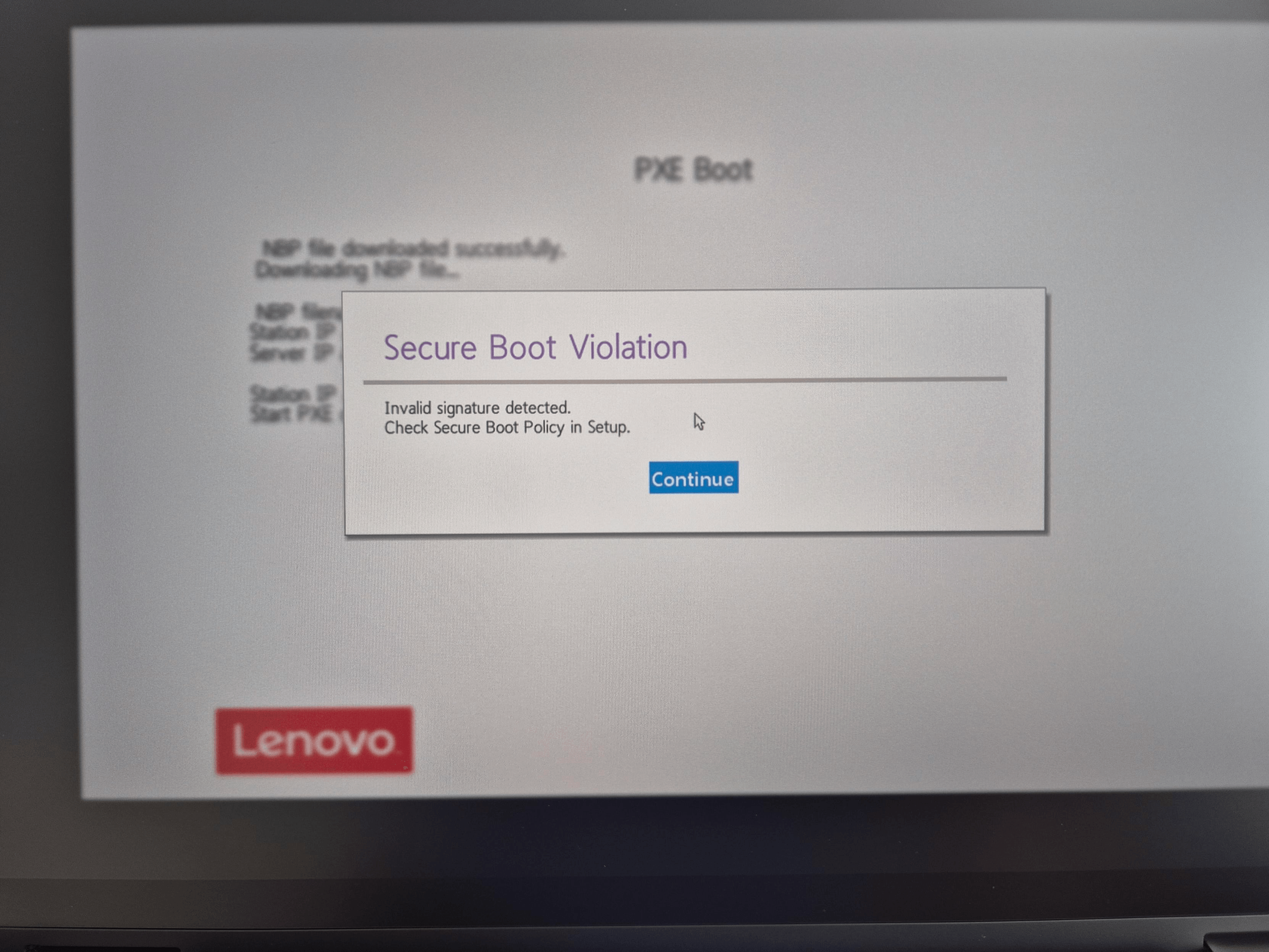
Update the boot file to the one from the current Windows ADK:
- Download the Windows ADK and the Windows PE add-on from Download and install the Windows ADK.
- Uninstall the old Windows ADK.
- Install the new Windows ADK and the Windows PE add-on.
- Copy
C:\Program Files (x86)\Windows Kits\10\Assessment and Deployment Kit\Windows Preinstallation Environment\amd64\Media\EFI\Boot\bootx64.efito\\ciBoot\Boot\efiboot\amd64on the CapaInstaller server. - Also add the copied
bootx64.efitoEFI.zipin the same folder.
Solution 3 - HP computers return to the BIOS during PXE boot
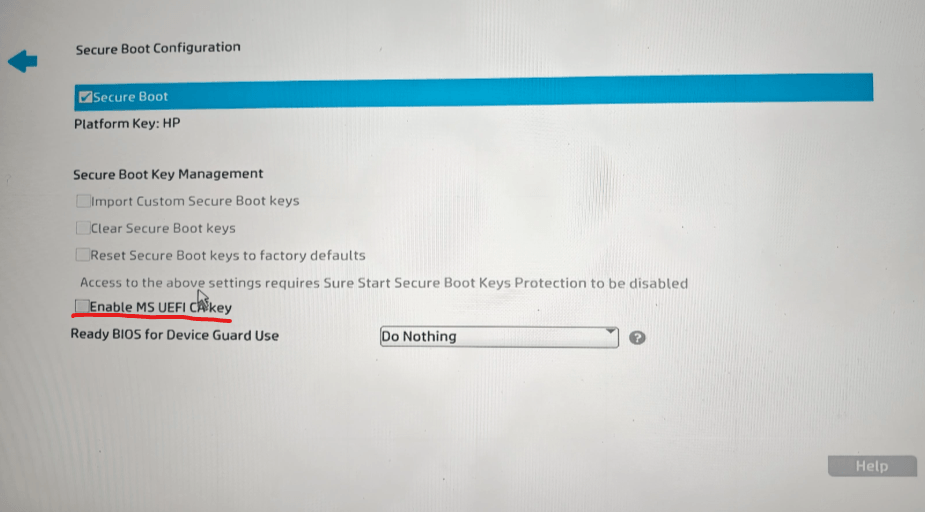
Section titled “Solution 3 - HP computers return to the BIOS during PXE boot”On newer HP laptops, if the Enable MS UEFI CA key option is turned off, the computer doesn’t accept Microsoft-signed boot files. The computer returns to the BIOS right after it gets an IP address during PXE boot.
- Open the BIOS setup.
- Go to Secure Boot Configuration.
- Make sure that Secure Boot and Enable MS UEFI CA key are both selected.
Solution 4 - Error when you create a new boot.wim on the CapaInstaller server
Section titled “Solution 4 - Error when you create a new boot.wim on the CapaInstaller server”If you get an error when you create a new boot.wim on the CapaInstaller server, create it from a Windows 11 client instead:
- Install the Windows ADK and the Windows PE add-on on a Windows 11 client.
- Install and open the CapaInstaller Console on the same client.
- Make a copy of the old
boot.wim. It’s in the ciboot share on the CapaInstaller server, for exampleD:\OSD\Boot\amd64. - If no drivers are shown in the boot image builder, run the registry files in Fix No Drivers shown in Build boot wim.zip. They restore the default Windows file association for
.infdriver files. - Create the new
boot.wimfrom the Windows 11 client.