

Work with assets
Introduction
Section titled “Introduction”Setting up the assets is done in the same way no matter which asset you want to customize. Assets consist of categories, entries, and values. You set them up in the Asset view, under the unit type (e.g. Computers and Devices) or under Software.
| Element | Description |
| Category | The root item in Custom is a category. A category can have multiple entries. |
| Entry | This can be one of many entries in a category and consists of a name and a data type, which can be a date, number, string, or text. An entry can have multiple values. |
| Value | This can be one of many values in an entry, and the will be of the data type specified by its entry. |
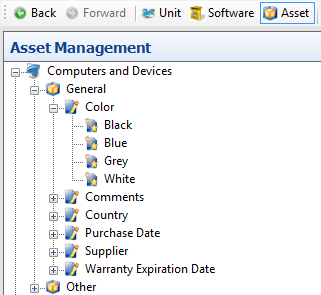
Example of a category named General with the entry Color, which has the following color values: Black, Blue, Grey, and White.
Related tasks
Section titled “Related tasks”| If you want to… | You can… |
| Create a new category | Right-click on a unit type or on Software and click Add category… 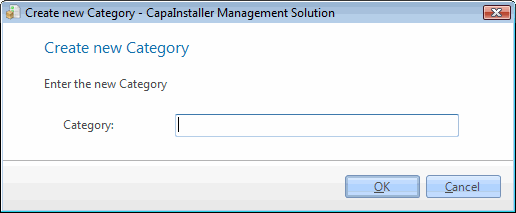 Enter the category name and click OK. Enter the category name and click OK. |
| Edit Category | Right-click on a Category and click the Edit category…. 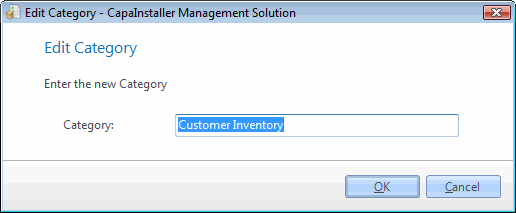 Type the new name and click OK. Type the new name and click OK. |
| Delete a category, entry, or value | Right-click on a category, entry, or value and click Delete. 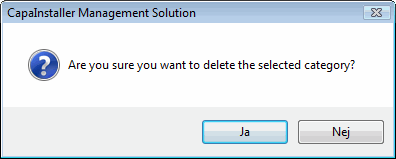 |
| Create entry | Right-click on a Category and click Add entry…. 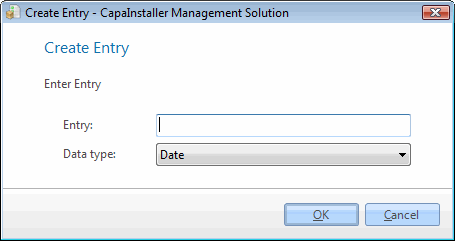 Enter entry name and data type and click OK. Enter entry name and data type and click OK. |
| Edit entry | Right-click on an entry and click Edit entry…. 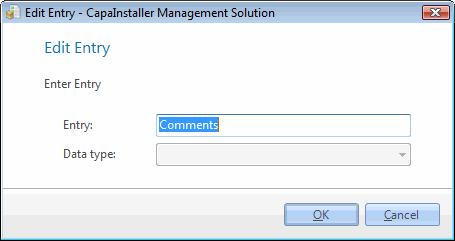 Enter your corrections and click OK. Enter your corrections and click OK. |
| Create new value | Right-click on an entry and select New value…. 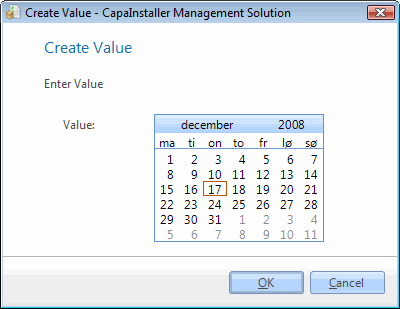 Or Or 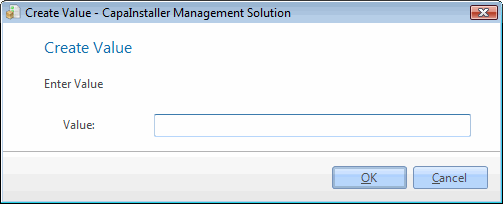 Specify the value and click OK. Specify the value and click OK. |
| Edit value | Right-click on a Value and click Edit value…, click OK after you have done the change. 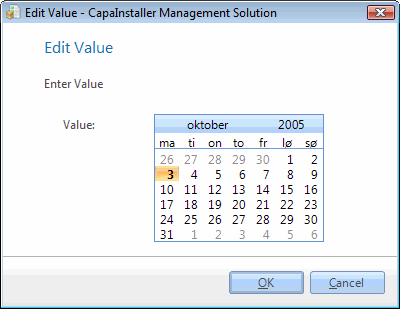 |
Assign a value to units or software
Section titled “Assign a value to units or software”When you select a value in the Asset view, the content view shows two tabs: Assigned lists the units or software that have the value, and Unassigned lists the rest.
| Step | Action |
| 1 | In the Asset view, select the value in the tree view. |
| 2 | Click the Unassigned tab. |
| 3 | Select one or more units or software, right-click, and click Assign unit. |
| 4 | Confirm. The units or software now appear on the Assigned tab. |
To remove the value again, select the units or software on the Assigned tab, right-click, and click Unassign device.
You can also set a value for a single unit or software on its Properties tab in the content view: right-click the entry and click Edit, or click Clear value to remove it.