

Management Portal Login and Re-install Errors
This page covers two errors in the CapaInstaller Management Portal.
Re-install is not configured
Section titled “Re-install is not configured”Problem
Section titled “Problem”When a user selects re-install for a device in the Management Portal, the Confirm re-install OS dialog shows this message instead of the install types:
Re-install is not configured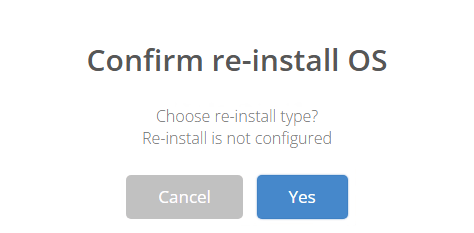
Solution
Section titled “Solution”Promote the point configuration from the parent OS Deployment point to its child points:
-
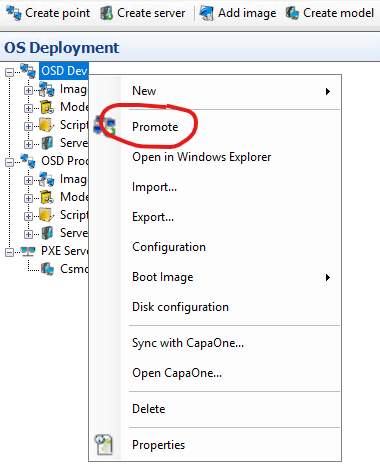
In the CapaInstaller Console, go to OS Deployment. Right-click the parent OS Deployment point, for example your Dev point, and select Promote.
-
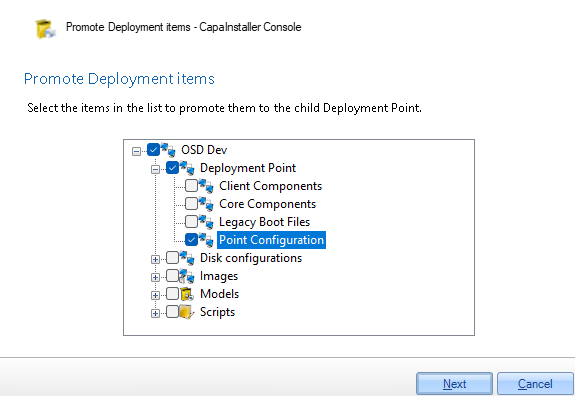
In Promote Deployment items, expand Deployment Point and select Point Configuration. Select Next and complete the wizard.
-
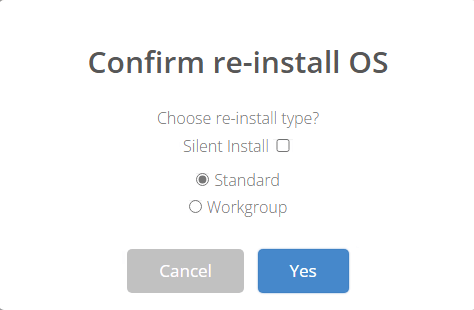
Sign out of the Management Portal and sign in again. Select re-install for the device again.
The dialog now shows the install types that you can select.
Unable to load DLL ‘fast-aes.dll’
Section titled “Unable to load DLL ‘fast-aes.dll’”Problem
Section titled “Problem”When you sign in to the Management Portal, this error appears:
Unable to load DLL 'fast-aes.dll': Access is denied. (Exception from HRESULT: 0x80070005 (E_ACCESSDENIED))When the Management Portal starts, it writes fast-aes.dll to a folder in the Windows temp folder. The error occurs when the portal can’t overwrite the file that is already there.
Solution
Section titled “Solution”-
On the Management Portal server, open File Explorer and go to
C:\Windows\Temp\fast-aes-64-w3wp. -
Delete all the files in the folder.
-
Open Internet Information Services (IIS) Manager. Select the website that hosts the Management Portal, usually Default Web Site, and select Restart.

-
Sign in to the Management Portal again.
You can sign in without the error.