

Scheduling in Configuration Management
There are a number of operations in Configuration Management that can be scheduled, below is a description of how to manage the different scheduling options
By default, the CapaInstaller Client will run all day, every day, following the schedule established when it was deployed. However, you may wish to configure some or all client computers with a limited range of days and/or times during which the client should run. There are several reasons why you might do this, including:
-
To help ensure that users are not interrupted during business hours.
-
To limit the network traffic generated by software installations to off-peak hours
-
To stage larger deployments, by running schedules that spreads out the network traffic generated by CapaInstaller.
The calendar groups feature of the CapaInstaller Console enables you to establish one or more schedules and to assign computer units to each of them, just as you would with other types of static groups. When a computer belongs to a calendar group, it will only run its CapaInstaller client during the days and times established by that group. During these “on periods,” the client will follow the schedule defined for the CapaInstaller Management server
Package Scheduling
Section titled “Package Scheduling”The schedule of a package determines when the package is allowed to run on clients. Without a schedule, a package will not run.
How to manage package schedules...
Creating a package schedule
Section titled “ Creating a package schedule”How to create or update a schedule...
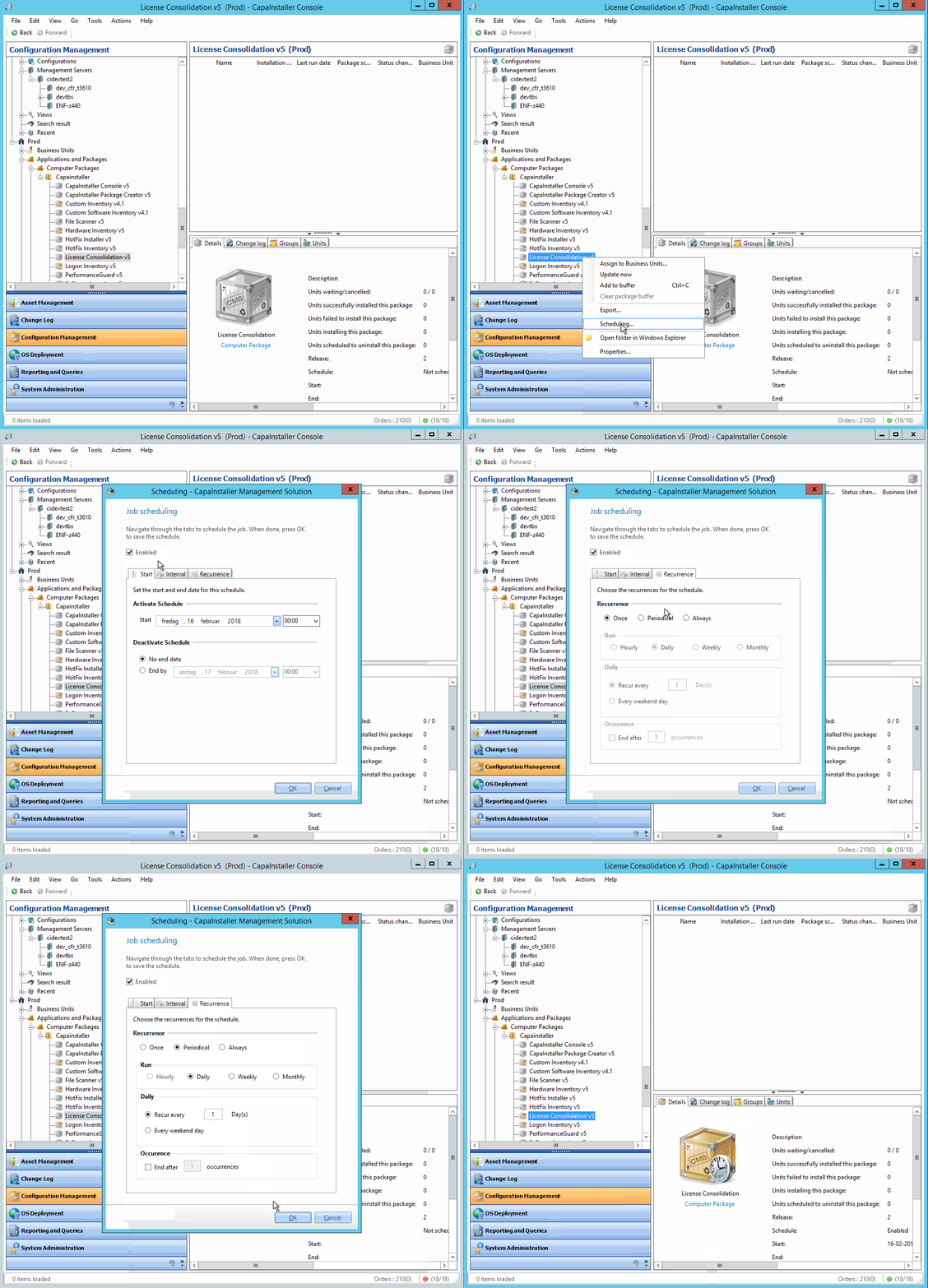
Activating a schedule
Section titled “Activating a schedule”How to activate and configure a schedule...
-
Right-click and select Schedule.
-
Check or uncheck the Enabled checkbox.
-
Click OK.
-
Select the date and time where this schedule will take effect.
The start time defaults to the last time a change was made to the schedule. -
Optionally select a date and time where the schedule will expire.
By default, the schedule will never expire.
Setting an Interval
Section titled “Setting an Interval”How to set up an time interval for execution...
Execution times can be restricted by configuring an interval. The interval is the period in time each day in which the schedule will be active.
- Input a start time and an end time for the period each day where the scheduled object will be allowed to run
- Optionally input a duration for each day where the schedule will be active. The values will adjust automatically to the correct interval time.
Setting a schedule Recurrence
Section titled “Setting a schedule Recurrence”Executions can be configured to repeat at a certain recurring rate. Recurrences define when executions of the scheduled object will occur.
- Select a recurrence
- Once. The schedule will run once. This is the default setting. This would be typical for the installation of a software package.
- Periodical. The schedule will run periodically. The periods that can be configured are Hourly, Daily, Weekly, and Monthly.
If Daily is selected, configure a number of days between executions by Recur everyday(s)
-
- Always. This schedule will run every time an agent run is triggered. Typically used to keep critical inventory information updated.
- Optionally check End after occurences and input after how many runs the execution should stop.
Computer Scheduling
Section titled “Computer Scheduling”A computer can be scheduled to be reinstalled on two general types of schedules: The next time the agent runs or on a custom schedule.
How to work with computer schedules...
Create a reinstall Schedule
Section titled “Create a reinstall Schedule”How to create a custom schedule for a reinstall...
- Right-click on a Computer
- Select Reinstall
- In the Schedule type, dropdown menu Select Custom Schedule
- Fill out the tabs according to the schedule you want to set. Refer to Scheduling to see the description of the tabs.
- The Schedule can be disabled or enabled by checking or unchecking the Enabled checkbox
- Click OK.
| Introduction | The following is a description of how the schedule is used in the configuration of reinstalling a single Computer. |
Create the schedule
| Step | Action |
| 1 | Right-click a computer, click Reinstall. |
| 2 | Select the Custom Schedule. 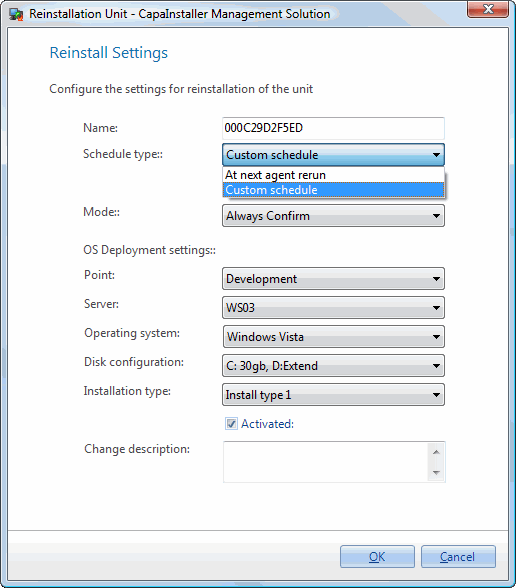 |
| 3 | Select the rest of the settings, click OK. 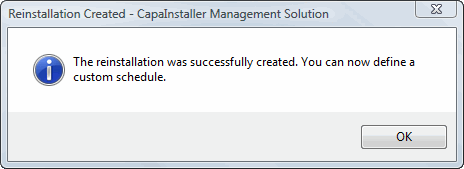 |
| 4 | The Schedule window opens and you can define when the reinstall will occur. |
Edit the schedule
| Step | Action |
| 1 | Right-click a computer, click Reinstall. |
| 2 | Click Edit Schedule. 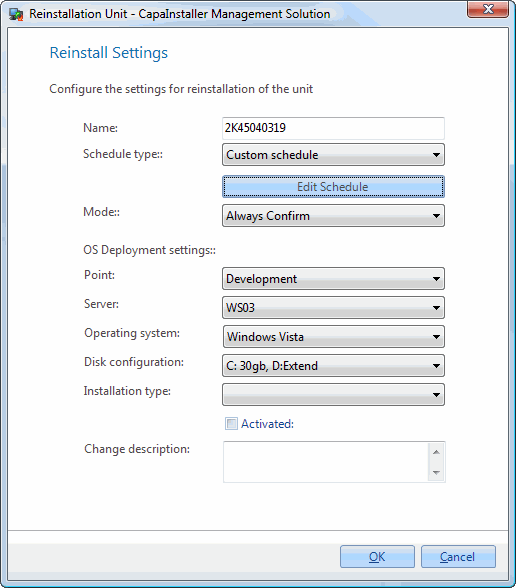 |
| 3 | The Schedule window opens and you can define when the reinstall will occur. |
Group scheduling
Section titled “Group scheduling”The schedule of a group has different purposes depending on the type of the group. Three types of group scheduling is possible: General Calendar Scheduling, Reinstall scheduling and Wake-on LAN scheduling.
How to manage group schedules...
Wake on LAN schedule
Section titled “Wake on LAN schedule”You can schedule a Wake-on-lan on computer groups. This will send a Wake On LAN request to the computers linked to the groups at the scheduled time
Scheduling Wake on LAN on a computer group...
- Right-click on a computer group of one of the following types: Static, Department, AD or Dynamic
- Select Schedule WOL.
- Fill out the tabs according to the schedule you want to set. Refer to Scheduling to see the description of the tabs.
- The Schedule can be disabled or enabled by checking or unchecking the Enabled checkbox
- Click OK.
Schedule a Calendar or Reinstall group
Section titled “Schedule a Calendar or Reinstall group”The schedule settings establish the permitted run times for the agent on computers that belong to the group. Outside this installation window, the agent will not run.
Scheduling agent run or reinstalls...
- Right-click on a Calendar or Reinstall group
- Select Schedule
- Fill out the tabs according to the schedule you want to set. Refer to Scheduling to see the description of the tabs.
- The Schedule can be disabled or enabled by checking or unchecking the Enabled checkbox
- Click OK.