

Changelog advanced search
Changelog advanced search lets you specify the changelog search more precisely. For example, you can search for a specific user name within a specific time frame.
-
To open Changelog Advanced Search, click Advanced… above the grid view in the changelog.

-
Enter your search criteria, and then click Find. In all the text fields, you must insert the wildcard yourself. The wildcard can be
*or%. When the full-text index is used, you can only use a wildcard at the end of a word, and you must include the start of the word.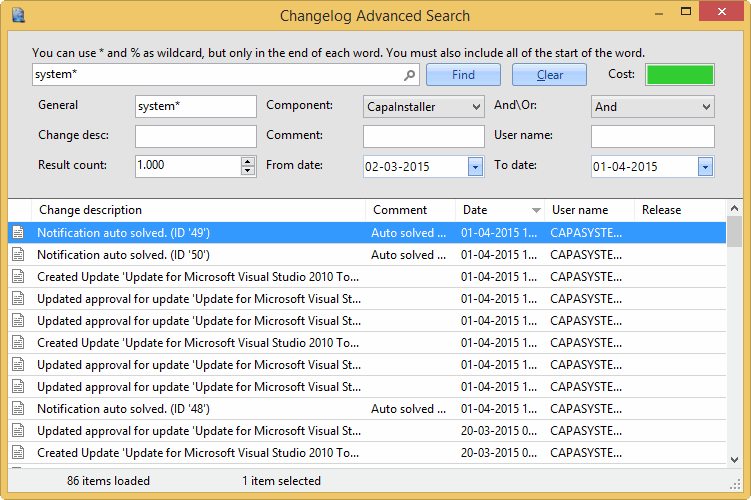
To start over, click Clear.
Search without a full-text index
Section titled “Search without a full-text index”If the full-text index isn’t enabled, the advanced search has these limits:
- You can only search change log items from the last year.
- If the change log contains more than 10 million records, the advanced search is unavailable. You must enable the full-text index to search.
The advanced search panel
Section titled “The advanced search panel”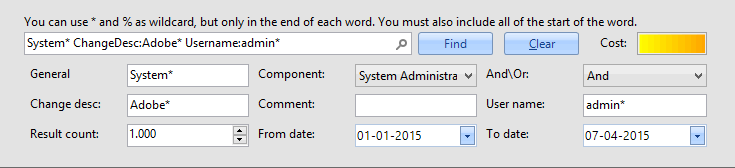
| Element | Description |
|---|---|
| Cost | Shows how long the current changelog search is likely to take. The color goes from green, yellow, and orange to dark red. Lower the cost by selecting a low result count and a narrow from and to date. |
| General | Enter your search string here to search in the change description, the comment, and the user name at the same time. If the search string is found in one of the columns, the row is returned. |
| Component | Select which component’s changelog you want to search in: CapaInstaller, OS Deployment, Patch Management, Asset Management, Reporting and Queries, Configuration Management, System Administration, or Setup Wizard. |
| And\Or | If you select And, the strings in Change desc, Comment, and User name must all exist in the record for the record to be returned. If you select Or, only one of the strings must be found. |
| Change desc | Enter your search string here to search only in the change description. |
| Comment | Enter your search string here to search only in the comment. |
| User name | Enter your search string here to search only in the user name. |
| Result count | Select the maximum number of rows returned, up to 10,000. The default is 1000. A lower number of rows is faster to load. |
| From date and To date | Select a from and to date to narrow down the number of changelog records in the search result. If no from or to date is selected, all the changelog records are returned. |