

CapaInstaller Agent Service Won't Start with FIPS Enabled
Problem
Section titled “Problem”FIPS (Federal Information Processing Standards) mode is enabled on the computer, and the CapaInstaller Agent Service doesn’t stay running. In Event Viewer → Windows Logs → System, the Service Control Manager logs event 7034:
The CapaInstaller Agent Service service terminated unexpectedly.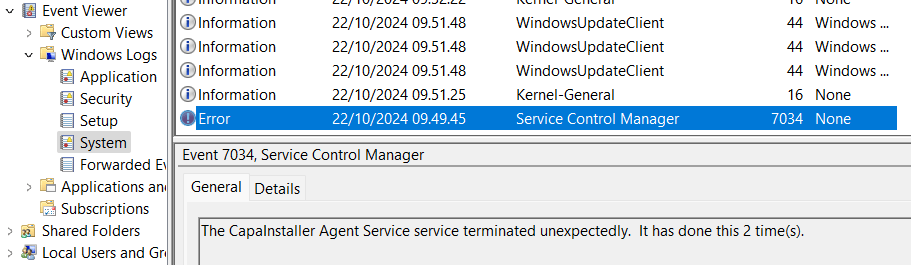
Agent versions earlier than CapaInstaller 6.7.108 let the .NET runtime enforce the FIPS policy for the agent service. The service then fails to start, even though it doesn’t need that check. CapaInstaller 6.7.108 fixed this: the agent service no longer requires the FIPS check. See the CapaInstaller changelog.
Solution 1 - Update the agent
Section titled “Solution 1 - Update the agent”Update CapaInstaller and the CapaInstaller agent to version 6.7.108 or later. The updated agent service starts on computers with FIPS mode enabled. You don’t need to change FIPS mode on the computer.
Solution 2 - Change the service configuration on older agents
Section titled “Solution 2 - Change the service configuration on older agents”If you can’t update the agent yet, make the same configuration change by hand on the affected computer:
-
Open
C:\Program Files\CapaInstaller\Services\Cistub\cistub.exe.configin a text editor that runs as administrator. -
In the
<runtime>section, add this line exactly as shown:<enforceFIPSPolicy enabled="false"/>
-
Save the file.
-
Restart the CapaInstaller Agent Service.
The service starts. This setting only applies to the agent service. FIPS mode stays enabled for Windows and all other applications on the computer.