

Patch Management Service settings
You change the settings of the CapaInstaller Patch Management Service from the System Administration plug-in. The service properties have the tabs General, Dependencies, Database, and WSUS.
Synchronization schedule
Section titled “Synchronization schedule”The Patch Management Service runs a synchronization cycle every 10 minutes:
- Every cycle — computers are synchronized. Computers are assigned to groups according to query based membership and the automatic computer assignment in Patch Management options.
- Every 12 hours — a full synchronization runs. It synchronizes the WSUS settings, categories and classifications, and updates from the WSUS server, and then applies the approval rules.
To start a full synchronization before the 12 hours have passed, click Sync updates in the Patch Management plug-in. The task starts within 10 minutes and normally takes 15–30 minutes to complete.
General
Section titled “General”This tab resembles the property page for the service in Windows Services.
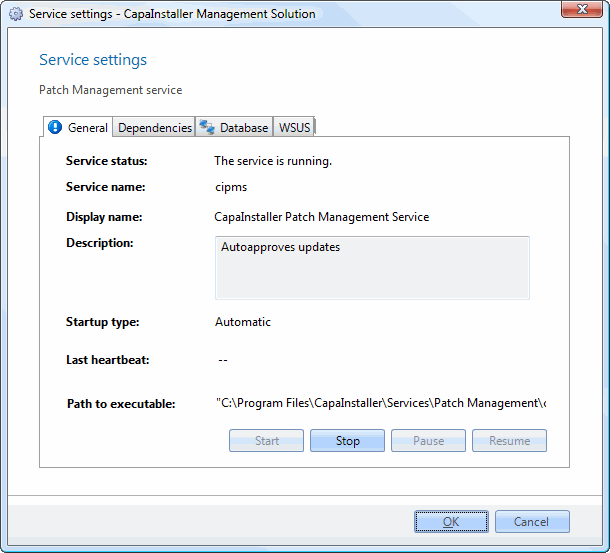
| Element | Description |
|---|---|
| Service status | Status of the Patch Management Service, as in Windows Services. |
| Service name | The name of the service used by the operating system: cipms. |
| Display name | The name shown in Windows Services: CapaInstaller Patch Management Service. |
| Description | Description of the service. |
| Startup type | Automatic, manual, or disabled. The default is automatic (delayed start). |
| Last heartbeat | Timestamp of the last Patch Management Service activity. |
| Path to executable | The full path to the program that the service starts. |
Dependencies
Section titled “Dependencies”On this tab, you can view and set the services that must be running before the Patch Management Service can start. For example, you could require a VPN client service that establishes the network connection.
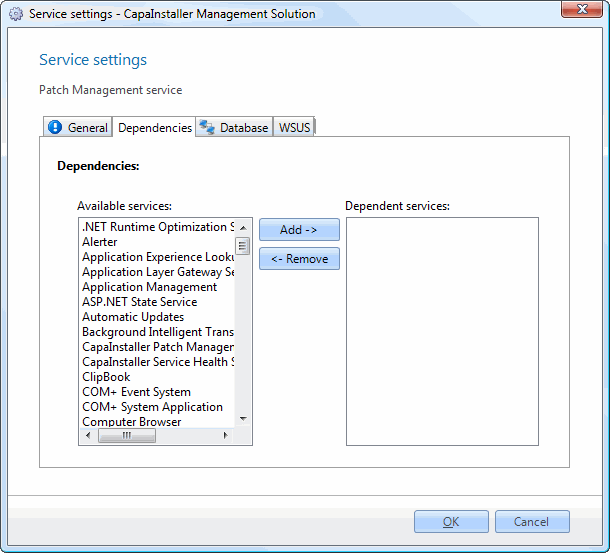
| Element | Description |
|---|---|
| Available services | A list of services available on the computer. |
| Add -> | Moves the selected service from Available services to Dependent services. |
| <- Remove | Moves the selected service from Dependent services back to Available services. |
| Dependent services | The services that must run before the operating system allows the CapaInstaller Patch Management Service to start. |
Database
Section titled “Database”On this tab, you can change the authentication method the service uses to connect to the SQL server.
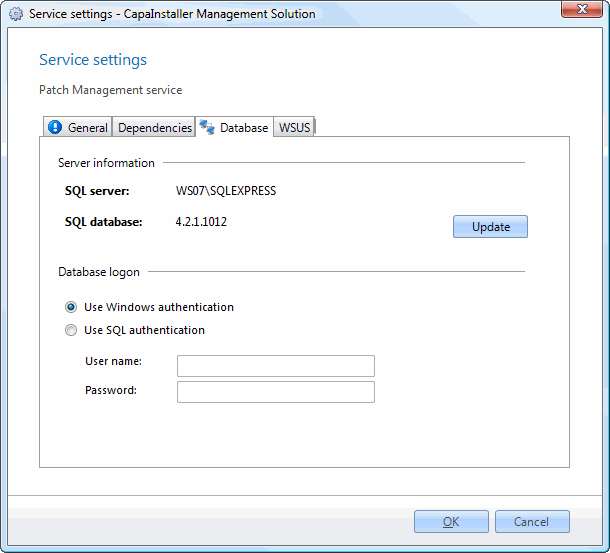
| Element | Description |
|---|---|
| SQL server | The SQL server that the CapaInstaller Patch Management Service connects to. |
| SQL database | The SQL database that holds the CapaInstaller database. |
| Update | Updates the service configuration with the selected database settings. |
| Use Windows authentication | The service connects to the database with the computer account. |
| Use SQL authentication | The service connects to the database with the credentials in the user name and password fields. |
| User name | The user name used to connect to the database when SQL authentication is selected. |
| Password | The password for the user name. |
On this tab, you set the addresses of the WSUS server. Changes to these settings restart the service.
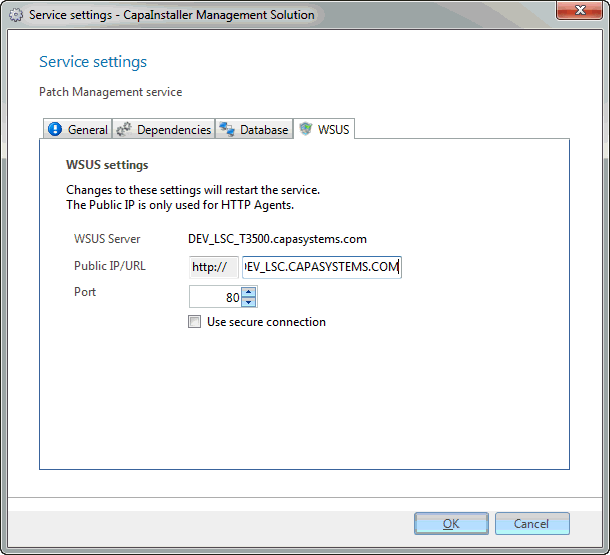
| Element | Description |
|---|---|
| Internal URL | The URL of the WSUS server on the internal network, including the port, for example http://wsus01.example.local:8530. The Patch Management Service connects to WSUS on this address, and agents on the internal network use it. Use https:// if WSUS is configured for SSL. WSUS 4.0 and later use port 8530 (HTTP) and 8531 (HTTPS) by default; earlier versions use port 80. |
| Public URL | The address that agents outside the internal network use to reach WSUS, for example https://wsus.example.com. If you omit the port, port 80 is used for http and port 443 for https. |
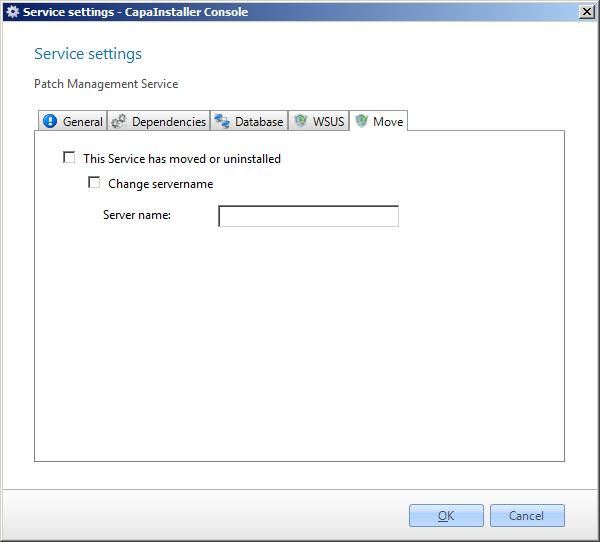
On this tab, you can indicate that the service has been moved. The service then checks whether each point and group exists on the WSUS server and re-creates the missing ones. After that, the update approval status from the database is synchronized to the WSUS server.
If the service has been moved to another server, change the server name.
Buttons
Section titled “Buttons”| Element | Description |
|---|---|
| OK | Saves your changes and closes the dialog. |
| Cancel | Discards your changes and closes the dialog. |
Related tasks
Section titled “Related tasks”- Deploy Patch Management Service - Install a Patch Management Service.
- Remove Patch Management Service - Remove the service, with or without its log files.