

Check Application Group License
Use the license check to validate application group licenses per department, and to get an overall status of registered and used licenses.
-
Select the Reporting and Queries plugin.
-
On the toolbar, select Software.

-
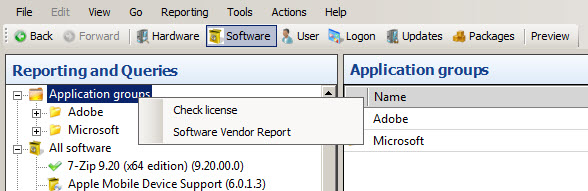
In the tree view, right-click Application groups.
-
Select Check license. You can also select Application groups and then select Actions → Check license.
The content view shows the number of licenses, the number of used licenses, and the compliance for each application group.
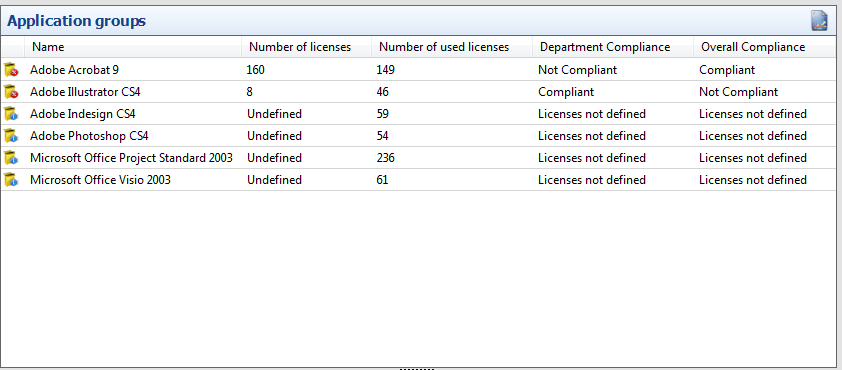
Number of licenses shows Undefined if no licenses are registered for the application group.
Department Compliance
Section titled “Department Compliance”| Status | Description |
|---|---|
| Compliant | All departments with registered licenses use no more licenses than registered. |
| Not Compliant | One or more departments use more licenses than registered. |
| Licenses not defined | No licenses are registered for any department. |
Overall Compliance
Section titled “Overall Compliance”The overall check is based on all the registered and used licenses, including the licenses for the departments. The warning limit is set in Reporting and Queries options.
| Status | Description |
|---|---|
| Compliant | The number of available licenses (registered minus used) is higher than the warning limit. |
| Not Compliant warning | The number of available licenses is between zero and the warning limit. |
| Not Compliant | More licenses are used than registered. |
| Licenses not defined | No licenses are registered, but the software is in use. |
Related tasks
Section titled “Related tasks”| If you want to… | You can… |
|---|---|
| Work with application groups | Work with application groups |
| Create a new application group | Create an application group to see how. |
| Work with an application group license | Work with application group license to see how. |
| Set the software license warning | Reporting and Queries options |
| Process a software group | Process Software Group |