

Android agent 2.0
This document describes the Android Agent implemented in CapaInstaller 5.7.100 and above

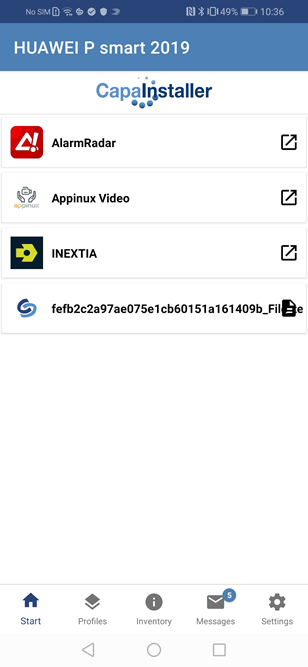
It is a shortcut to go into the apps or profiles you have installed from the CapaInstaller Console.
Profiles
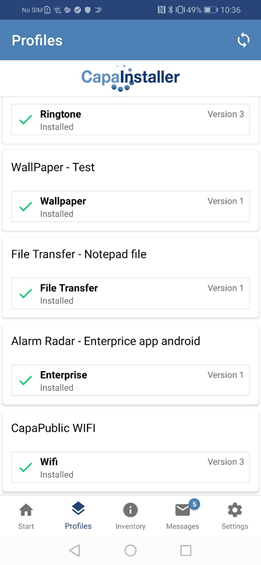
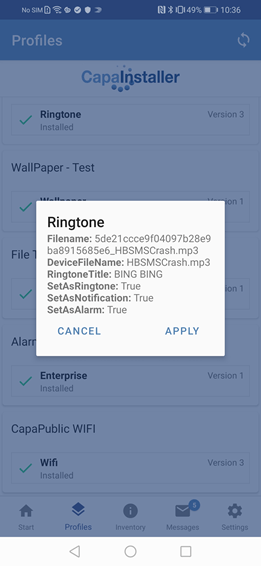
Section titled “Profiles”Here can you see all the profiles you have pasted to the device On the top right corner, you can refresh, and if you click on one of the profiles or application, you have the opportunity to apply them.
Inventory
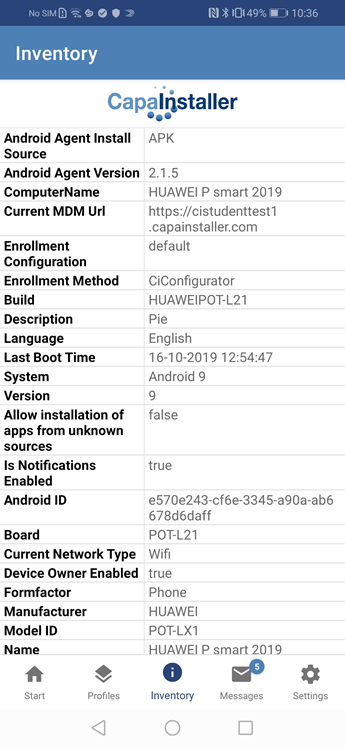
Section titled “Inventory”All the software inventory is written here.
Messages
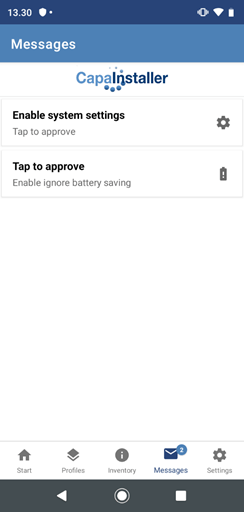
Section titled “Messages”There are two standard messages, we recommend you to enable them:
| Step | Action |
|---|---|
| Enable system settings | It is for wallpaper and for a ringtone. If you don’t enable it, you can’t put ringtones and wallpaper on your device. |
| Ignore battery optimization | This is to prevent our app from being in power safe mode. |
Settings
Section titled “Settings”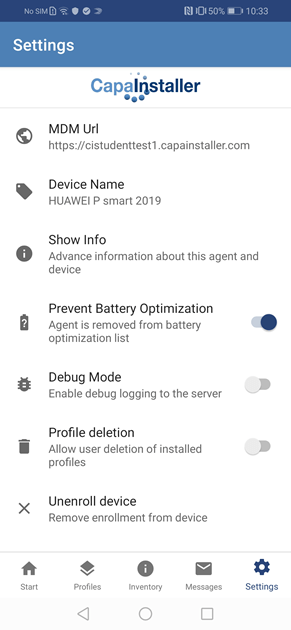
| Step | Action |
|---|---|
| MDM URL: | Shows your MDM URL. |
| Device Name: | Shows the name of your device. |
| Show info: | Shows some information about the device. E.g. version number, package name, build type, etc… |
| Prevent Battery Optimization: | This is to prevent our app from being in power safe mode. WARNING: Battery optimization can only be enabled from device settings. |
| Restart On Error: | Restarts the agent automatically if an application error occurs. |
| Debug mode: | It starts logging more data to the backend server. |
| Profile deletion: | Allow user deletion of installed profiles. The user must enter the passcode set in Enterprise Profile Removal Passcode in the Agent Configuration Payload. |
| Unenroll device: | This feature removes the enrollment from your device. The user must enter the passcode set in Enterprise Profile Removal Passcode in the Agent Configuration Payload. |
| Enable Samsung Knox licence: | Shown on Samsung devices. Activates the Samsung Knox licence on the device. Warning: the licence can only be deactivated by resetting the device to factory settings. |
| Android Enterprise Account: | Shows the Android Enterprise account linked to the device, if any. |
Upgrade the agent
Section titled “Upgrade the agent”| Step | Action |
|---|---|
| 1 | Download the new agent APK. |
| 2 | Make an enterprise app with the new agent APK. |
| 3 | Put the new enterprise app on the device you want to upgrade the agent in. |
| 4 | Verify the agent has been upgraded. |