Deployment
The Distribution Server (DS) can be deployed to any Base Agent (BA) running version 5.8 or above. All management of the DS is done in the System plugin of the CapaInstaller Console
To deploy a DS, go to the System Plugin and under the Management Points, right-click the Management Server under which the DS should be located and select Deploy Server.
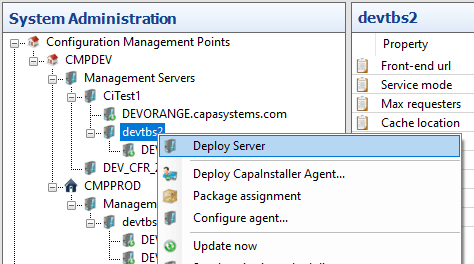
Then select Deploy Distribution Server to a Windows based computer/server.
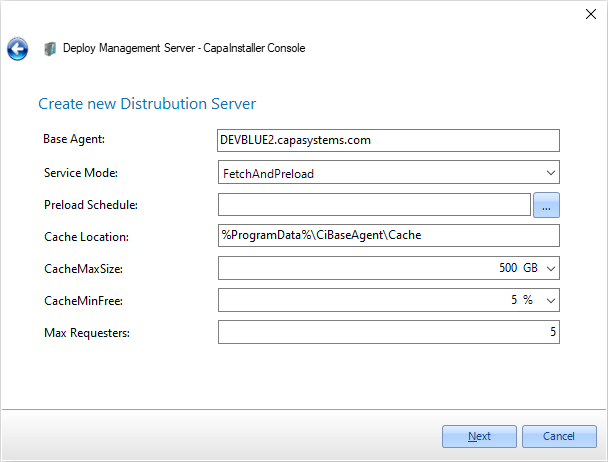
In the Base Agent field, type in the name of an existing Base Agent that is linked to a Management Server on the same physical server. It does not have to be located in the same Management Point as the Management Server under which the new DS is about to be deployed.
Select the Service mode that fits your requirements (see Distribution Server (BAADS) for a description of the modes).
If you selected either ‘FetchAndPreload’ or ‘Preload’, you can set a preloaded schedule, but it is not required.
Enter a (or keep the proposed) Cache location.
Select the maximum size for the cache. You can switch to relative size, by clicking ‘GB’ and selecting ‘%’. The same goes for the Minimum size to keep free on the disk.
Finally, select the maximum concurrent requesters, and click ‘Next’.
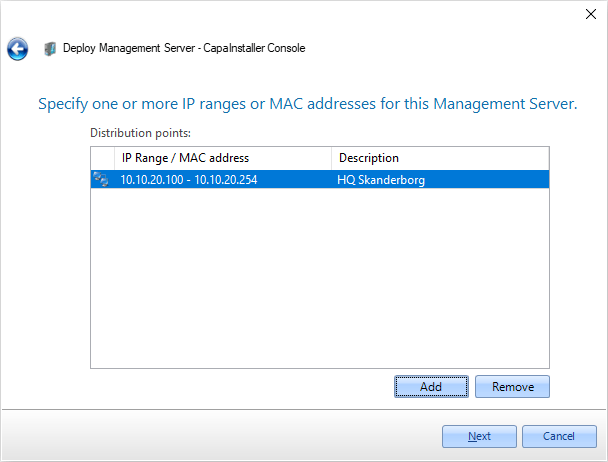
Then enter one or more IP ranges/MAC addresses to determine which client computers you want to connect to this particular Distribution Server, and click Next.
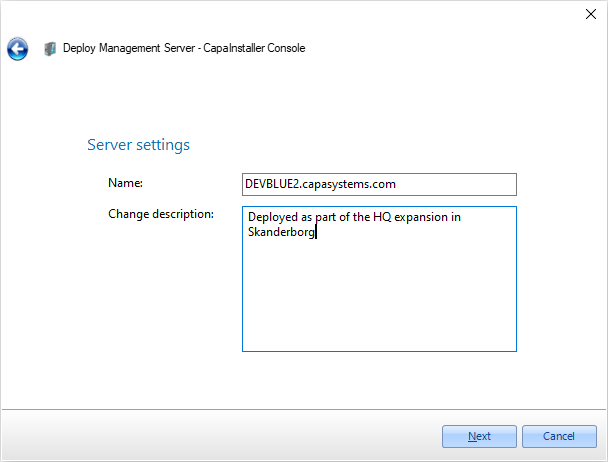
Name the server, enter a Change description, and click Next.
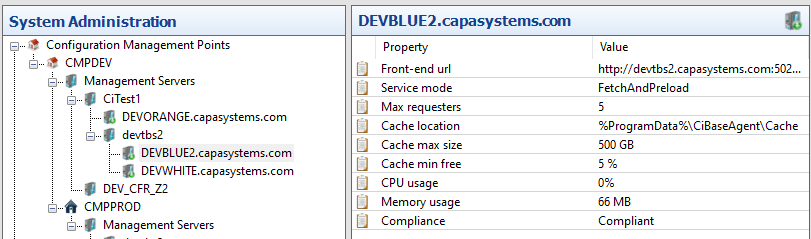
Then click the newly deployed Distribution Server. In the Listview to the right, you can see how much CPU and memory that the DS is using. The values are updated every 10 seconds (every 2 seconds while preloading).