

FEStatus - A real time view
What is FEStatus
Section titled “What is FEStatus”FEStatus is a small HTTP utility that can show you how all of your Front-end Services (FE) are doing by polling your service(s) directly by Http instead of relying on committed data in the SQL database.
Introduction
Section titled “Introduction”The Front-end Service is a complex service. In order to manage its own resources, the service maintains 40-50 variables that are used to adjust the behavior of the service.
These variables also play a major role in understanding the current state the Front-end service is in.
The variables are Service status, Overall utilization, CPU load, network bandwidth, memory usage, concurrent file transfers, number of connected computers/devices/users, requests per second, etc.
As the need to display the variables for e.g. support trouble-shooting became clear, a requirement for an external tool arose.
The FEStatus is a small utility that shows most of the performance variables of any of the Front-end services in the installation. Each FE is by default polled every 1, 3, or 10 seconds and all the variables are shown in detail. Besides the status variables, the current configuration of the service is shown and updated every 10 seconds.
FEStatus is a viewing tool only. It is not possible to change settings or behavior of the Front-end Service.
How to install FEStatus
Section titled “How to install FEStatus”Before you install FEStatus, set an HTTP password on the service with the /httppassword command-line argument. See Front-end Service.
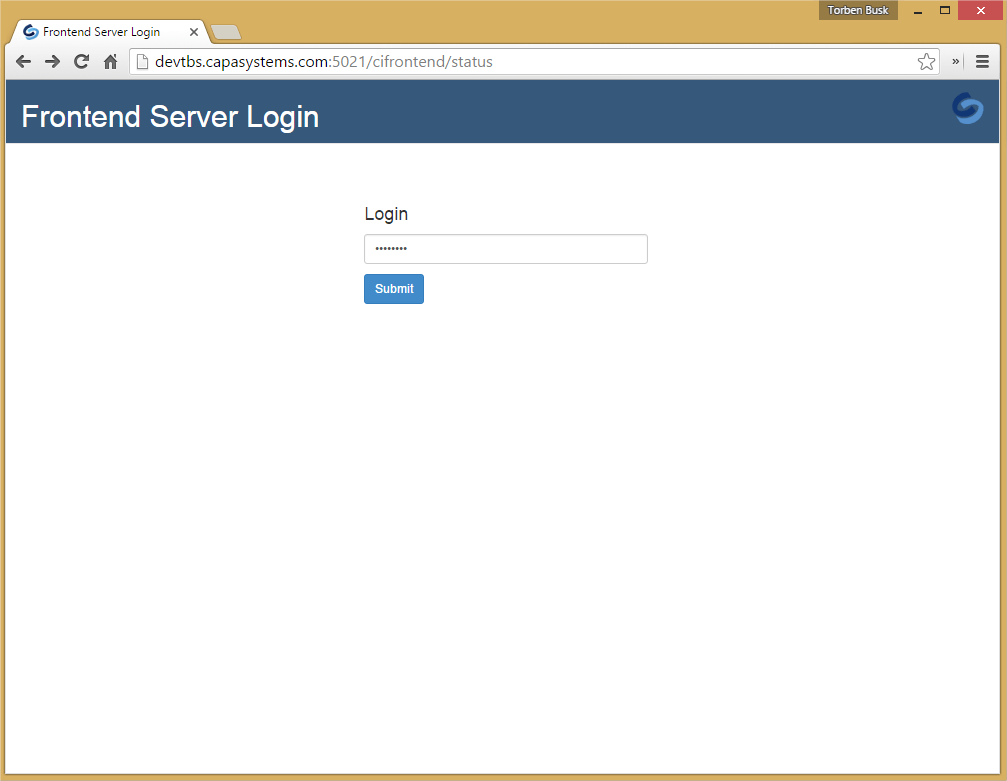
To install FEStatus.exe on a computer, open a browser and go to http://<server>:<port>/cifrontend/status. Sign in with the HTTP password of the service.
When you enter the correct password, this page opens:
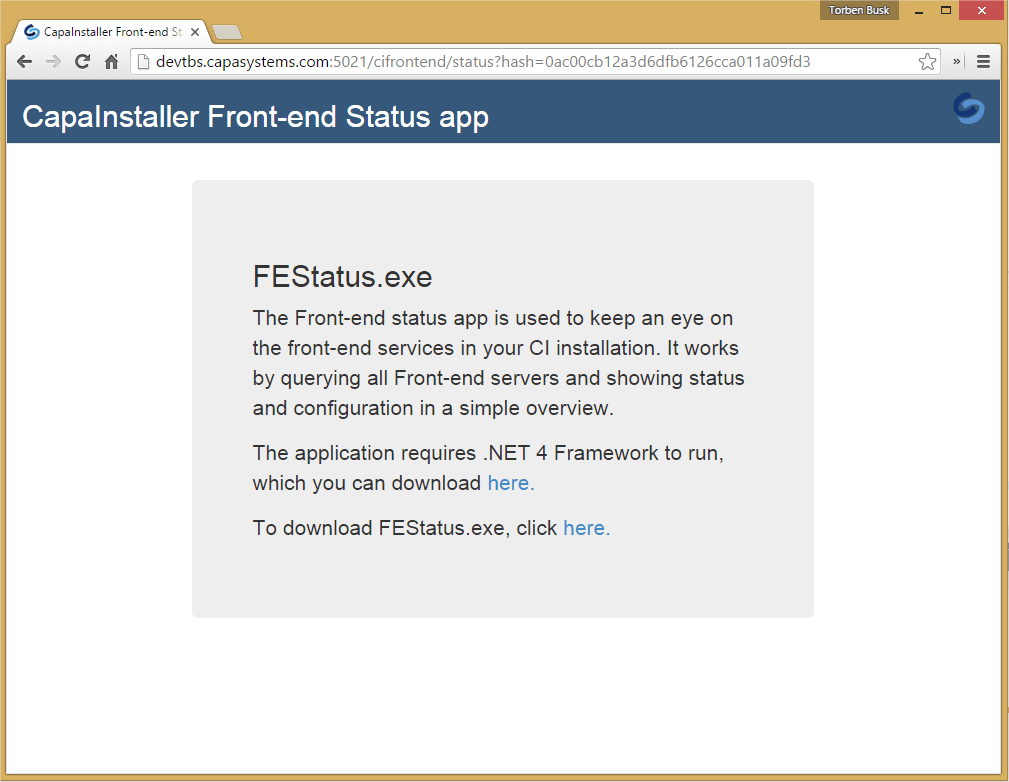
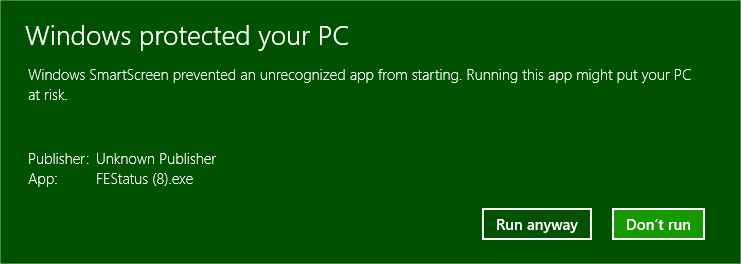
FEStatus requires Microsoft .NET Framework 4.6.2. Download FEStatus and start it. Windows can show this warning:
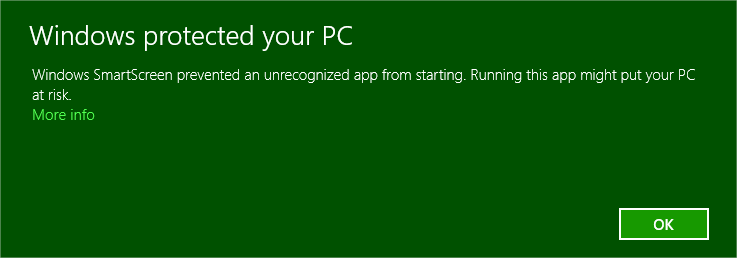
To run FEStatus anyway, click More info and Run anyway.
The first time you start FEStatus, you are greeted with a welcome dialog that explains the purpose of the utility and how the navigation works. It is a series of four pages that seek to inform/educate you in the use of FEStatus. It looks like this;
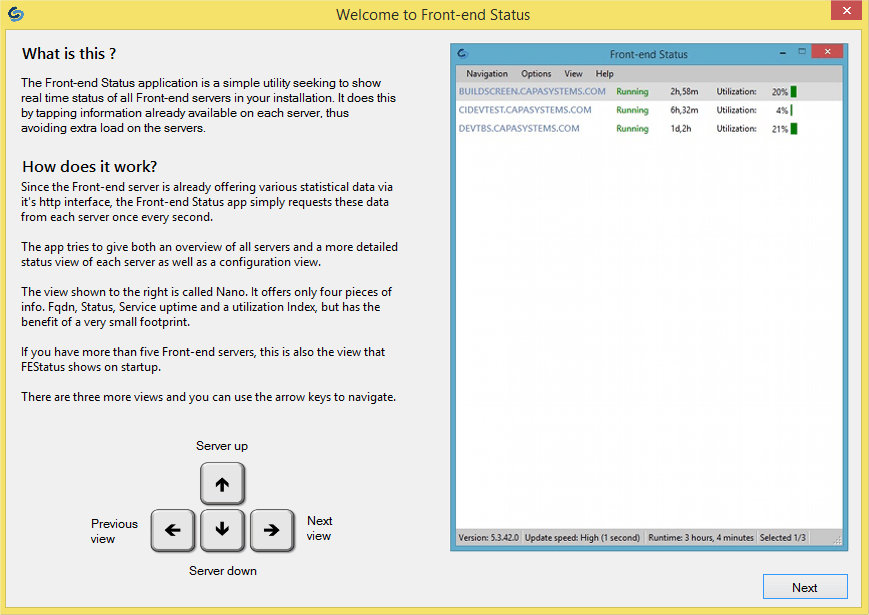
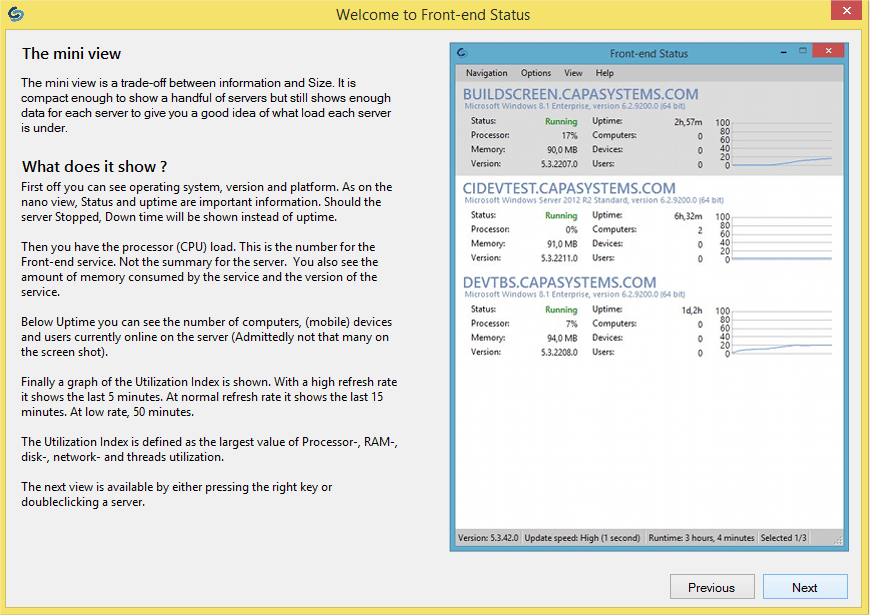
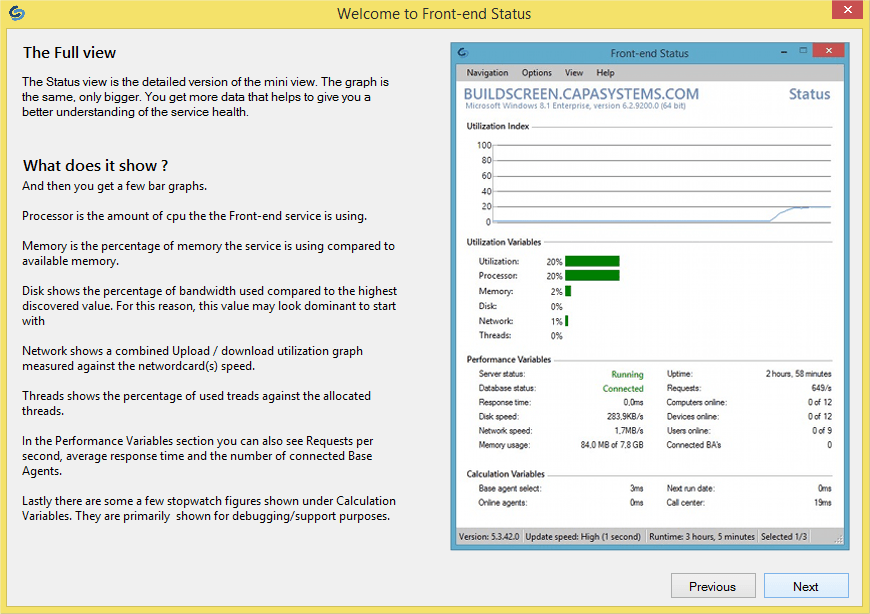
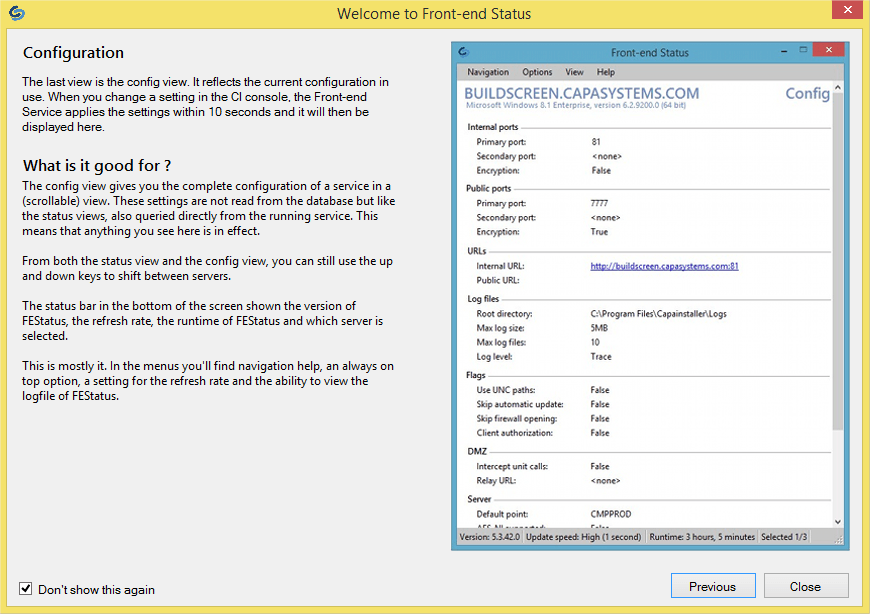
The dialog is also available for later reference in the Help menu: Show ‘Welcome Instructions’ F1.
Always on top
Section titled “Always on top”Since the Front-end service is always generating/refreshing these variables, they are handed out to all running instances of FEStatus from the cache. Thus it does not burden the performance of the FE if you are running FEStatus for an extended amount of time. Therefore it is designed to just sit there. Therefore, you can set it to be ‘Always on top’ by selecting it in the ‘Tools’ menu
Options
Section titled “Options”FEStatus has a few options that control the behavior of the program. To view or change the options Select ‘Options’ under the ‘Tools’ menu
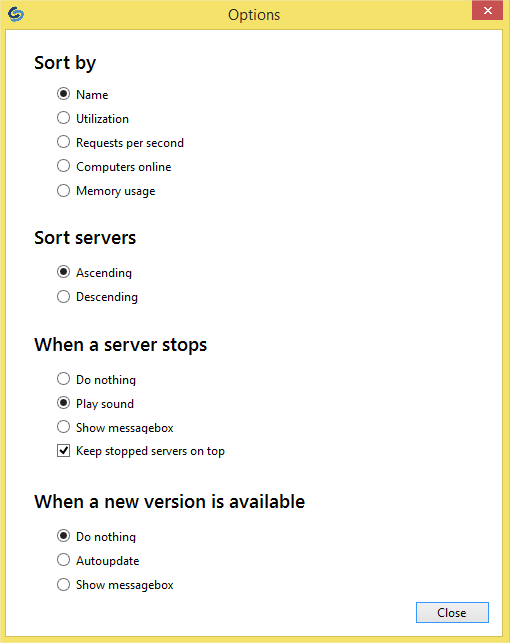
The first two options can be useful if you have more than one Front-end Service in your installation. It’s simply a sort of server.
When a Front-end service stops for whatever reason, you can have FEStatus do nothing, play a chime to get your attention, or show a message box to REALLY get your attention. On top of that, you can move the stopped Server to the top of the list. This is especially useful if you have more servers than you are showing in the active view.
FEstatus periodically checks each Front-end service to see, if a newer version is available. The default action is to show a message box like this;
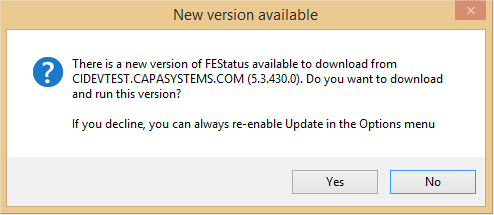
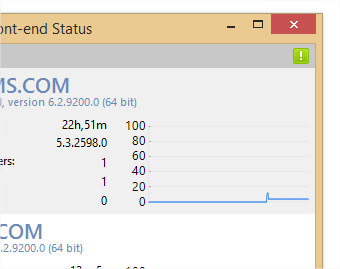
If you decline the message box or if you have set the ‘Do nothing’ option, a new version is indicated in the top-right corner of the application with a white exclamation mark in a green rectangle;
You can also set the utility to automatically update when a new version is found.
Refresh Rate
Section titled “Refresh Rate”The default setting polls the Front-end Service(s) every three seconds. This can be changed to 1, 3, or 10 seconds in the ‘View’ -> ‘Refresh Rate’ menu. Here, it is also possible to halt updates altogether.