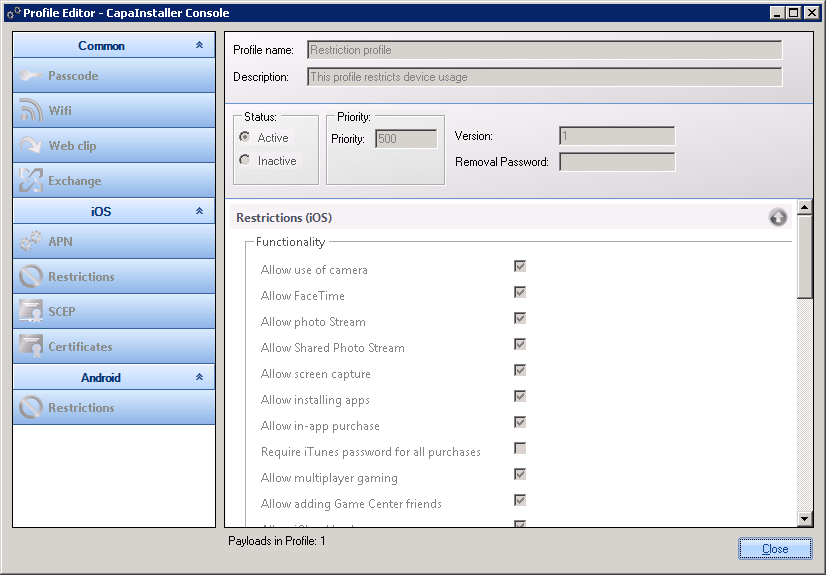
Profile Editor
In the Profile Editor, one or more Payloads can be configured, and saved in a Profile with a specified name and description. When the profile is assigned to a device, it and its payloads will be installed on that device. This could be WiFi settings or a web clip etc.
For specific configuration guidelines for individual payloads see: Profiles
Create a profile
Section titled “Create a profile”In order to open the editor and create a new profile follow the steps below

How to create a profile...
- Expand a root Configuration Management Point
- Right-click on Profiles
- Select Create Profile
- Specify a name for the profile and a description
- Select and configure a profile from the available payloads in the right toolbar
User and Device Variables
Section titled “User and Device Variables”It is possible to enter user variables and device variables in profiles instead of hardcoded values.
Variables supported in profiles...
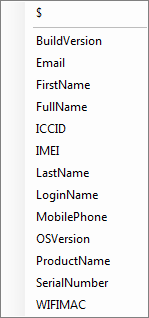
| $Email$ will use the email of the primary user of a device, retrieved from active directory. The full list of supported variables will be shown if ‘$’ is entered in any of the payload input controls and will be inserted at the cursor’s location by selecting one in the list. |
 |
The following variables are available:
| Type | Variables |
|---|---|
| User (primary user of the device) | $Email$, $FirstName$, $LastName$, $FullName$, $LoginName$, $UserPrincipalName$, $MobilePhone$ |
| Device | $SerialNumber$, $IMEI$, $ICCID$, $WIFIMAC$, $ProductName$, $OSVersion$, $BuildVersion$ |
Edit or View Profile
Section titled “Edit or View Profile”In order to open the Profile editor and edit/view an existing Profile
How to edit or view a Profile...
- Right-click on the Profile in the root Configuration Management Point (CMP), and select Edit