

Delete Report
Keep the list of reports relevant by deleting the reports and dynamic groups you no longer use.
-
In the Reporting and Queries plugin, select File → Delete…, or press Ctrl+D.
-
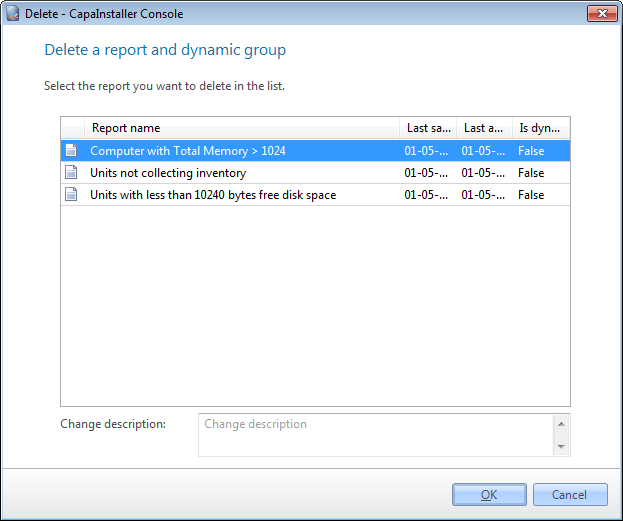
Select the report or dynamic group you want to delete. You can enter a Change description.
-
Select Delete.
-
Select Yes to confirm. If the report is the one that is open, you’re asked to confirm again.
The report is deleted from the database. Reports that you have deployed to Reporting Services aren’t deleted. To delete them, go to Manage reporting services.
Related tasks
Section titled “Related tasks”| If you want to… | You can… |
|---|---|
| Create a custom made report | Create a report to see how. |
| Preview a report | Preview a report to see how. |
| See recent reports | Select File → Recent reports. A list of the recently used reports is shown. |
| Set up columns | Column setup to see how. |
| Export to reporting services | Deploy to reporting services to see how. |
| Change column order | Reporting column order to see how. |
| Define report criteria | Define report criteria to see how. |
| Open an existing report | Open an existing report to see how. |