

Apple Volume licenses with CapaInstaller MDM
With support for the Apple Volume Purchase Program (VPP), CapaInstaller lets you buy app licenses centrally and distribute licensed apps to your mobile devices with the same methods you use for the rest of your organization.
Benefits include:
- Dynamic assignment of licensed apps
- Centralized payment
- Transition to CapaInstaller MDM with VPP from another solution
- The same workflows for bulk deployment of licensed apps as for the rest of your organization
- User invitations, and device assignment without invitations (iOS 9 and later)
- Automated enrollment of devices in the VPP program via CapaInstaller Enrollment Configurations
- Automated license assignment when installing applications
- Automated revoking of licenses when removing applications
Follow the steps below to set up CapaInstaller for bulk deployment of licensed apps.
Prepare
Section titled “Prepare”1. Sign up
Section titled “1. Sign up”Apple now provides volume purchasing for businesses through Apple Business Manager (Apple School Manager for education). If your organization doesn’t have an account yet, sign up at business.apple.com.
You’ll need to provide the following:
- Business phone number and email address
- Dun & Bradstreet (D-U-N-S) number for your company
- Valid business address
2. Link the account to CapaInstaller
Section titled “2. Link the account to CapaInstaller”Next, set up a link between your Apple volume purchase account and your CapaInstaller installation. You do this by downloading a token from Apple and adding it to a CapaInstaller software account.
Guide: Adding the Volume Purchase Program as a Software Account in CapaInstaller
-
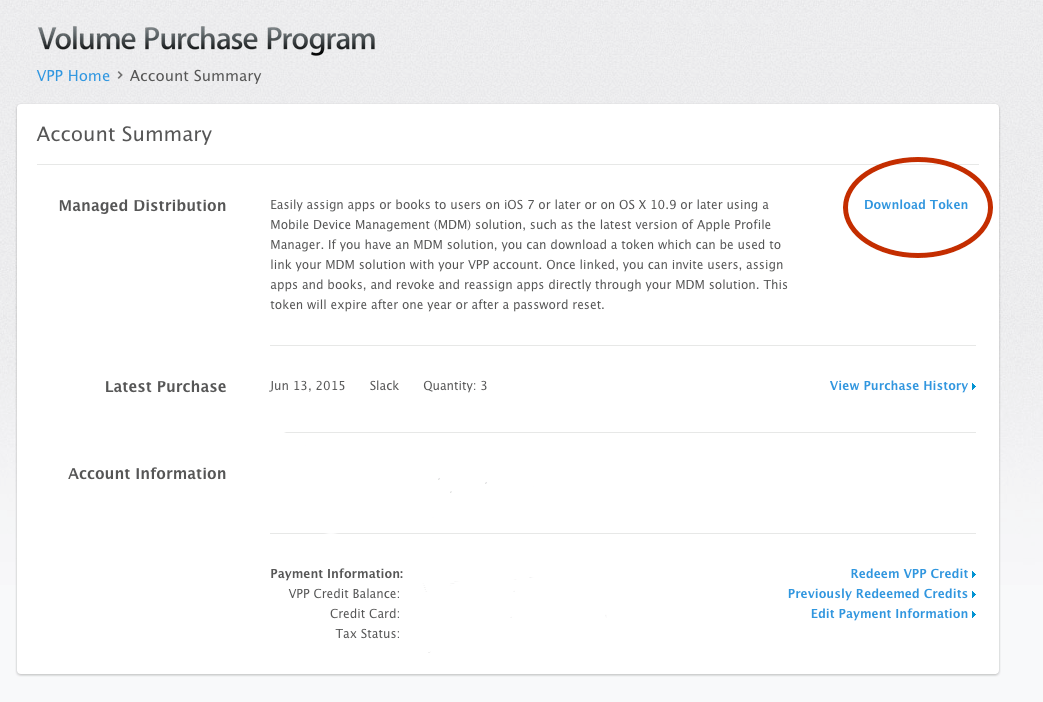
Sign in to Apple Business Manager and download the content token (the VPP token) for your location from the payments and billing settings.
-
Open the token file in a text editor and copy the contents to the clipboard.
-

In the CapaInstaller Console, go to System Administration → Software Accounts → Apple Volume Purchase Programs, right-click, and select Add.
-
In the Apple VPP Account dialog, enter a name, paste the clipboard contents in the Token field, and click Retrieve VPP Account. The organization name and the token’s expiry date are shown.
-
Click Ok.
The Apple Volume Purchase account is now added to your CapaInstaller installation.
3. Purchase
Section titled “3. Purchase”Purchase licenses for the apps you need in Apple Business Manager.
You are now ready to create licensed apps.
4. Create licensed apps
Section titled “4. Create licensed apps”To build a licensed app for distribution to your users and devices, create a device application with the Application Editor.
Guide: Creating an app, setting up the VPP account link, and choosing a licensing method
-

In the CapaInstaller Console, under Configuration Management, locate the root Configuration Management Point.
-
In the navigation pane, expand Applications and Packages, where you will find a folder named Device Applications.
-
Right-click the Device Applications folder and select Create application…. The Application Editor opens.
-
The left side of the Application Editor lists the app types you can add to your device application. Click one to add it to the content on the right.
-
Add an App Store app from the iOS category. Click Search in the added app on the right to find an app in the App Store (for example, OneNote).
-
Select the VPP account that licenses are assigned from, for the devices that install this app.
-
Choose a primary license assignment method, and optionally a secondary method. The secondary method is only used if the primary method isn’t possible.
-
Enter an application name and a description for the device application in the top section of the editor.
-
Click OK to save.
5. Choose a VPP account to draw the licenses from
Section titled “5. Choose a VPP account to draw the licenses from”As shown in the guide above, decide which of your registered VPP accounts this app draws licenses from.
6. Select how the device application assigns licenses
Section titled “6. Select how the device application assigns licenses”Following the guide above, choose an assignment method: assign licenses to Apple users or to individual devices. Read the explanation below if you are in doubt about which method to use.
Assignment methods explained
Assign license to a user
Section titled “Assign license to a user”Assigning an app to an Apple ID allows your users to receive the app on multiple devices while only using one license. A user with a phone and a tablet can use the licensed app on both, while only one license is drawn from the pool.
User assignment requires that the Apple ID is associated with your VPP account.
The simplest way of associating a VPP account with your users’ devices is to use Getting started with Enrollment Configurations. When it’s configured correctly, the linking process is fully automated. Devices can get licensed apps from one of the VPP accounts linked to CapaInstaller, and the user can optionally choose one during enrollment. As soon as the device enrolls and the user accepts the invitation sent to the device, no more work is needed.
Alternatively, you can send invitations manually. Follow the guide below to do this.
Guide: Inviting a single device to a VPP program
- Right-click an iOS device and select Invite to VPP to display an invitation to the signed-in device user on the device screen.
- Select a VPP account to invite the device user to.
- Fill out the name and email fields for the device user and click Send Invitation.

The user signed in to the device receives a notification on the device asking them to join the Volume Purchase Program.
Assign license to a device
Section titled “Assign license to a device”Since iOS 9, you can install applications without an Apple ID on the device. If the app supports it and the device runs iOS 9 or later, you can deploy licensed apps to these devices without first sending an invitation. This way, a non-personal device can have a licensed app linked directly to the device and not to the user signed in to the device.
Your licensed apps are now created, configured, and ready for distribution.
Distribute
Section titled “Distribute”7. Distribution
Section titled “7. Distribution”You can deploy the device application directly to devices or users, or link it to groups so that all group members receive the app.
Guide: Assigning applications to a device
Assign applications directly to a device
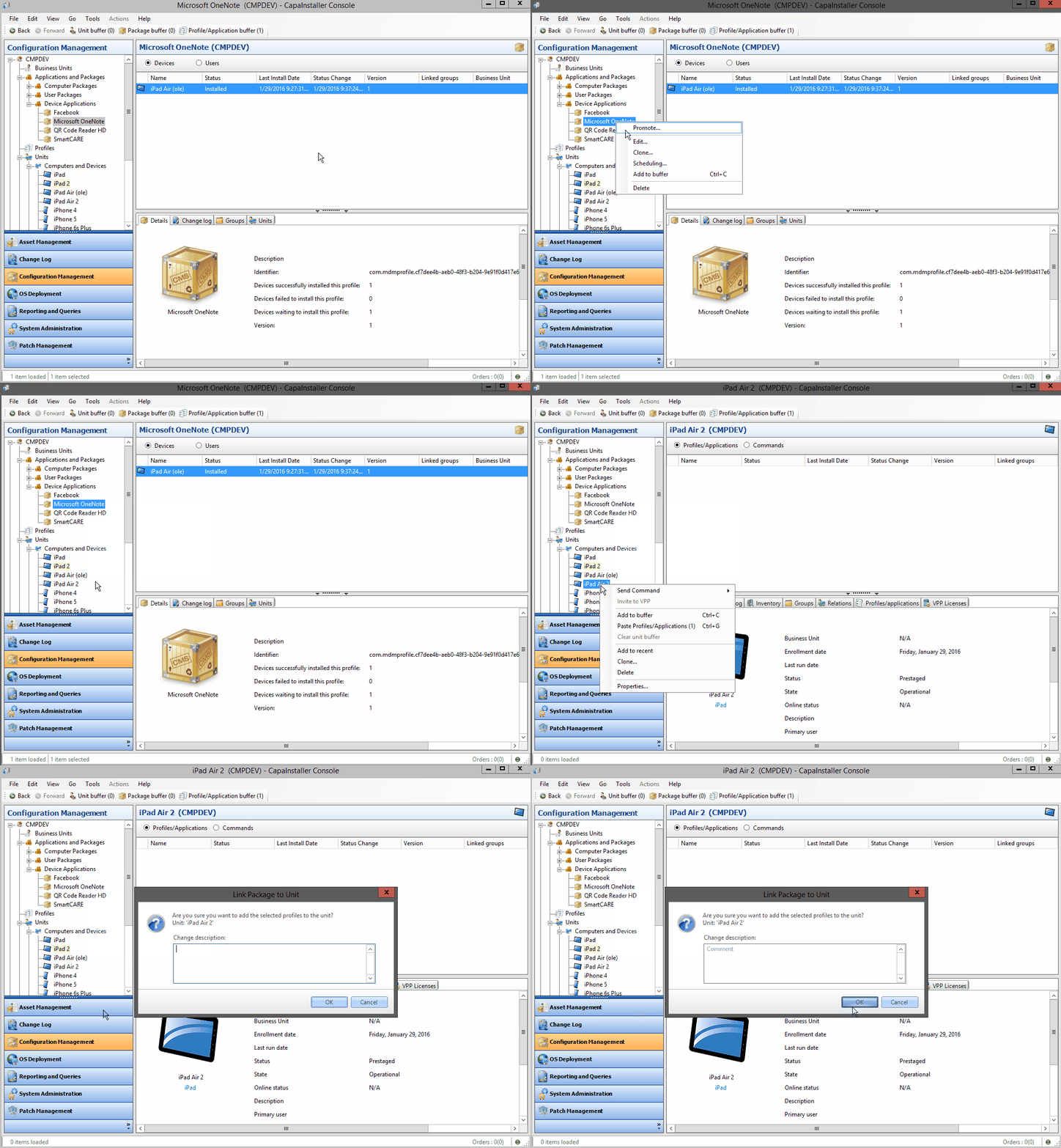
Section titled “Assign applications directly to a device”Either by drag and drop or by using the unit buffer, you can link an application and a device together. The relation between them gets the status Waiting until the app is successfully installed.
Assigning apps using the buffer
Assigning one or more apps to one or more devices using the buffer:
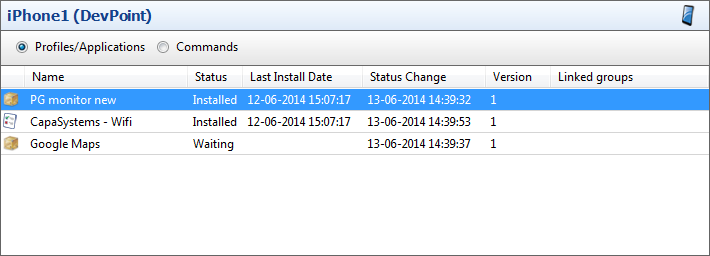
You can see the status of the assignment by selecting either the device or the application in the navigation pane.
Assign applications to a device through users
Section titled “Assign applications to a device through users”In the same way that an application can be linked to a device, it can also be linked to a user. Any devices linked to the user at that time get the application assigned. Any devices linked to the user later also automatically get the user’s applications.
Assign applications to a device through groups
Section titled “Assign applications to a device through groups”Groups can be linked to devices, users, and applications. If a group with devices is linked to an application, all its device members receive the application.
If a group with users is linked to an application, all devices linked to the group’s user members receive the application.
With dynamic groups, devices are automatically assigned to the correct applications based on their properties, such as hardware, software, or location.