

Import a package
You can import packages from zip files that were created by an export from Configuration Management. You can import one zip file, or all the zip files in a folder.
Import a package from a file
Section titled “Import a package from a file”-
In Configuration Management, right-click Applications and Packages (or Computer Packages or User Packages) and select Import….
-
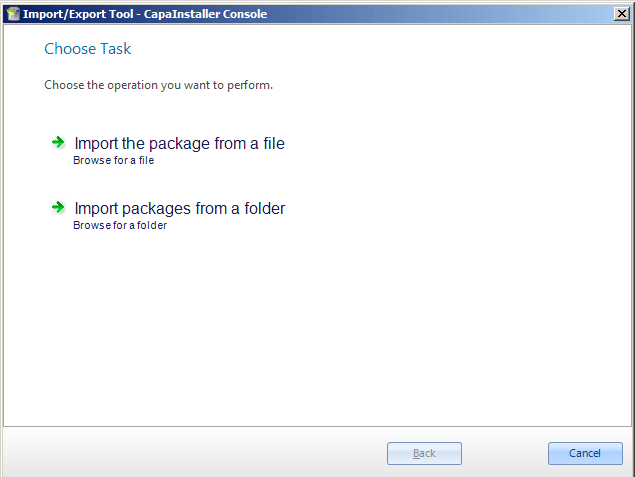
On the Choose Task page, click Import package from file.
-
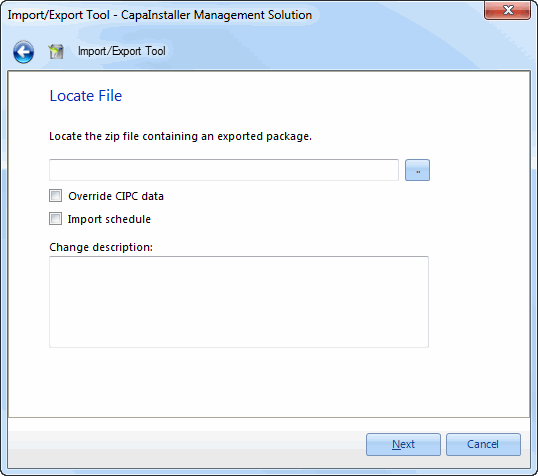
On the Locate File page, select the zip file that contains the exported package.
-
Choose the import options:
- Override CIPC data: if the zip file contains Package Creator metadata, this overwrites any metadata that already exists for the package in the database.
- Import schedule: if the zip file contains a schedule, the schedule is created for the package. If you don’t import the schedule, the package gets a default schedule.
-
Optional: enter a Comment for the change log, and click Next.
-
On the Package properties page, check the properties of the package you’re importing:
- You can edit Displayname, Priority and Folder structure for all packages.
- You can only change Name and Version for CapaPacks, which are designed to support renaming.
- Name and display name accept package variables such as
$version$,$vendor$and$name$. They insert the corresponding values from the original package in the zip file. - In Folder structure, separate folders with backslashes, for example
FolderOne\FolderTwo\.
-
Click Next.
-
When the import has finished, choose Done or Import another package.
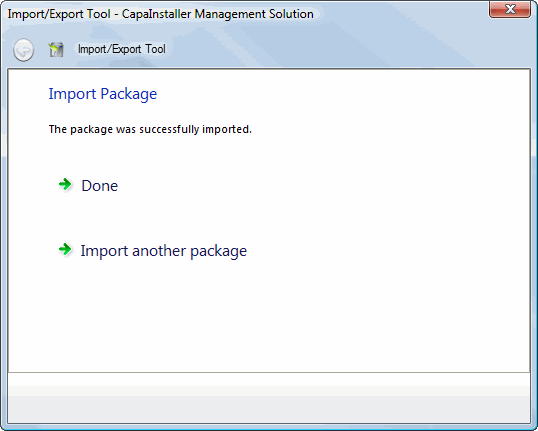
The package appears under Applications and Packages. The import fails if a package with the same name, version and type already exists on the point.
Import packages from a folder
Section titled “Import packages from a folder”- Right-click Applications and Packages and select Import….
- On the Choose Task page, click Import packages from folder.
- Select the folder that contains the zip files, choose Import schedule and Override CIPC data as needed, optionally enter a Comment, and click Next.
- In the list of packages, check the packages you want to import. To change the properties of a package before the import, select it and click Edit / Details.
- Click Start Import.
- When the import has finished, choose Done. If some packages failed, you can choose Retry failed packages.