

Custom Fields Installation
You can define up to two custom fields that the OSD client shows when you PXE boot a client. You define them on the OS Point. You can also define them on a Business Unit, where they override the custom fields of the OS Point.
How to configure custom fields
Section titled “How to configure custom fields”-
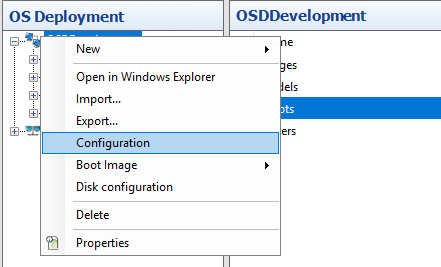
In OS Deployment, right-click your OS Point and select Configuration.
-
Select the OSD Gui tab and scroll down to CustomFields.
-
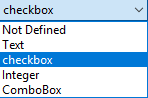
For Enable Field1 or Enable Field2, select the type of the field: Text, checkbox, Integer or ComboBox. Select Not Defined to hide the field.
-
Enter the Label that is shown in the OSD client, and a Default value. For an Integer or ComboBox field, enter the Value Range:
min|maxfor an integer, orvalue1|value2|value3for a list.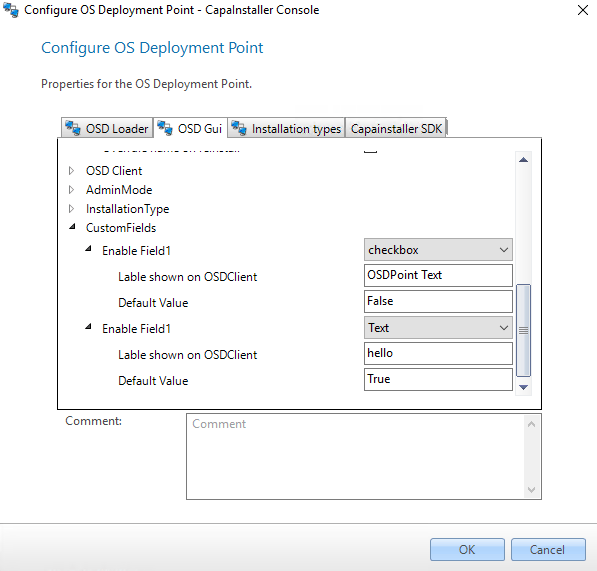
- The default value for a checkbox field can only be
TRUEorFALSE. - The default value for an Integer field can only be a number.
- The default value for a Text or ComboBox field is optional.
- The default value for a checkbox field can only be
-
Select OK.
-
PXE boot your client. The custom fields are shown in the OSD client:
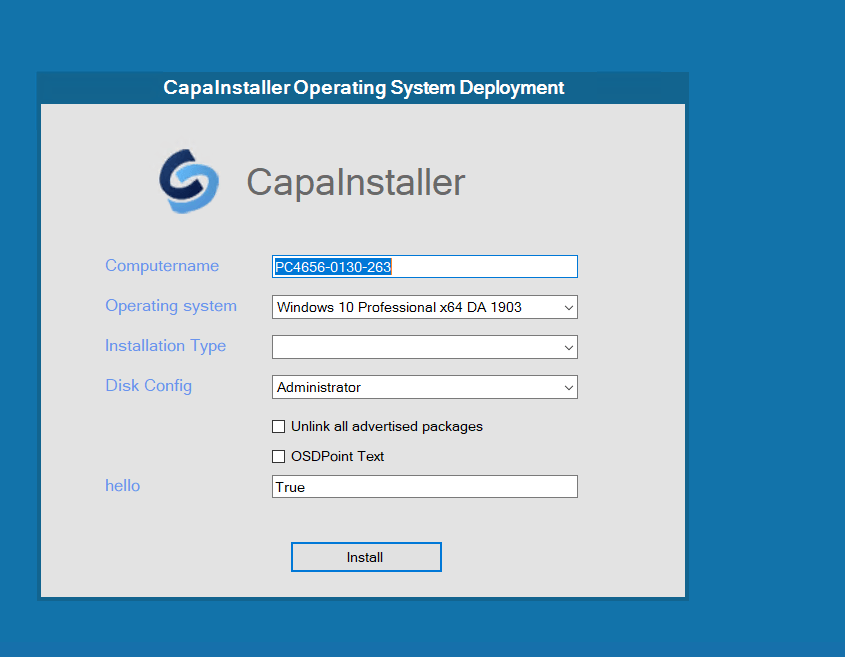
The values that the user enters are reported as CustomField1 and CustomField2 in the OS Deployment information of the unit’s hardware inventory.
To define custom fields for a Business Unit, see OS Configuration in Business Units in Configuration Management.