

Samsung KNOX Mobile Enrollment (KME)
Samsung KNOX Mobile Enrollment is a free web service that allows users to bulk enroll devices while keeping end-user interaction to a minimum. You can enroll your devices without manually configuring each device. You can enroll a device directly to individuals that can be predetermined in the Mobile Enrollment portal.
This documentation is based on information available on the Samsung Knox web sites as of April 2020.
Apply for KNOX Mobile Enrollment
Section titled “Apply for KNOX Mobile Enrollment”- Go to KNOX Mobile Enrollment - Getting Started Guide and follow the guide
- Create a Samsung account
- Create KNOX Portal Account
- Launch KNOX Web Console
Create an MDM Profile - Device Admin
Section titled “Create an MDM Profile - Device Admin”Create an MDM Profile for your devices to be assigned to.
| Step | Action |
|---|---|
| 1 | In KNOX console, select MDM profiles in the left-hand navigation menu and select the CREATE PROFILE button (To edit an existing profile, just click on it) |
| 2 | Select Device Admin in the profile type 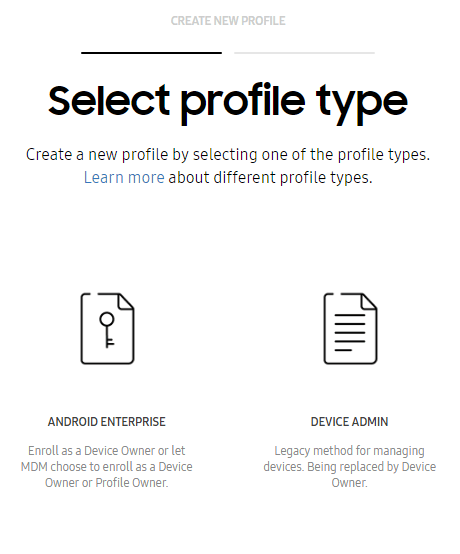 |
| 3 | Set the following BASIC INFO for the DA profile: - Profile Name - Enter an appropriate profile name to distinguish it from others with similar attributes. - Description - Optionally provide a 200 character maximum description to further differentiate this profile from others. - MDM Server URI - No MDM Server URI is required. Leave the field empty and click continue 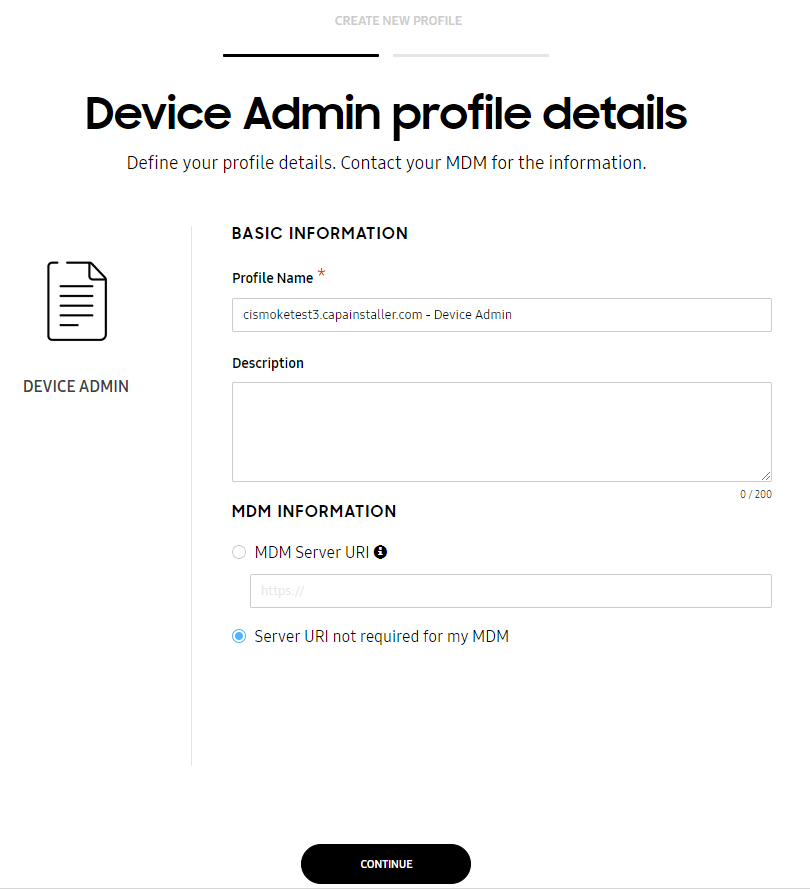 |
| 4 | MDM Agent APK - Add one or more MDM applications downloaded automatically upon device enrollment 1. - add your MDM server URL and append the following parameters /android/deploy - example https://mdm.domain.com/cimdm/android/deploy Custom JSON Data (as defined by MDM**)** to pass the MDM setup configuration using the JSON (JavaScript Object Notation) format - Format: {“enrollmentConfig”:“ReplaceWithConfigurationId”, “mdmURL”:“ReplaceWithMdmServerUrl”} - Example: {“enrollmentConfig”:“default”,“mdmURL”:“https://mdm.domain.com/cimdm"} Skip Setup Wizard - Unselect this option to send the device user through the Setup Wizard. When selected, the device user skips the many setup wizard screens and can start the enrollment process much faster. This setting is selected by default. Allow end user to cancel enrollment - Selecting this option permits an end-user to cancel enrollment on their device. Leaving this setting unselected enables mandatory device enrollment. The skip setup wizard option functions independently from end-user enrollment cancellation, and both can be enabled at the same time. 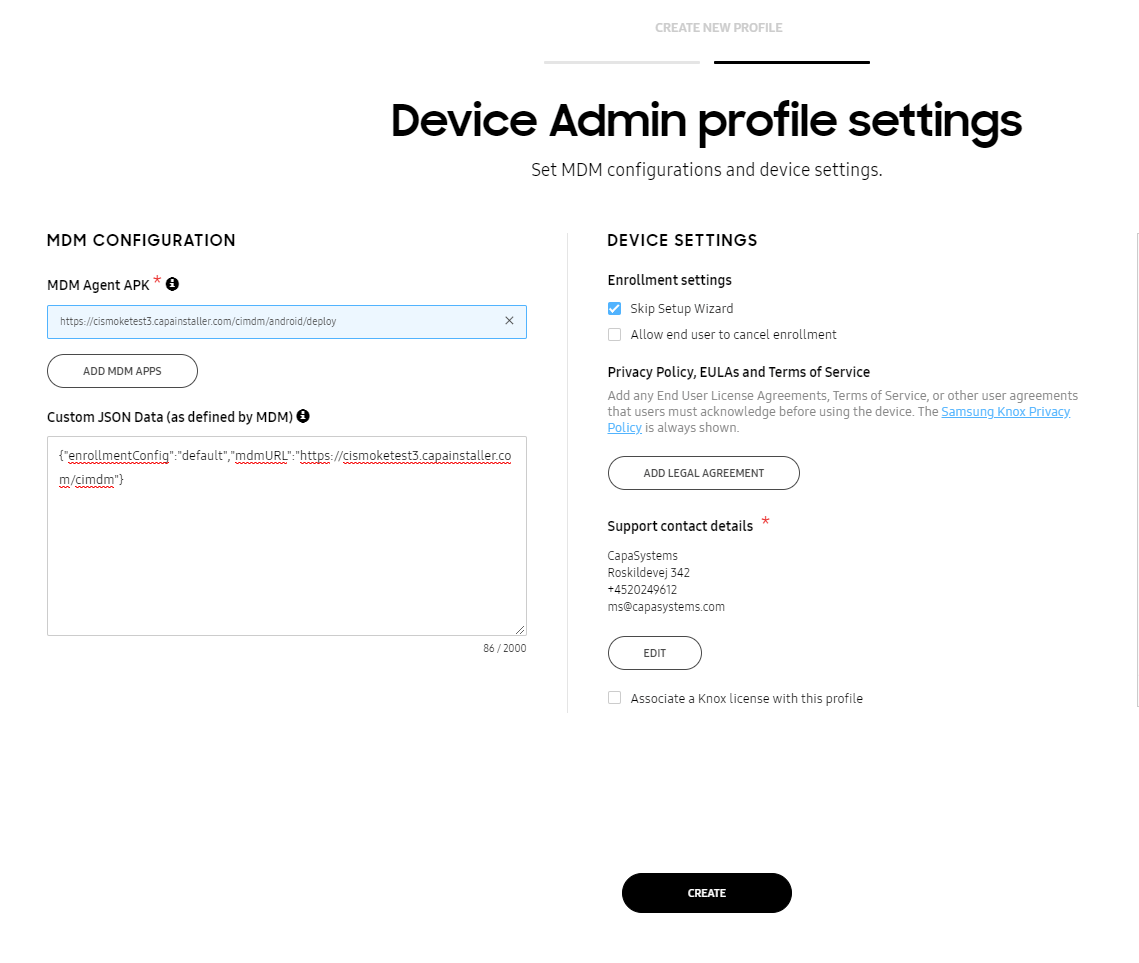 |
| 5 | Click CREATE and verify that profile is created and located in MDM Profiles The profile is ready for use.  |
| 6 | The profile is ready for use. |
Create an MDM Profile - Android Enterprise as Device Owner
Section titled “Create an MDM Profile - Android Enterprise as Device Owner”Create an MDM Profile for your devices to be assigned to.
| Step | Action |
|---|---|
| 1 | In KNOX console, select MDM profiles in the left-hand navigation menu and select the CREATE PROFILE button (To edit an existing profile, just click on it) |
| 2 | Select Android Enterprice in the profile type 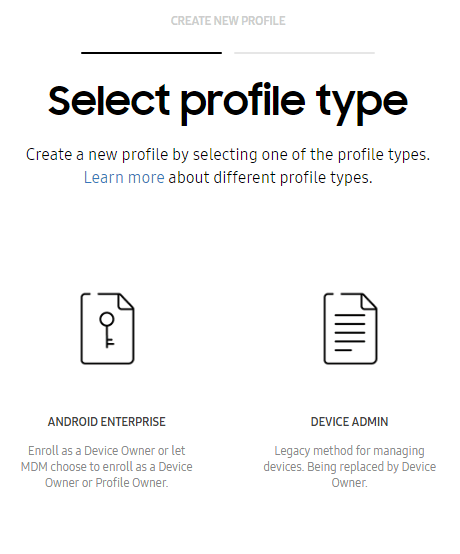 |
| 3 | Set the following BASIC INFO for the DO profile: - Profile Name - Enter an appropriate profile name to distinguish it from others with similar attributes. - Description - Optionally provide a 200 character maximum description to further differentiate this profile from others. - We only support FORCE DEVICE OWNER ENROLLMENTMDM Agent APK - Add one or more MDM applications downloaded automatically upon device enrollment 1. - add your MDM server URL and append the following parameters /android/deploy - example https://mdm.domain.com/cimdm/android/deploy*MDM Server URI* - No MDM Server URI is required. Leave the field empty and click continue 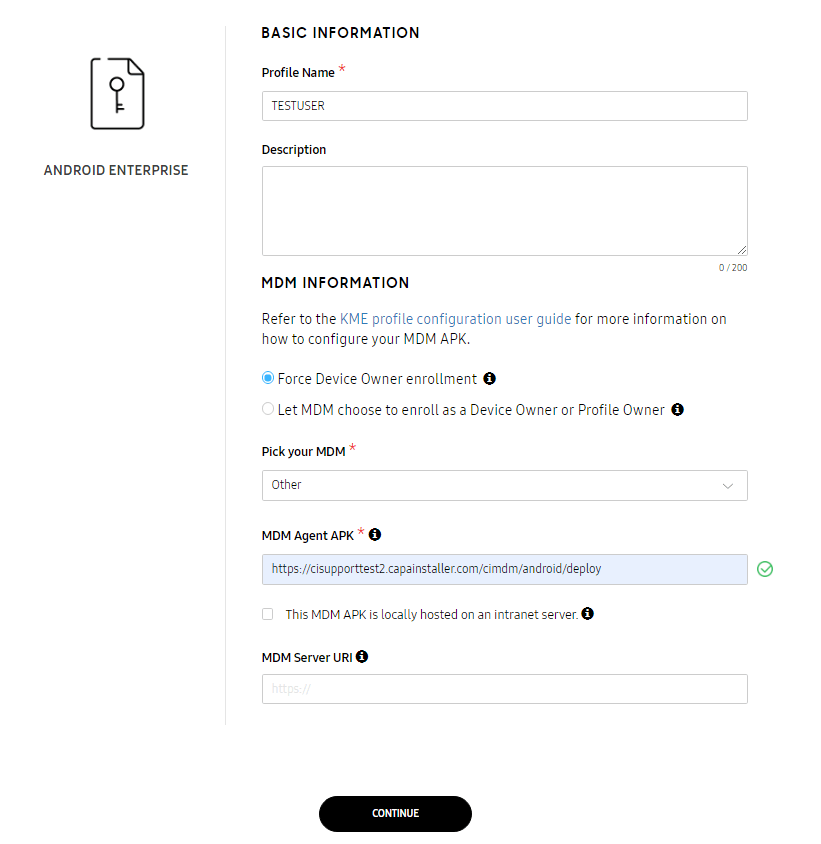 |
| 4 | Custom JSON Data (as defined by MDM**)** to pass the MDM setup configuration using the JSON (JavaScript Object Notation) format - Format: {“enrollmentConfig”:“ReplaceWithConfigurationId”, “mdmURL”:“ReplaceWithMdmServerUrl”} - Example: {“enrollmentConfig”:“default”,“mdmURL”:“https://mdm.domain.com/cimdm"} Disable system apps — Select this checkbox to ensure all apps are disabled and unavailable to the device owner supported profile.(Recommended) Leave all system apps enabled — Select this checkbox to ensure all pre-installed system apps are enabled and available to the profile. If this option is not selected, only a limited set of default system apps (My Files, Contacts, Google Play Store) display in the device’s apps tray. Systems apps reside within the device’s /system/app read-only folder and cannot be installed or removed by the device user. When using KME with Knox Configure, be careful when unchecking the Leave all system apps enabled checkbox, as this may lead to conflicts with Knox Configure. 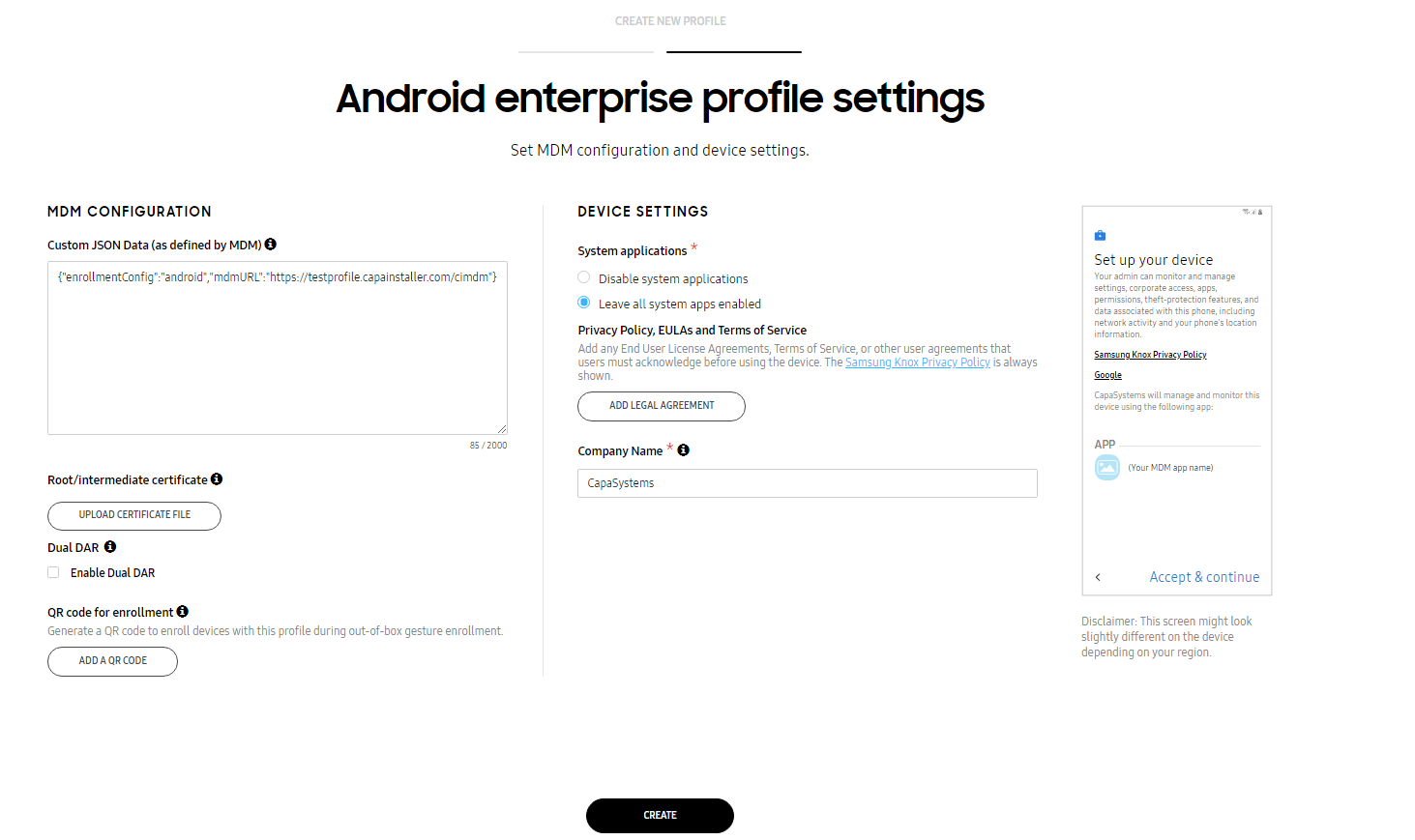 |
| 5 | Click CREATE and verify that profile is created and located in MDM Profiles  |
| 6 | The profile is ready for use. |
Enrollment of Samsung KNOX device for Device Admin
Section titled “Enrollment of Samsung KNOX device for Device Admin”After creating the MDM profiles, and adding the devices the device is ready for enrollment. To enroll the device must be connected via a Wi-Fi connection.
| Step | Action |
|---|---|
| 1 | The first time a user boots a device and connects to the internet via a wi-fi connection, the device will automatically start enrolling. 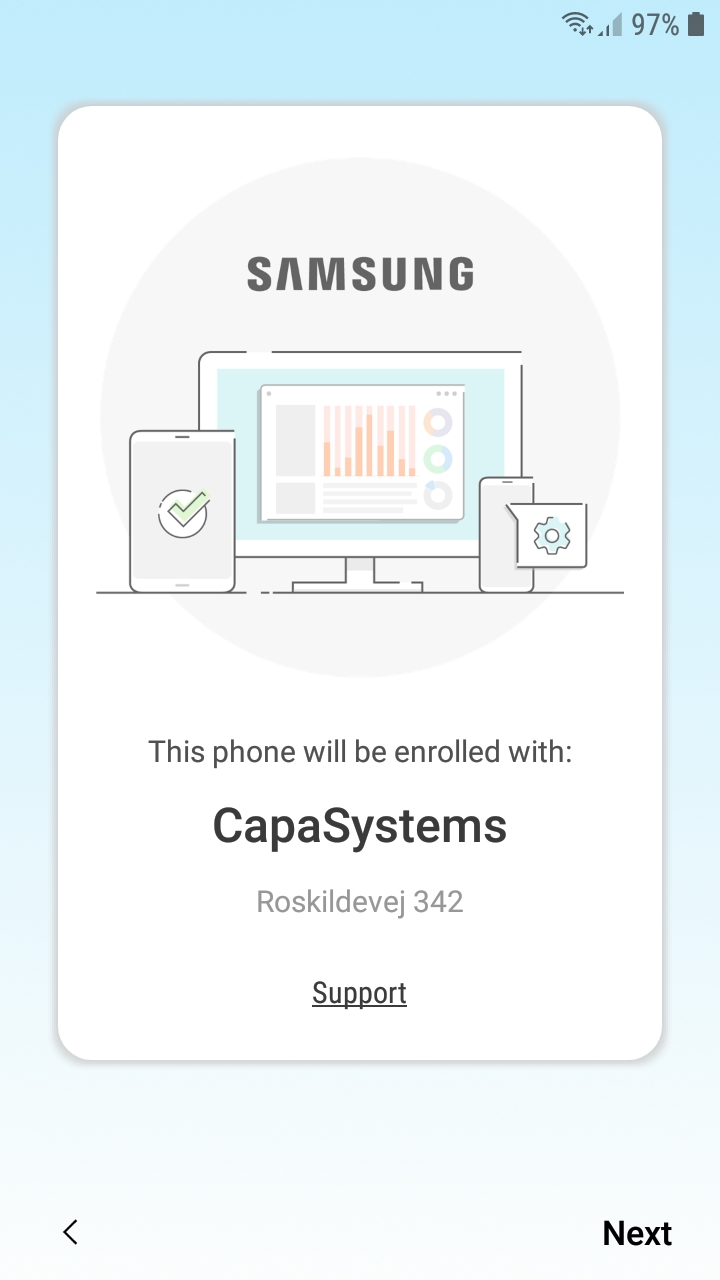 |
| 2 | Click Next to accept Samsung Knox Privacy Policy 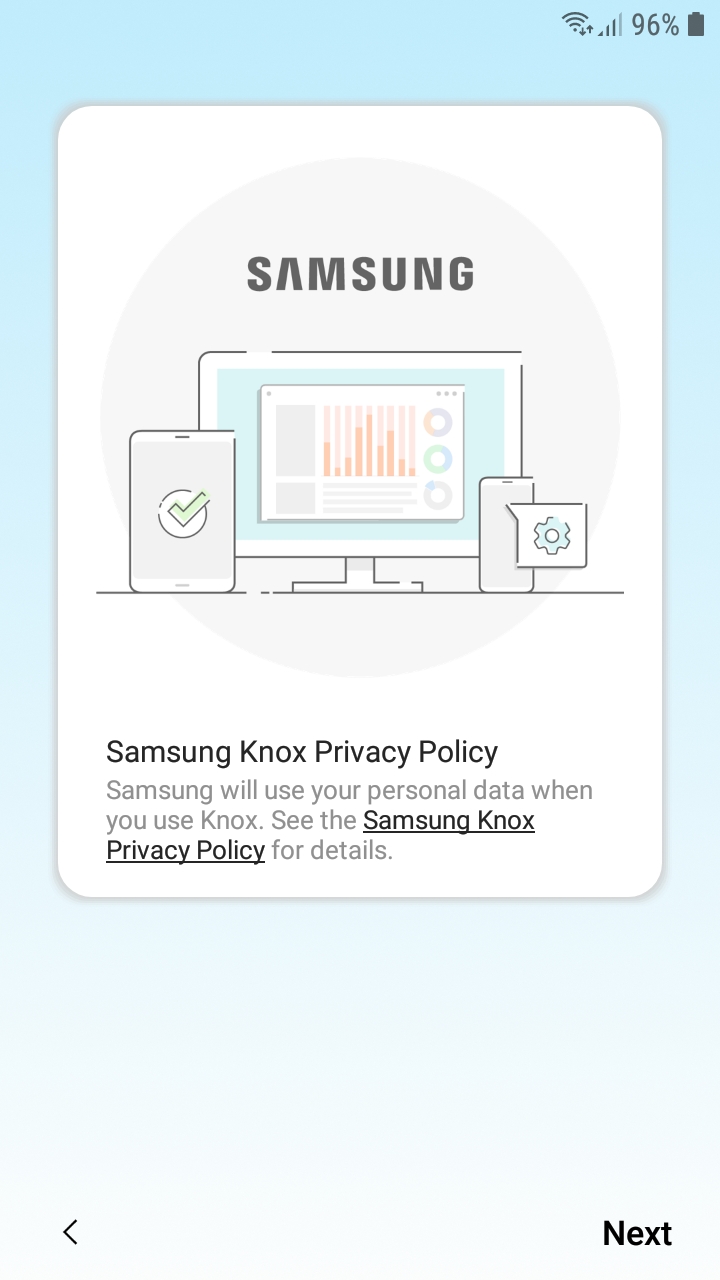 |
| 3 | Click Next and wait for the MDM agent to be downloaded and installed 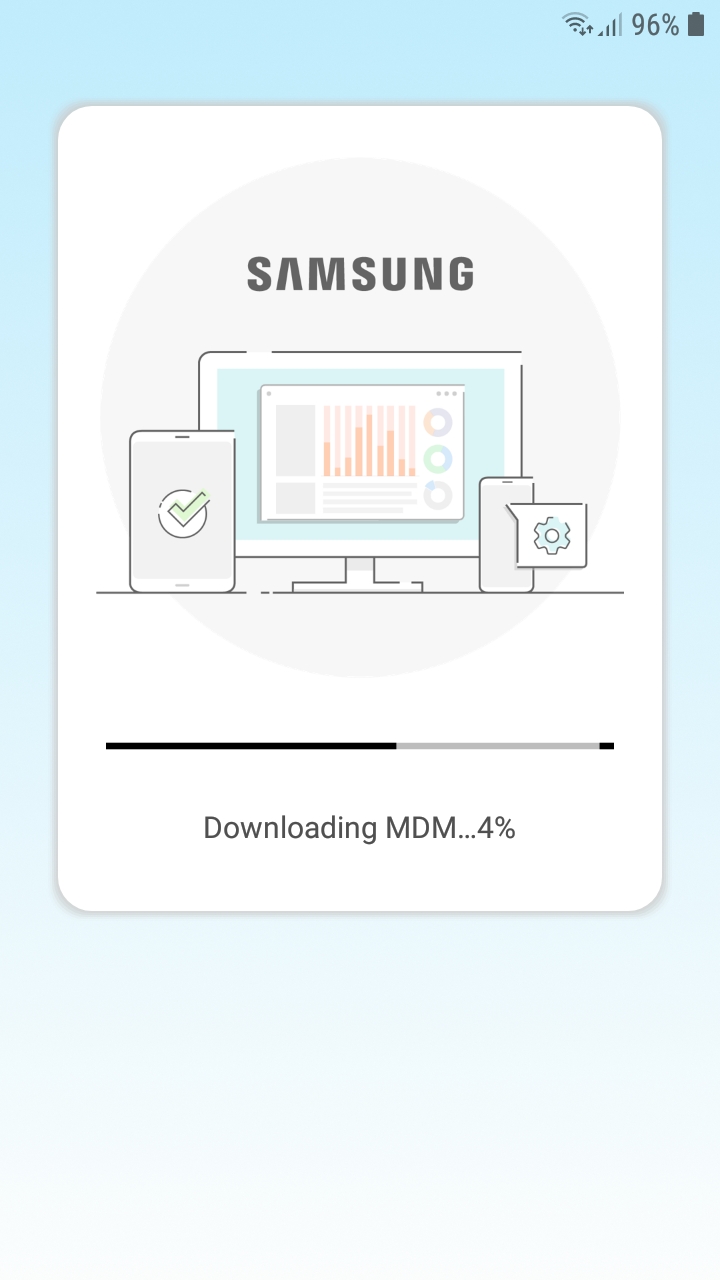 |
| 4 | The device is now enrolled and ready to use. |
Enrollment of Samsung KNOX device for Device Owner
Section titled “Enrollment of Samsung KNOX device for Device Owner”After creating the MDM profiles, and adding the devices the device is ready for enrollment. To enroll the device must be connected via a Wi-Fi connection.
| Step | Action |
|---|---|
| 1 | The first time a user boots a device and connects to the internet via a wi-fi connection, the device will automatically start enrolling. Press “Accept & Continue” 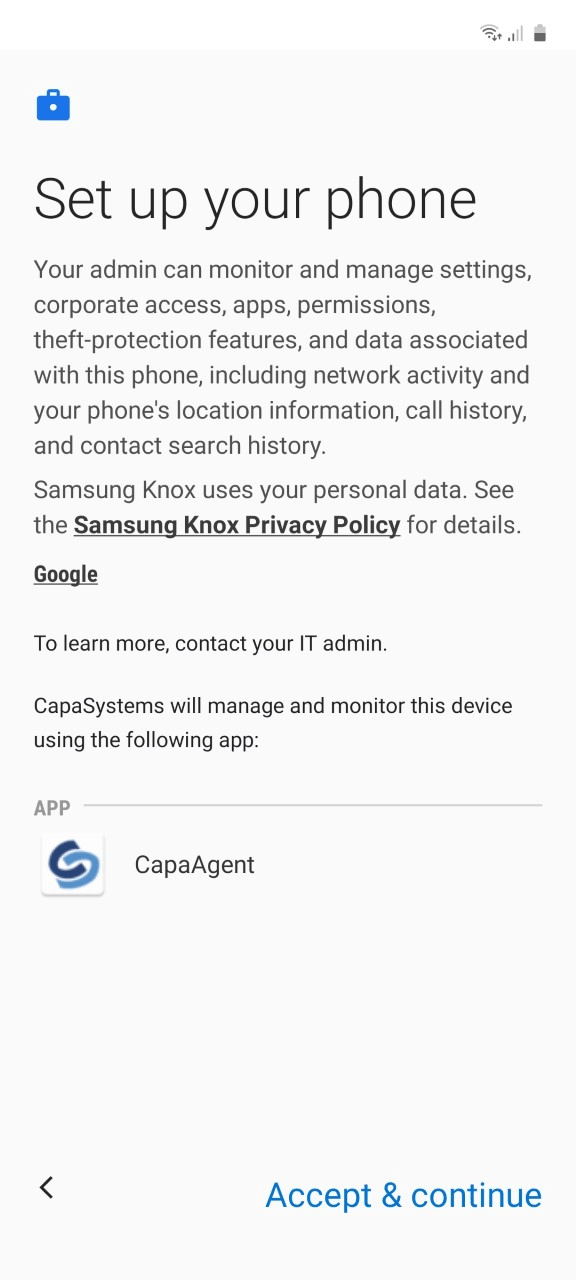 |
| 2 | Click Next to accept Samsung Knox Privacy Policy 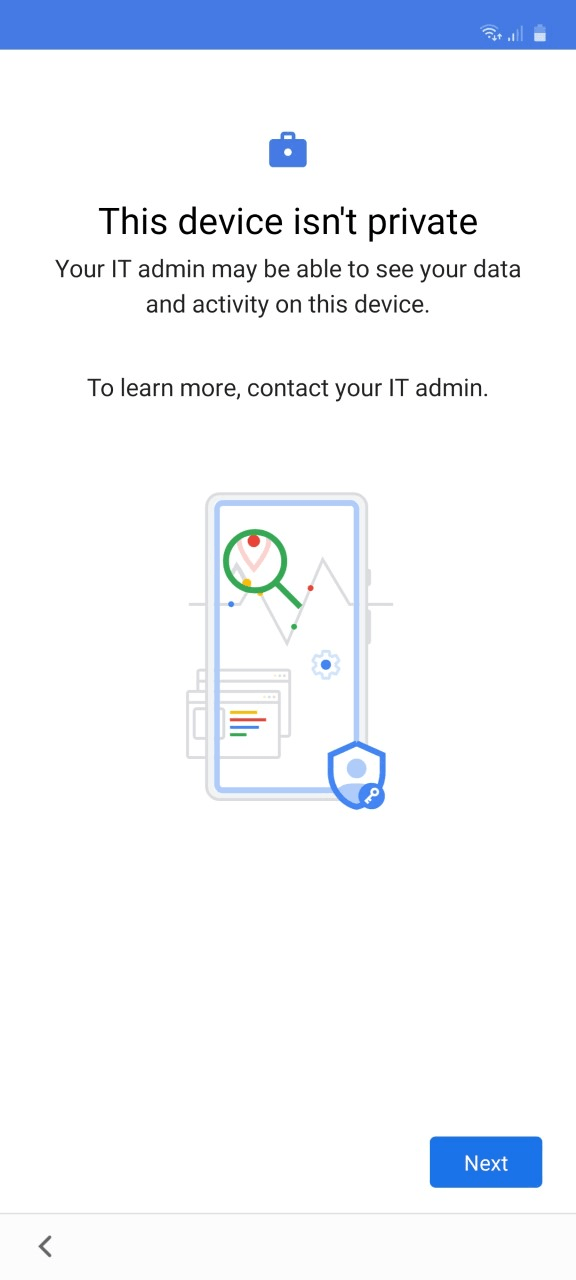 |
| 3 | The device is now enrolled and ready to use. |