Smartphones and tablets can be created from the File Menu in Unit view or by right-clicking on the different unit folders or Business unit.
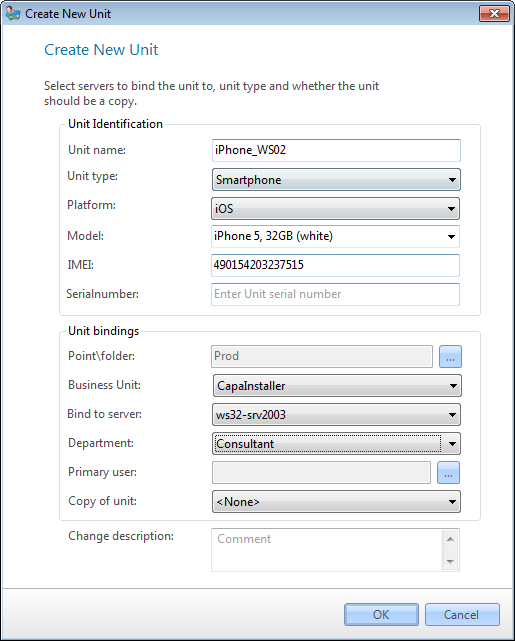
|
|
| Element |
Description |
| Unit name |
Name of the device. Required. The name must be unique for the unit type and can be up to 150 characters. |
| Unit type |
Select Smartphone or Tablet. |
| Platform |
Select the platform for the device |
| Model |
Select the specific model or choose Auto detect to define the model from the inventory |
| IMEI |
The unique number for the device, 14 to 16 digits. If the device does not have a cellular connection, it will not have an IMEI number |
| Serial number |
The serial number of the device. This is the same serial number, as collected from the hardware inventory |
You must enter either the IMEI number or the serial number. An IMEI number can only be used by one unit.
|
|
| Element |
Description |
| Point/folder |
Management Point or folder to place the new device in. Required. |
| Business unit |
Link the device to the selected Business unit |
| Bind to server |
Name of the container the Unit will be connected to and where it will deliver its Inventory to and get it packages from. Required. |
| Department |
Link the device to the selected department |
| Primary user |
Select the primary user for the device from Active Directory. If the user does not exist, it will be created in the database |
| Copy of unit |
You can make the new device a copy of another unit, then it will be linked to the same groups and packages. |
| Change description |
Description of the changes to the Changelog. |
|
|
| Step |
Action |
| 1 |
Open Asset Management in Unit view, click File/New… or right-click the Computers and Devices folder or a Business Unit below it and click New unit…. |
| 2 |
Type the Unit name you want, this must be unique and aligned with your company standards. |
| 3 |
Select Smartphone or Tablet in the Unit type. |
| 4 |
Select the Platform for the device. For smartphones and tablets, the platform can only be iOS. |
| 5 |
Select the specific device model or select Auto detect for the model to be defined from inventory |
| 6 |
Enter the device’s unique IMEI number. Either the IMEI number or serial number must be filled out. |
| 7 |
Type the serial number of the device. If you do not know the serial number, leave the input empty and it will be collected from the device. |
| 8 |
Choose the Point/folder. |
| 9 |
Select a Business Unit for the device |
| 10 |
Choose from the list which server you want to bind the unit to. |
| 11 |
Select a department for the device |
| 12 |
Select the primary user of the device from the active directory |
| 13 |
If you want to use another unit to copy from, select it in the Copy of unit list. |
| 14 |
Enter comments and click OK. The unit is now available in the tree view list. |
|
|
| If you want to… |
You can… |
| Set further attributes on the device |
Work with assets to see how. |
| Relate the device to a user |
Work with relations to see how. |
| Make a Device inactive |
Right-click on the device and click Set inactive. |

