

Units Online
This document explains how the system considers devices to be online or offline, and how this information is displayed in the console.
Units online
Section titled “Units online”Units online is a concept that attempts to keep track of and show to administrators, which devices in the organization are available to interact with the system. This is not done in real-time, but rather by applying a set of rules, which determines that a device is considered online if the system has been in contact with it within a certain time frame. This time frame will vary depending on the device type.
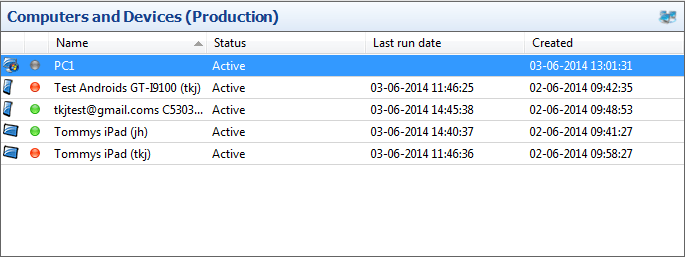
In the Configuration Management plugin, you will be able to see which units are online and offline through a set of colorized icons. Based on the rule set described above, green indicates online while red indicates an offline state. The grey icon will be used for those units that the system has not yet heard from.
 Online,
  Offline,
  Not set
Content view
Section titled “Content view”The content view in Configuration Management displays a list of units and their online state.
The units can be sorted by this state by clicking the column header above the icons. If a unit comes online or goes offline, the view will automatically update the icon.
Detail view
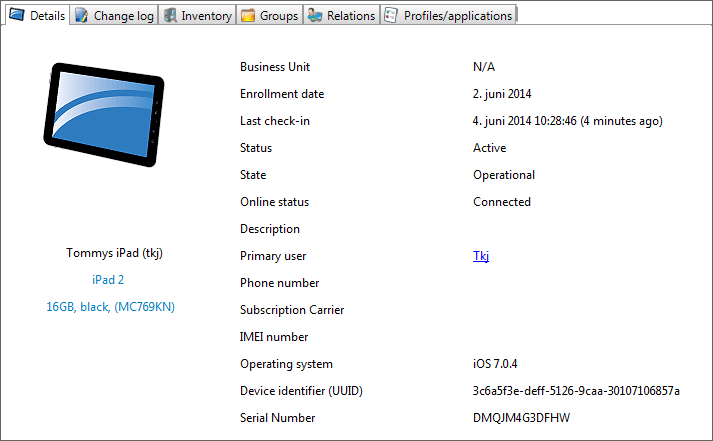
Section titled “Detail view”Selecting a unit will cause the detail view which is placed in the lower right corner of the console, to load information on that unit. On the Details tab, it will among other information display its online status.
Computers
Section titled “Computers”Windows computers with the CapaInstaller Agent installed communicate directly with the Front-end Service. The agent keeps a connection open to a Front-end Service to receive tasks to run. If there are no tasks, the connection times out after about one minute, and the agent opens a new one. Because the agent reconnects this often, a computer is considered offline when the system hasn’t heard from it for about two minutes. The online status in the console is updated once a minute, so it can take up to three minutes before an unreachable computer is shown as offline.
Possible reasons for a computer to be offline:
- Powered off
- In sleep mode
- Without LAN access
- Without internet access (If a public URL is configured for the FE)
Devices
Section titled “Devices”Mobile devices (iOS, iPadOS, macOS, and Android) only communicate with the MDM Service, which connects to a Front-end Service on behalf of each device. The system contacts every device regularly, for example to collect software inventory every hour. A device is considered offline when the system hasn’t been in contact with it for more than one hour.
Possible reasons for a mobile device to be offline:
- Turned off
- Outside network coverage (off the grid)
- Has a missing/broken/misconfigured SIM-card
- Is broken.