

The find form
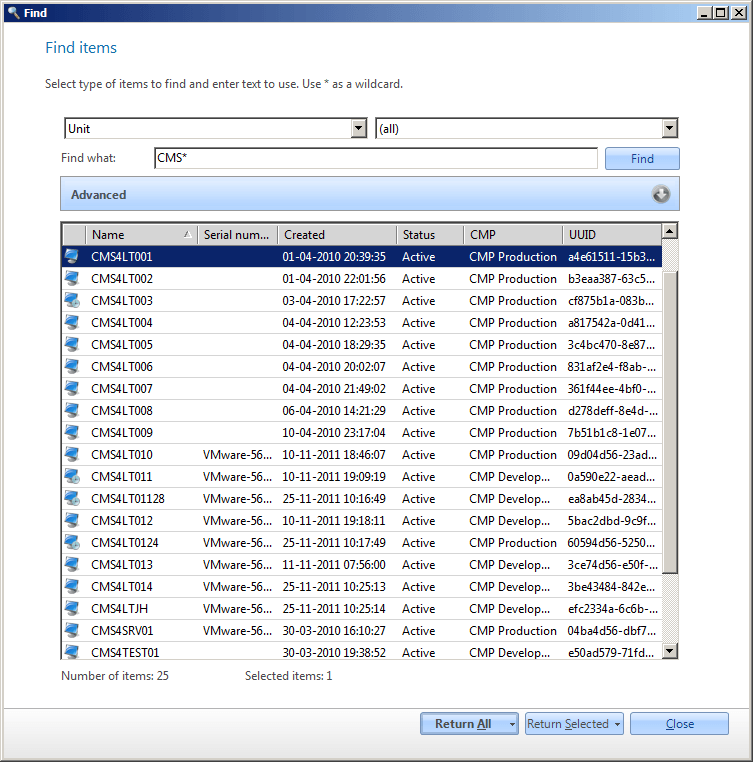
The Find form is used from most of the plugins to find different items. The objects in the find form can be different in each plugin. Therefore the form is not always displaying the same items.
| Element | Description |
|---|---|
| Item type select | Select in the first combo box to the left the type of item you want to search for. It could be units, packages, software, groups, etc. |
| Item subtype select | Select in the second combo box to the right the type of sub-item you want to use. It could for units be computers, users, printers, devices, etc. |
| Find what | Enter the string you want to use; it can include wildcard, which is * or %. The text can include multiple wildcards. Click Find or press Enter to search. |
| Advanced | The advanced part can be expanded and collapsed; by default, it is collapsed. The advanced part can contain different input boxes for a specific value for an item property; it could be the name, version, or vendor for a software item. |
| Result | The list shows the items that are found. Number of items shows how many items were found, and Selected items shows how many you have selected. You can enable Auto Find, so the result is displayed while you type. Auto Find is set up in the System Administration options under General CapaInstaller Settings. |
| Return All | The return all button returns all elements in the list. Via the drop-down on the button, you can choose this return type as the default return type (Default return). |
| Return Selected | The return selected button returns all the selected elements in the list. Via the drop-down on the button, you can choose this return type as the default return type (Default return). |