

Promote in Configuration Management
Promote in Configuration Management covers the process of copying items from one Configuration Management Point to its child Configuration Management Point.
What can be promoted is divided into four categories:
- Point files
- Packages
- Power schemes
- Profiles (including device applications)
The point files represent folders on the Configuration Management Point’s share. Using the setup wizard a patch will update the point files on the root Configuration Management Points, but not its child Configuration Management Points. The reason for this is that the patch can then be tested in the root Configuration Management Point environment (normally referred to as “development”). When the test has proven successful, the files can then be promoted to the child Configuration Management Point.
When upgrading an installation, the communication interface between the Front-end server and the BaseAgent client is critical, and we cannot risk the consequences of incompatibility and broken functionality between these two components. The Management Server can hold agents from multiple points (dev/prod) but only has one Front-end Service. So, when the Front-end is upgraded, it is very risky to upgrade only the BaseAgents on the root point (dev). For this reason, the Setup will upgrade the BaseAgents on both points.
Packages, profiles, and power schemes are always created and configured in the root Configuration Management Point (normally referred to as “development”). When a package, profile, or power scheme has been created and configured it can be promoted to the child Configuration Management Point, which is essentially the creation of a copy of the package/profile/power scheme.
Configuration Management keeps track of which packages, profiles, and power schemes have been promoted, and if their settings have changed. If a package, profile, or power scheme has not yet been promoted, or if its settings have changed since the last promotion, it will be indicated in the promotion window by being checked. (See image below.)
| Step | Action |
| 1 | Right-clicking the Configuration Management Point and selecting Promote will open the Promote window with the option to promote both Point Files, packages, profiles, and power schemes. Right-clicking the Packages node or one of its sub-nodes, for example, a specific package, opens the Promote window with the option to promote packages. Similarly, you can limit what to promote by selecting a profile or power scheme. |
| 2 | Check or uncheck the items you wish to promote. 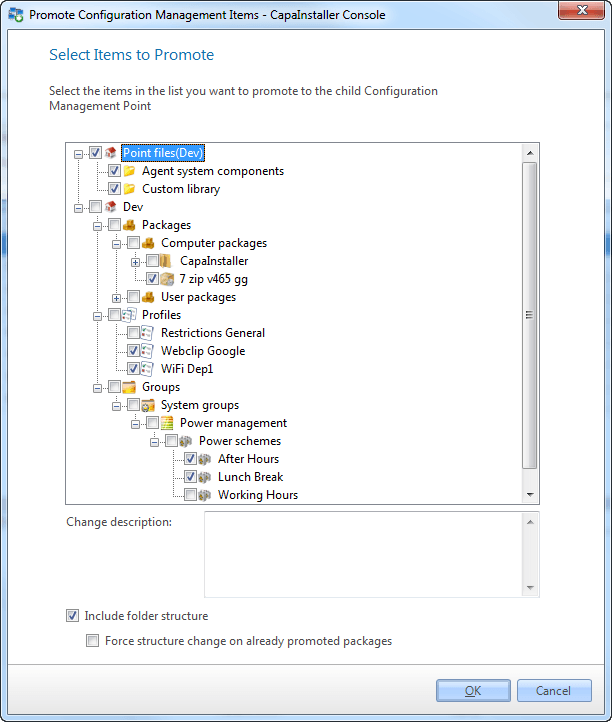 |
| 3 | Decide if the package folders should also be promoted, by checking Include folder structure. The default for this checkbox is set in Tools → Options → Configuration Management (Include folder structure during Promote). |
| 4 | Click OK to promote the selected items. |
When items are not promoted
Section titled “When items are not promoted”After the promotion, the console tells you if some packages were not promoted, and the log contains the complete list. A package is skipped when:
- It depends on other packages that haven’t been promoted yet. Promote those packages first.
- It’s locked by another process, for example because someone is editing it. Try again later.
- Its
CapaInstaller.kitfile is outdated compared with theKitfolder. The console asks if you want the replicator to rebuild the kit files. The rebuild orders can be followed in the lower-right corner of Configuration Management. Promote the packages again when the kit files are rebuilt.
A package, profile, or power scheme that has been promoted can’t be deleted from the root point. Delete it from the child point first.