

Decline Updates
Declining an update makes sure that the update isn’t approved to any WSUS group. You can only decline updates under All updates. Declined updates are shown in All updates → Declined, where you can approve them again.
-
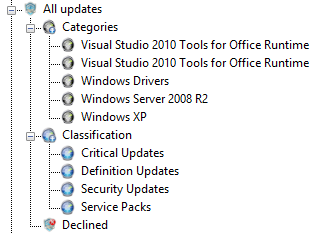
In the Patch Management tree, go to All updates and select the category or classification that contains the updates you want to decline.
-
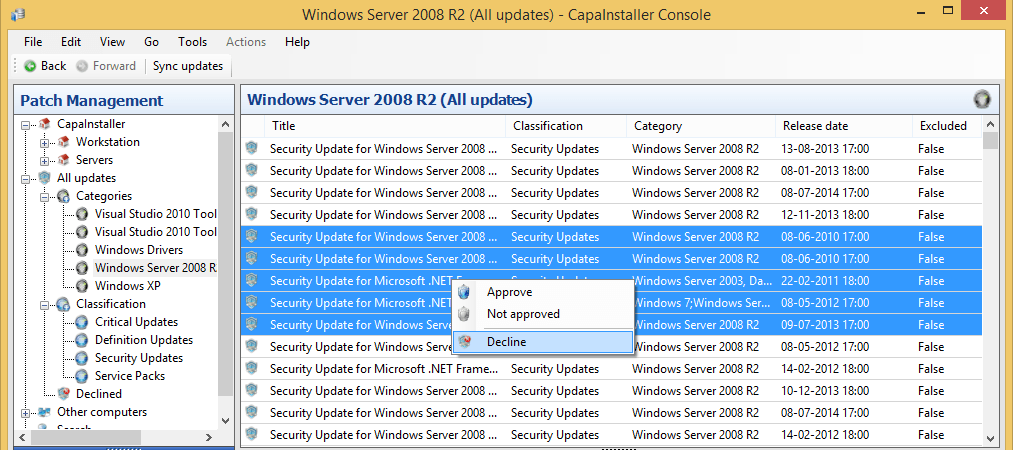
In the content pane, select one or more updates. Right-click them and select Decline.
-
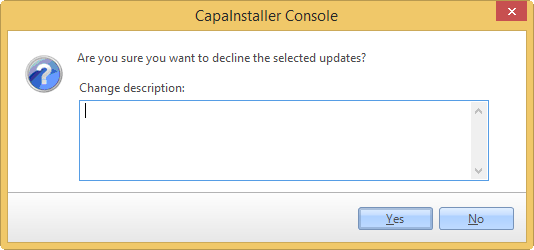
Confirm that you want to decline the selected updates. If necessary, write a change description.
-
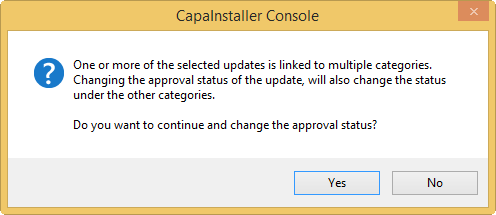
If one or more of the updates is linked to multiple categories, a message tells you that the status also changes under the other categories. Confirm to continue.
-
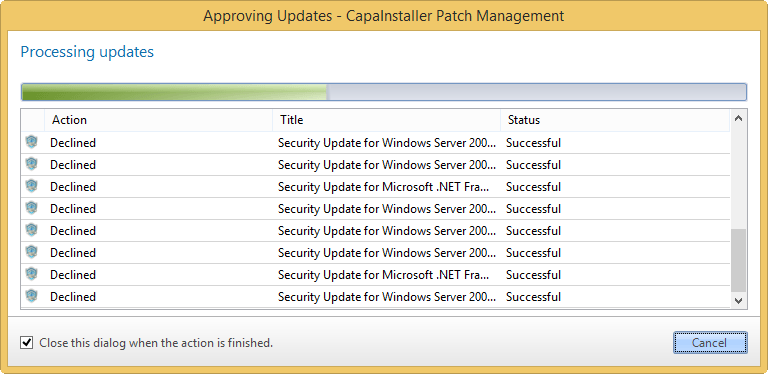
The progress dialog shows the status of each update.
Related tasks
Section titled “Related tasks”| If you want to… | You can… |
|---|---|
| Automatically approve updates | Approval rules |
| Approve updates | Approve updates |
| Approve from All updates | Approve from All updates |