

How to install MS Outlook App on Android device and configure it using AppConfig
This article describes how to install the MS Outlook App and use AppConfig to setup Outlook for the linked user. It sets up email, calendar, and contacts in Outlook. Contacts aren’t synchronized to the local contacts app, because that depends on the system and the device.
Prerequisites :
An Android device and an active AD user with Exchange or Office 365 email linked to the device. The example screenshots are from an Android 9 device with a test user in an on-premises Exchange environment.
On Android devices, a Google Play Store account is required to install apps. If you deploy Outlook as an Enterprise app, no account is required.
Scope
This will work on iOS, iOS Supervised, Android Profile Owner, Android Device Owner and Android KNOX (both Device Owner and Device Admin).
The AppConfig keys to be used
The AppConfig keys used to configure MS Outlook are shown in the table below. It is the minimum set of keys that can be used to configure the Outlook app.
The “$Email$” and “$LoginName$” means that the linked user’s email and login name will be used (like $user in Windows).
| Key | Type | Value |
| com.microsoft.outlook.EmailProfile.EmailAccountName | String | Name $LoginName$ |
| com.microsoft.outlook.EmailProfile.EmailAddress | String | $Email$ |
| com.microsoft.outlook.EmailProfile.ServerHostName | String | Exchange server / office365 |
| com.microsoft.outlook.EmailProfile.EmailUPN | String | $Email$ |
Further AppConfig keys for the MS Outlook App can be found on the Microsoft Website.
Procedure for installation and setup of MS Outlook
Section titled “Procedure for installation and setup of MS Outlook”- Create the device application in the console and app config keys and values
- Link the device app for the device
- Installation and setup on the device
1. Create the device application and payloads in the CapaInstaller console
Section titled “1. Create the device application and payloads in the CapaInstaller console”To configure the app, you must first install the app and then send the AppConfig keys and values. To do this create one device app with both the Outlook app and AppConfig payloads.
The device application contains two payloads
a) The MS Outlook app
b) The AppConfig with keys and values
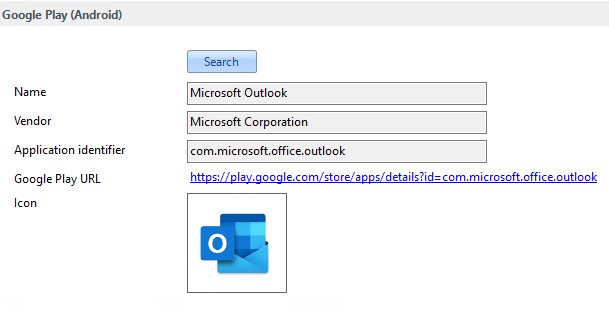
| a) The MS Outlook App In the Configuration Management module, go to Application and Packages. Right click on Device Applications and select Create Application. Search in Play Store for MS Outlook app. Type a name and select OK |
 |
| b) The AppConfig keys and values. Click on Create Key/Value. Paste the AppConfig keys, make sure the type is String, and type the value. Do this for all 4 keys. |
 |
2. Link the profile to the device
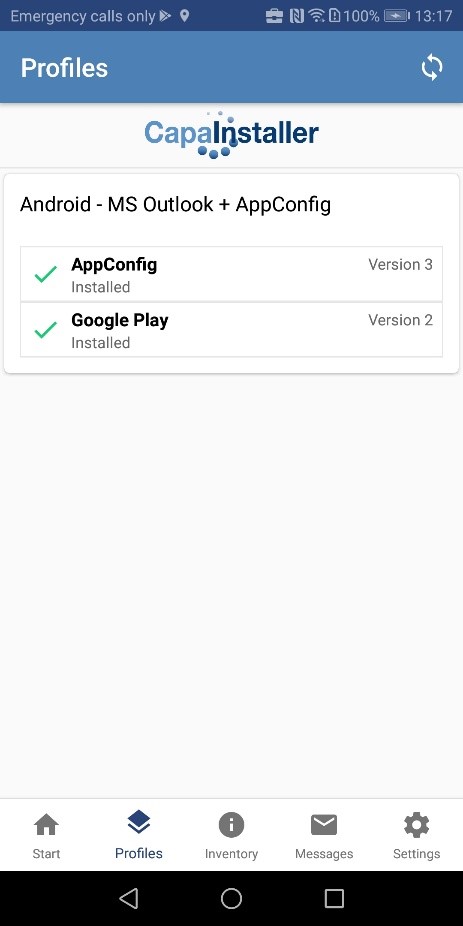
Section titled “2. Link the profile to the device”| Link the profile to the device and wait for Outlook to be installed on the device. On the device, you can view the device contains 2 parts in the CapaInstaller Android Agent. After the app has been installed, the keys and values are applied. |
 |
3. Installation and setup on the device
Section titled “3. Installation and setup on the device”A prompt on the device will appear and ask you to install the Outlook app. After the app has been installed, it starts the setup wizard:
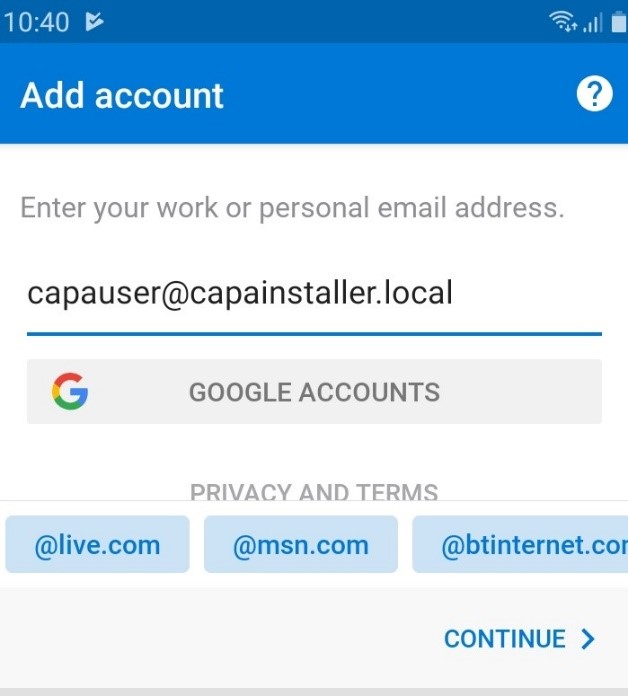
| In the Outlook setup wizard, click Get started. On Add account check that the email is correct. Then click CONTINUE >. |
 |
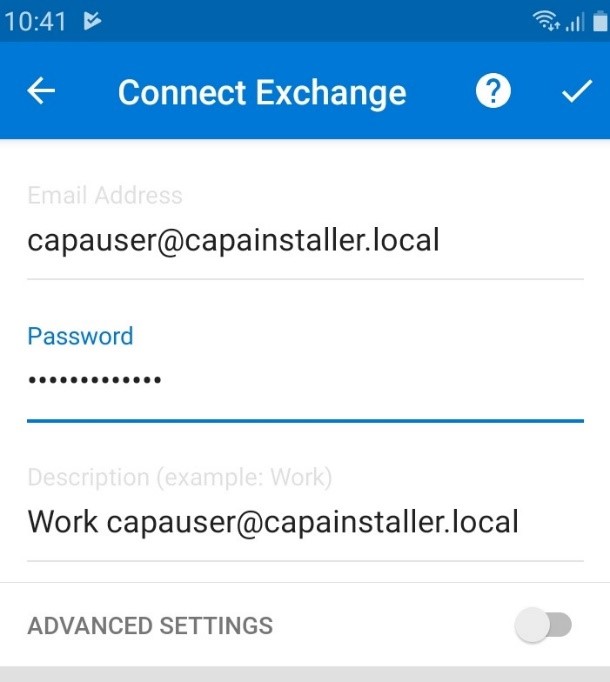
| Enter the password and click on the checkmark (below notification bar). On the Account Added, click SKIP. On Focused Inbox, click SKIP |
 |
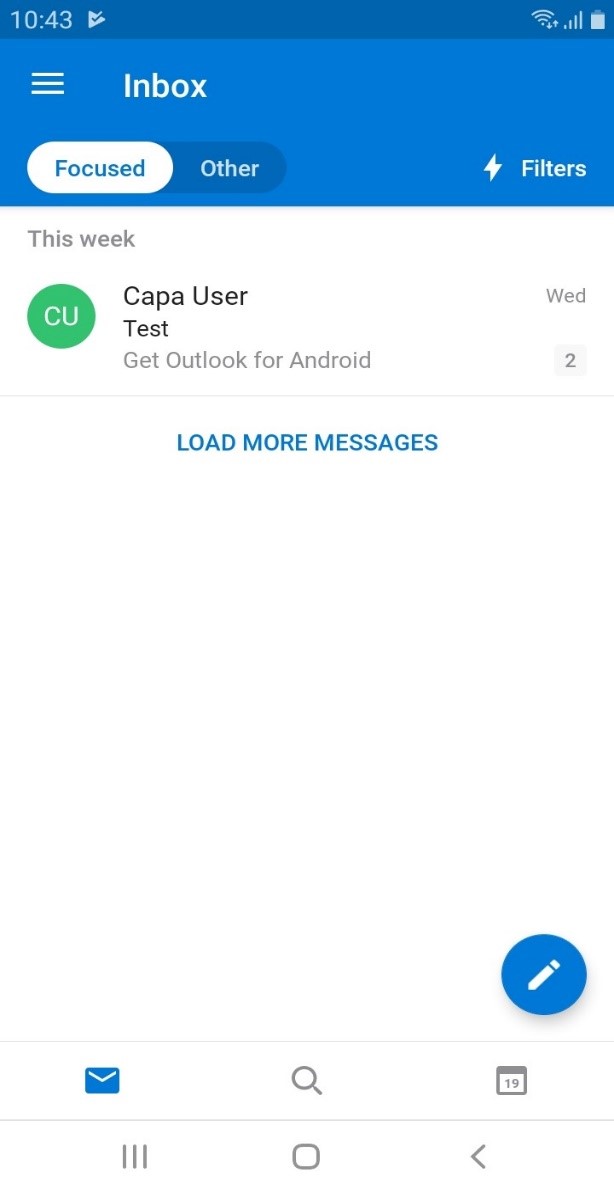
| Outlook app is now synchronized with email calendar and contacts. Ready for use. |
 |