

Approval rules
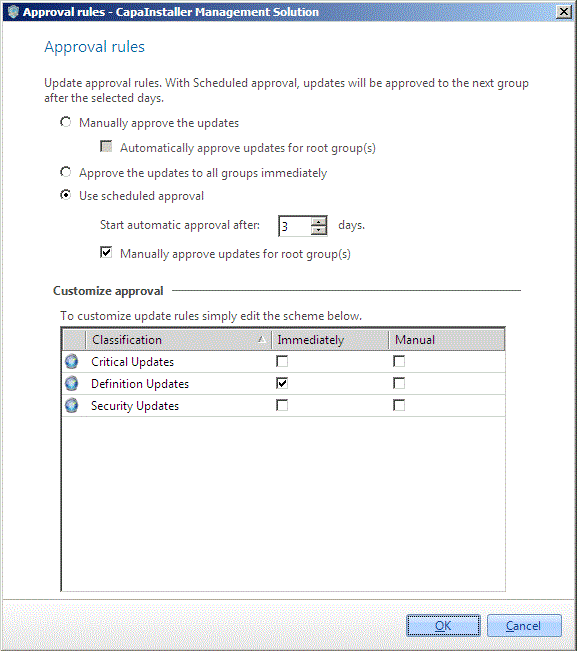
For each Patch Management child point, you define approval rules that control how new updates are approved to the groups under the point. You select a standard rule and can then customize it per update classification.
The groups under a child point are ordered in the sequence they were created. The first group is the root group, for example Test, and the next groups follow, for example Production.
Approval rule options
Section titled “Approval rule options”| Option | Description |
|---|---|
| Manually approve the updates | You approve all updates yourself. Select Automatically approve updates for root group(s) to have new updates approved automatically to the root group only. |
| Approve the updates to all groups immediately | New updates are approved to all groups under the child point when the service synchronizes them. |
| Use scheduled approval | New updates are approved automatically to the root group. When the number of days in Start automatic approval after has passed, they’re approved to the next group, and so on. Select Manually approve updates for root group(s) if you want to approve updates to the root group yourself. |
Under Customize approval, the classifications selected for the child point are listed with the columns Immediately and Manual. When you select an option, the list shows the effective rule for each classification. Select Immediately or Manual for a classification to make an exception, for example to always approve definition updates immediately.
Only updates in the categories and classifications selected for the child point are approved. See Categories and Classifications.
Set the approval rules
Section titled “Set the approval rules”-
In the Patch Management tree, right-click the child point and select Approval rules.
-
Select Manually approve the updates, Approve the updates to all groups immediately, or Use scheduled approval.
-
If you selected Use scheduled approval, enter the number of days in Start automatic approval after.
-
Optional: under Customize approval, select Immediately or Manual for the classifications you want as exceptions.
-
Click OK.
-
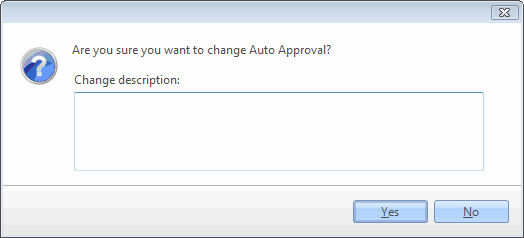
Confirm the change. If necessary, write a change description, and then click Yes.
The Patch Management Service applies the approval rules at its next full synchronization, which runs every 12 hours. To apply them sooner, click Sync updates in the Patch Management plug-in. For details, see Patch Management Service settings.
Related
Section titled “Related”- Patch Management groups - How groups are ordered under a child point.
- Approve updates - Approve updates manually.