

Business Units in Configuration Management
Business units can be used to manage individual customers, departments, locations, or other logical entities in the organization separately.
A Business Unit will be represented in all Management Points and will contain six major sections: Groups, packages, applications, profiles, units, and views. Units, groups, and views will exist inside only one business unit, while packages, applications, and profiles can be assigned to multiple.
Packages, applications, and profiles must be assigned to a business unit in order for them to be linked to groups and units inside.
The business unit is created in System Administration and if security is enabled, this is also where it is defined who will have access to manage these in Configuration Management. In a standard installation, everyone will be able to see and manage all business units.
When a package is assigned to a Business Unit, it will automatically be linked to any management servers linked to the Business Unit.
Right-clicking on a business unit shows a context menu like the one below:
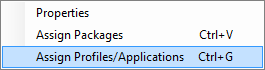
Assign Packages and Assign Profiles/Applications will be shown if there are any of those in the buffer.
Selecting properties will open the properties dialogue described below:
| Element | Description |
| Details | 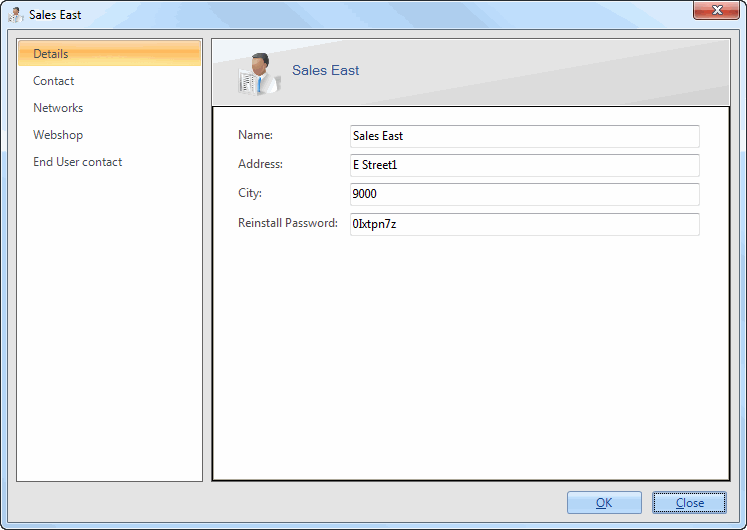 The reinstall password is used when setting a computer to reinstall in the Web Console. ❗ Web Console The Web Console is only available to CapaInstaller As A Service Partners. If you are not a Partner this password will not be used or requested elsewhere. |
| Contact | 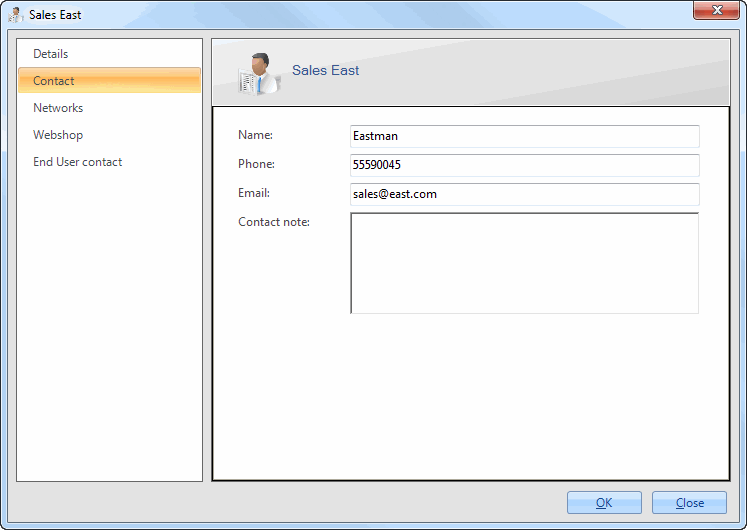 |
| Networks | Allow for the registration of networks, that computer request can arrive from. This is based on the Default gateway mac address and IP start/end addresses. 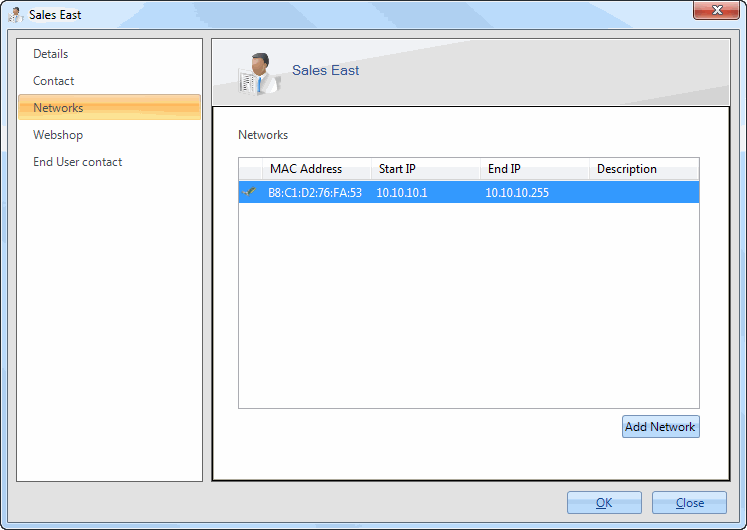 Right-clicking on an existing one from the list will give the option to edit or delete it. Clicking Add Network or edit will show the form below. 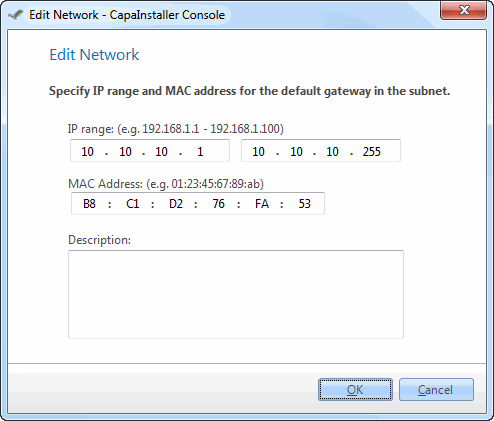 ❗ Web Console This is only used for CapaInstaller As A Service Partners and is not used in an Enterprise CapaInstaller Installation. |
| Web Configuration | 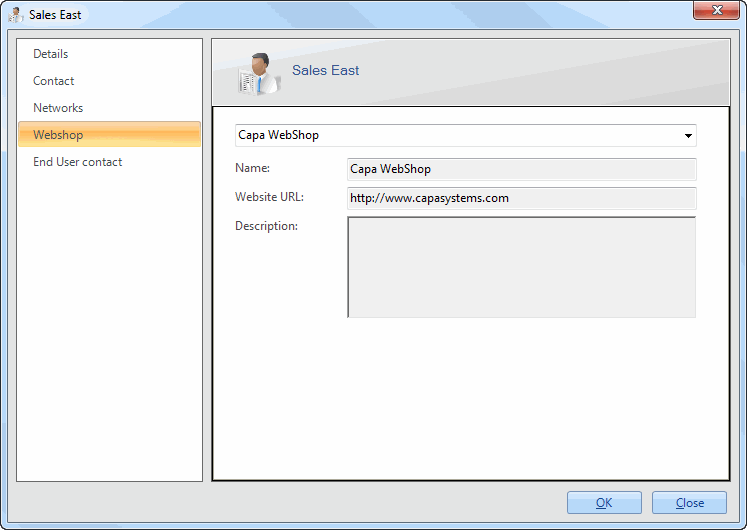 The webshop will show as a link in the Web Console which is available to CapaInstaller As A Service Partners. ❗ Web Console The Web Console is only available to CapaInstaller As A Service Partners. |
| End-User Contact | 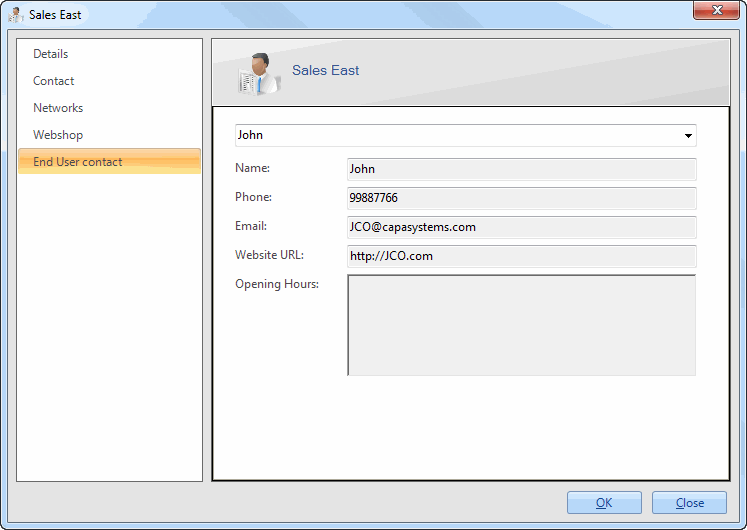 |
| OS Configuration | 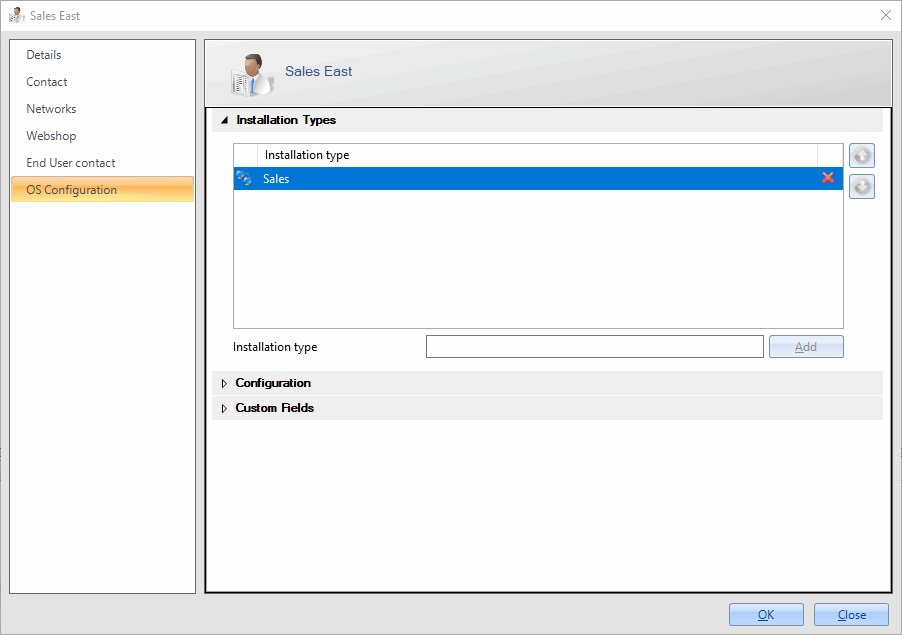 If any Installation Types are defined here, this will override the Installation Types defined on the OS Deployment point. see Configuring Installation types. 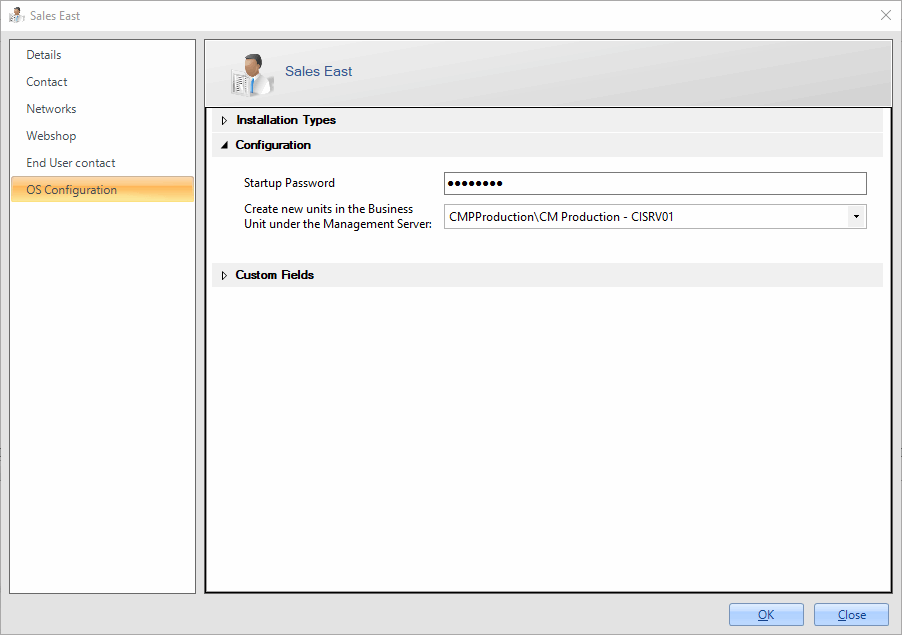 Set a Startup Password used by OSDClient when installing a client into the Business Unit. Set a Startup Password used by OSDClient when installing a client into the Business Unit. see Configure an OS Deployment point. In Create new units in the Business Unit under the Management Server, select the Management Server that new units in the Business Unit are created under. If you don’t select one, the OS Deployment server setting is used. 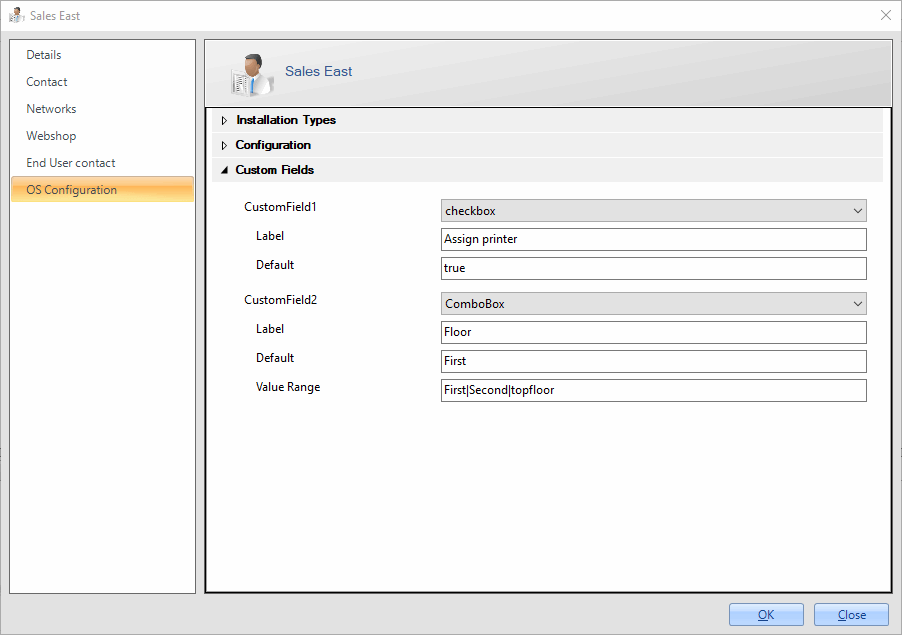 Define up to 2 CustomFields, to use in Scripts. Any CustomFields created here overrides CustomFields defined in OS Point configuration. see Custom Fields Installation. |
| CapaOne | Links the Business Unit to one of the sub-organizations of your CapaOne organization. Select Not linked to CapaOne or a sub-organization in the list. The list only shows sub-organizations that aren’t already linked to another Business Unit. When the Business Unit is linked, the page shows the CapaOne Identifier, CapaOne Name and CapaOne key of the sub-organization. The CapaOne integration must be set up first. See CapaOne Integration in Console. |
Detail View
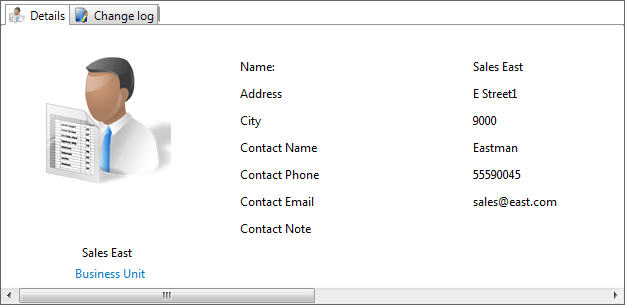
When a business unit is selected, the detail view in the lower right part of Configuration Management will show some basic details and changes made to/inside the business unit.
This is an example of the information available.

In this section
Section titled “In this section”- Create new Business Unit - Create a business unit.
- Link unit to Business Unit - Link units to a business unit.
- Assign profiles/applications to a Business Unit - Assign MDM profiles and applications to a business unit.
- Assign packages to Business Units - Assign a package to a business unit.