

System Notification
At a configurable interval, CapaInstaller scans the system for potential problems and creates notifications for what it finds. An example could be a service that hasn’t updated its status for an hour.
A notification doesn’t necessarily mean an action needs to be taken. It’s a tool that gives you a better overview of the status of CapaInstaller, both recent and historic. Check the timestamp and frequency of a notification when you determine whether it requires attention.
Notification indicator
Section titled “Notification indicator”
The indicator is shown in the lower-right corner of the console. The first number is the number of unread notifications. The second number is the total number of unsolved notifications. The indicator flashes red while there are unread notifications, and it’s updated every minute.
System Notification form
Section titled “System Notification form”Click the indicator to open the System Notification form.
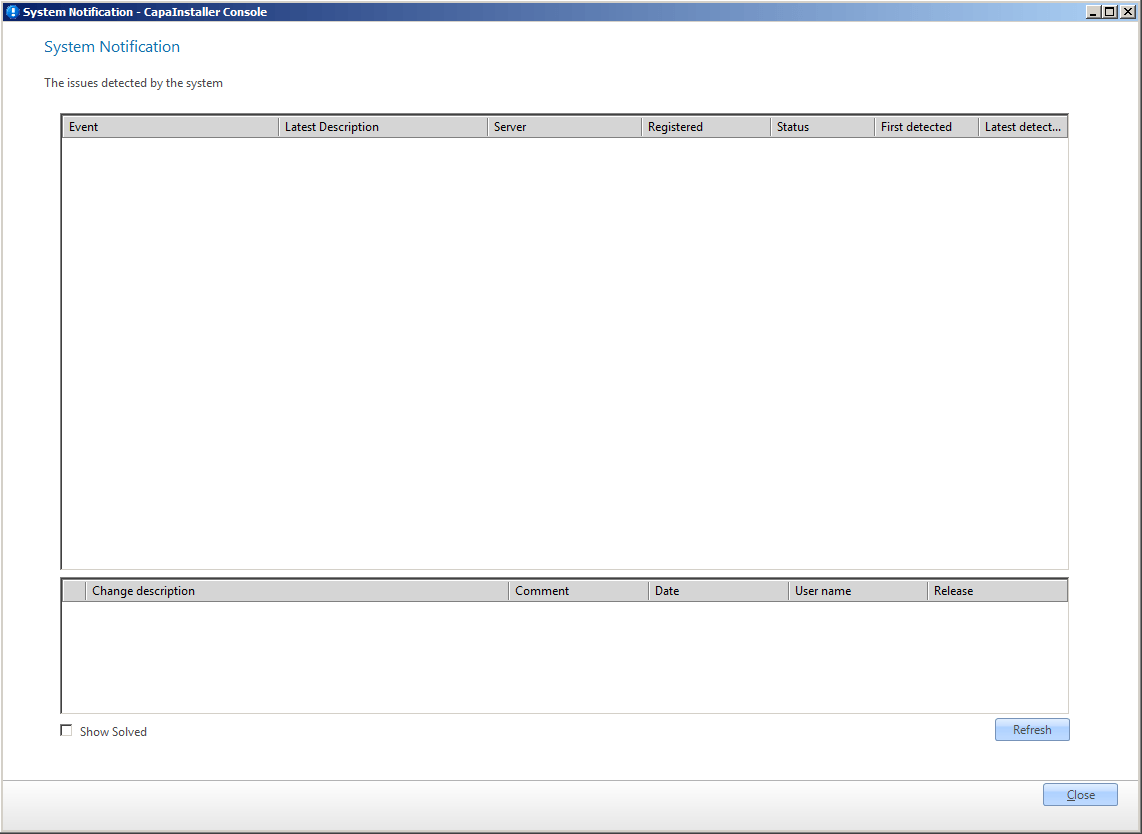
The list shows the event, the latest description, the server, how many times the issue has been registered, the status, and when the issue was first and latest detected. Notifications in bold are unread. Solved notifications are hidden. Select Show Solved to show them.
The same issue can be found in several scans if it hasn’t been solved since the last scan. Subsequent issues are linked to the original notification with a timestamp. The Registered column shows how many times the issue has been registered. Double-click a notification to see the details. This also marks the notification as read.
The bottom half of the form shows the change log for the selected notification, including the comments that were entered when its status was changed.
Notification actions
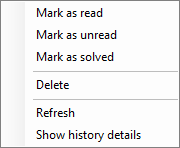
Section titled “Notification actions”Right-click a notification to get these options:
| Element | Description |
|---|---|
| Mark as read | Changes the read status of the notification to read. |
| Mark as unread | Changes the read status of the notification to unread. The notification is shown in bold. |
| Mark as solved | Changes the status of the notification from active to solved. You’re asked to confirm, and you can add a changelog comment. |
| Delete | Deletes the notification and any notifications that are linked to it. |
| Refresh | Refreshes the view. |
| Show history details | Opens the System Notification History form, with more details about the notification and a list of subsequent notifications on the same issue. |
System Notification History form
Section titled “System Notification History form”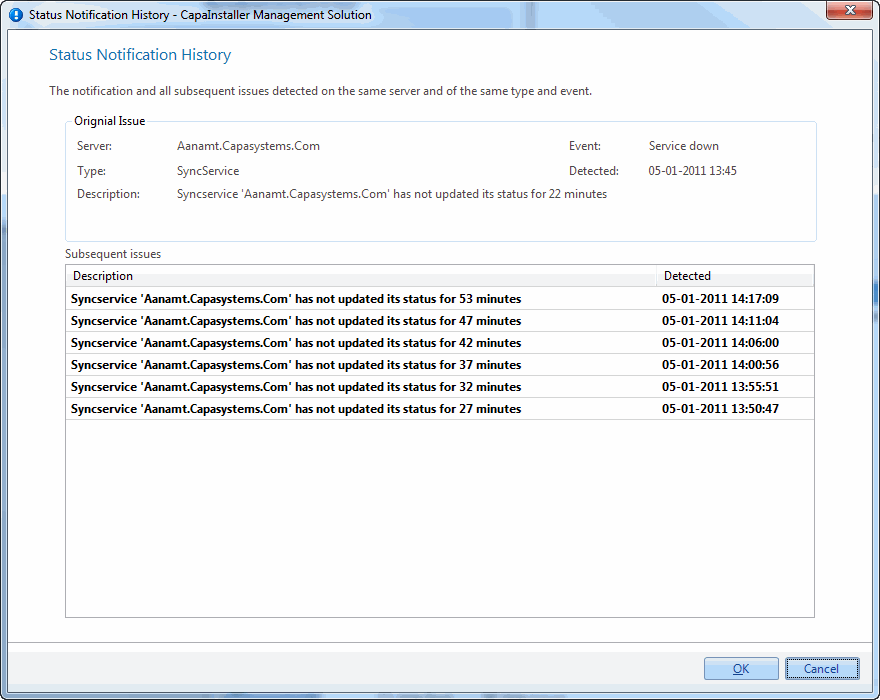
This form shows details about the original issue, and a list of subsequent issues detected on the same server and of the same type and event. When CapaInstaller determines whether two issues should be linked, it checks three properties: server, event, and type. If these are the same, the issues are linked and shown here.
From the example above, you can conclude that the synchronization service was first detected as offline at 13:45. The subsequent six system scans, at a five-minute interval, also registered it as offline. An administrator who reads this later can conclude that the service was offline for about an hour.
System Health Replicator task
Section titled “System Health Replicator task”The scan of the system is performed by the global Replicator task System Health. To configure it:
- Open the System Administration plugin.
- On the toolbar, click Global Replicator Tasks.
- Select the System Health task, assign a Replicator to it, and schedule the interval in minutes.
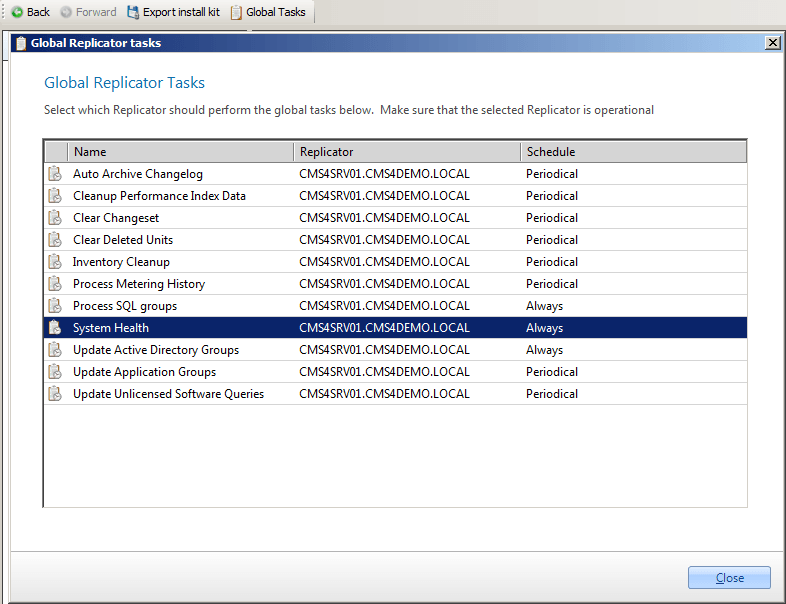
You choose which parts of the system are monitored under Notification settings in the System Administration options.