CapaInstaller InfoCenter
The CapaInstaller Agent is a small program that is run by each active CapaInstaller Client. Each time the Agent runs, it checks with CapaInstaller to see if any packages are waiting for your computer. If so, it runs each of them and returns status information to CapaInstaller so that the IT manager can track the success or failure of each package. Usually, it runs a set of packages that gather and return software, hardware, user and login inventory details. The Agent runs in two modes, computer and user. This page describes the InfoCenter icons, the InfoCenter menu, and how to open the software catalog directly.
| Element | Description |
 |
The Agent service is running correctly and is available to accept new commands. |
 |
(Animated), the Agent service is running correctly but is currently busy. |
 |
The Agent service is installed but not running, so you will not receive any notices or run any packages. You may need to contact your system administrator for assistance. |
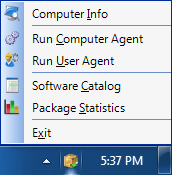
Right-click the Info Center icon to open this menu:
| Element | Description |
| Computer Info | The CapaInstaller Agent collects information about the basic hardware, system and network setup of your computer. This information is returned to the system to help IT managers get an overview of what computers are available on the network and how they are set up. This information might also be helpful to you if you are having trouble or if you are just curious. If Enable Management Portal integration is set in the agent configuration, Computer Info opens the Management Portal detail view of the computer in a web browser instead. 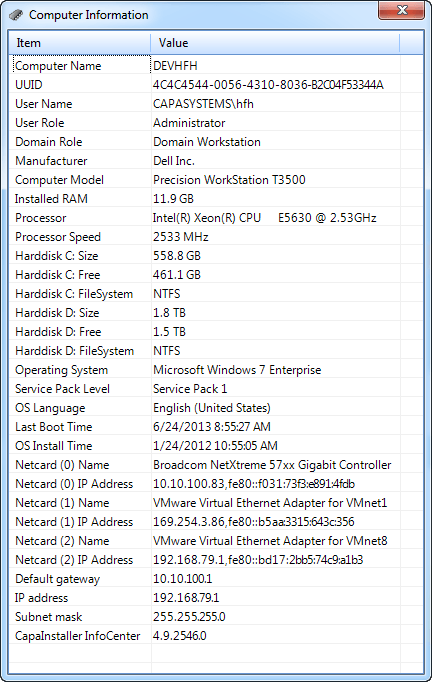 |
| Run Computer Agent | This will request the ‘CapaInstaller Stub Service’ to start the Agent in the computer/system context and check for packages available for the computer. This means packages that affect all users of the computer, including software installations, operating system patches and updates. The Agent normally runs in this mode several times a day. If any packages are available, they will be run at this point, leaving the system tray icon to ‘rotate’ until the package has completed. |
| Run User Agent | Running the user agent is simply done by launching the agent in the context of the Info Center itself, probably yours. This also means that the agent will check for user packages. User packages affect only the currently logged in user (you). These are usually maintenance tasks, such as setting up new printers, cleaning up temporary files or giving you new desktop shortcuts to company resources. The Agent automatically runs in this mode each time you log in. If any packages are available, they will be run at this point, leaving the system tray icon to ‘rotate’ until the package has completed. |
| Software Catalog | The CapaInstaller Catalog includes non-mandatory packages that individual users can install on demand. Catalog items can be limited in scope (i.e., only some users will see them), or universal so that all users can install them if they want. This window shows a list of catalog categories. Use it to browse the catalog and see if there are any programs you would like to install. Use Search to filter the list. If you find a program that you want, select it and click Order. If an installed package supports uninstallation, you can select it and click Uninstall. To open the software catalog directly, see Command-line argument on this page. 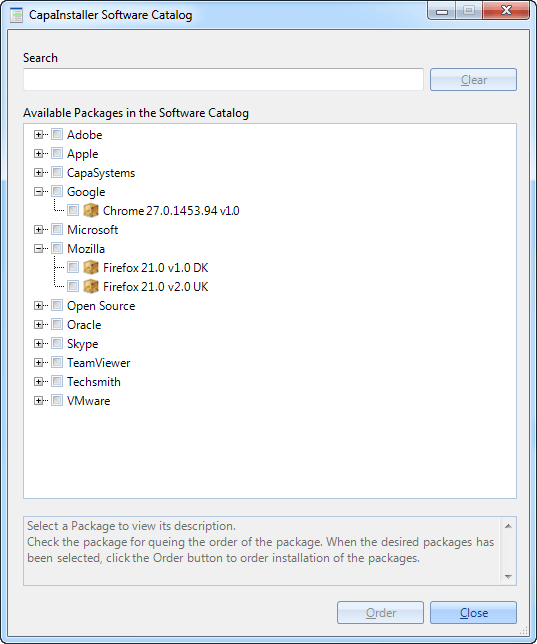 Packages that are already installed are marked with their state, for example (Installed). Packages that are already installed are marked with their state, for example (Installed). |
| Package Statistics | The Agent keeps track of each package that has been installed or run. It lists each package that has run on your computer with its Package Name, Status, Installation Date and number of Reruns. Most packages will run just once. However, some packages (notably inventory- gathering or daily maintenance packages) will run regularly—possibly every day or several times a day. Double-click a package to open a detailed log of the last time the package ran. 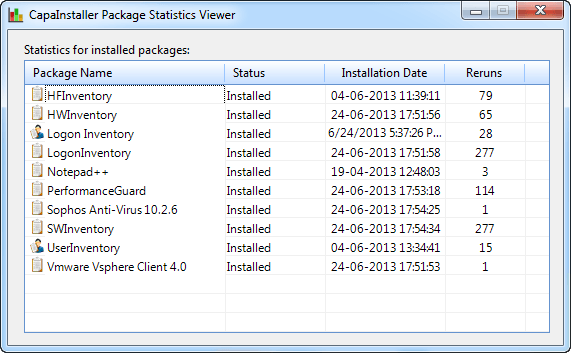 |
| Exit | Usually the Info Center will run automatically on your machine and should continue to run in the background all of the time. However, if you need to quit it, right-click the Info Center icon in your system tray and select Exit. If Exit is greyed out, your administrator has turned on the Prevent the user from closing InfoCenter setting. See Configuring the Agent. If the Info Center is not running for some reason and you want to start it, then you must go to the folder in which it was installed and run the file called CapaInstaller InfoCenter.exe. Typically, you will find this at C:\Program Files\CapaInstaller\Client\Util\CapaInstaller InfoCenter.exe. |
Command-line argument
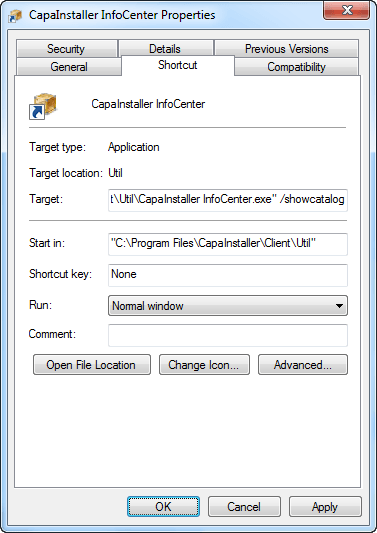
Section titled “Command-line argument”InfoCenter supports a simple way to quickly open the catalog view. Create a shortcut to C:\Program Files\CapaInstaller\Client\Util\CapaInstaller InfoCenter.exe and place it somewhere convenient. Right-click the shortcut and select Properties. In the Target box, add a space followed by /showcatalog. Click OK to save the changes.
If you activate this shortcut CapaInstaller InfoCenter will display the software catalog view.