

Deploy Management Server to Windows Server
To deploy units and packages, you need a Management Server. The steps below deploy a Management Server to a Windows computer in the same domain as the parent Management Point or server.
| Step | Action |
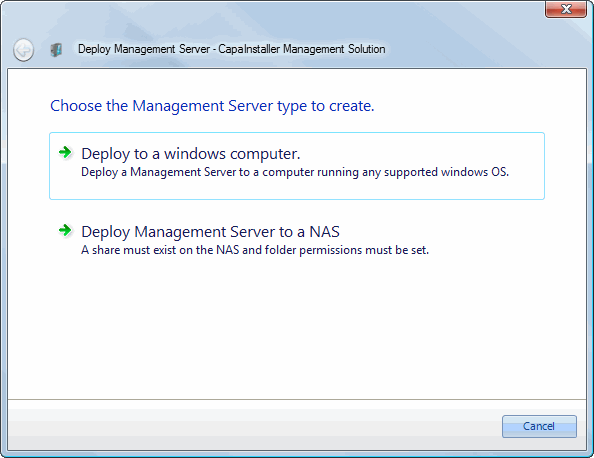
| 1 | Right-click either the Management Servers node or a Management Server, depending on where the new server belongs, and select Deploy Server. On the Select server type page, click Management Server. |
 |
|
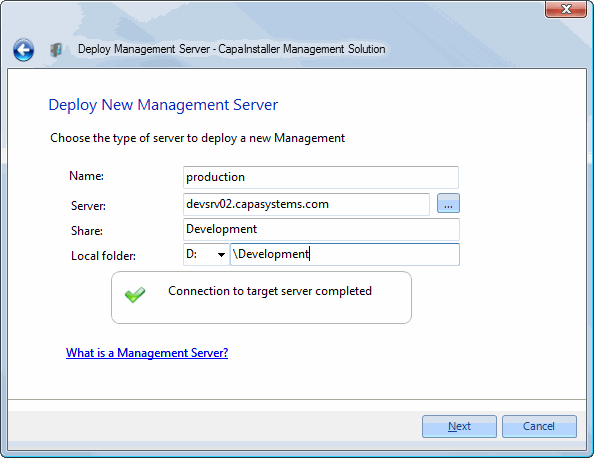
| 2 | Enter the name of the Management Server as you want it to appear in the console. Enter the name of the server on which to deploy the Management Server. The share name will follow the Management Point. Specify the local drive letter and folder on which to place the files and folders. |
 |
|
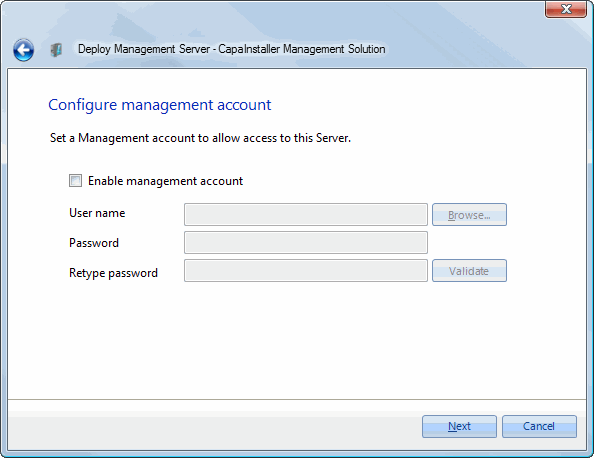
| 3 | Select Enable Management account and enter the user name and password. |
 |
|
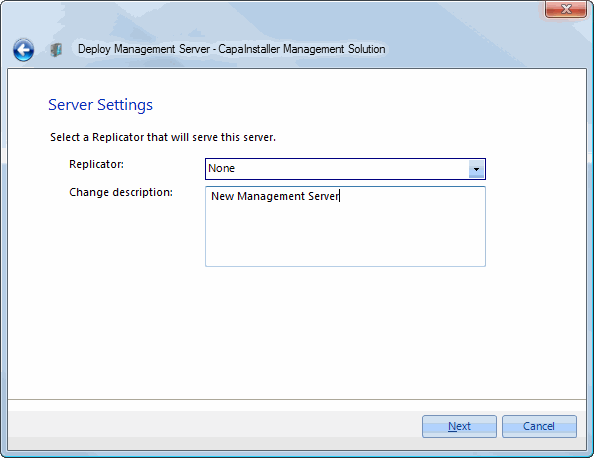
| 4 | Select the Replicator that should process this Management Server, and enter a change description. If you haven’t deployed a Replicator yet, you can assign one later. You can always change the assigned Replicator. |
 |
|
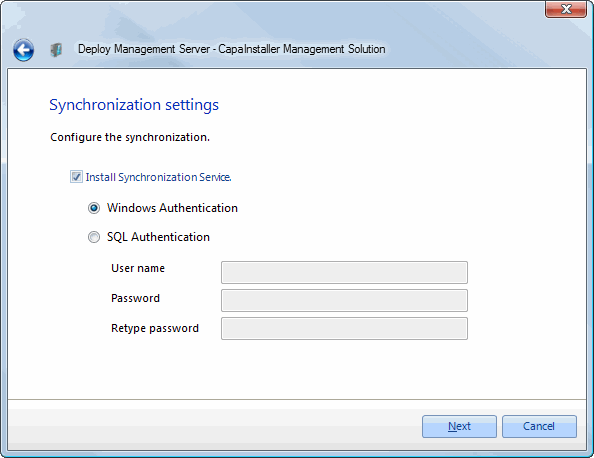
| 5 | Select whether to install the Synchronization Service. Normally you use Windows authentication, but you can also use SQL authentication. |
 |
|
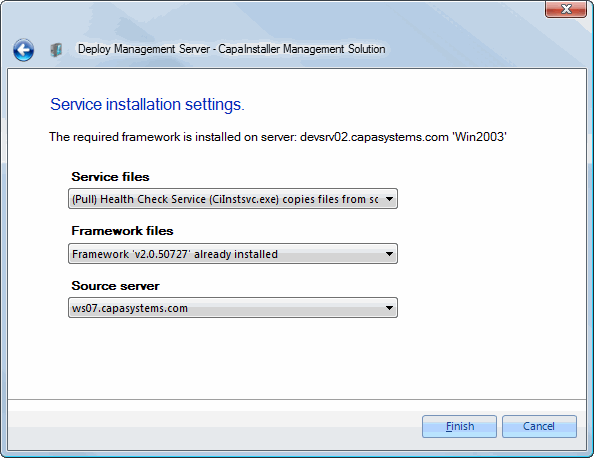
| 6 | - Select how service files are copied to target Server - Select how framework files are copied to target Server - Select the source server |
 |
|
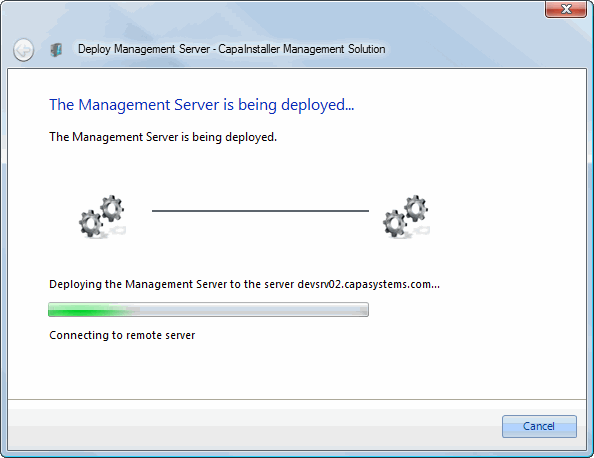
| 7 | The deployment process will now start. The share will be created and security will be applied. Initial files and folders will be copied to the share. If Synchronization is enabled, the service will be installed and initial package synchronization will be performed. |
 |
|
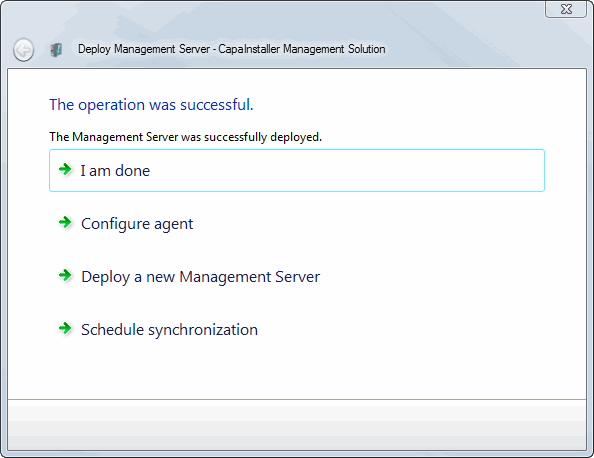
| 8 | Deployment completed. |
 |