

CapaWinUpgrade Installation Screen Error
Problem
Section titled “Problem”[JOBERROR] : The installation screen application is not installed, but other components are still installed. Please repair or remove the installation screen
This is reported by the CapaFactory_InstallationScreen_CheckStatus job, typically with a log similar to this:
Checking installation screen processThe installation screen process is not runningChecking installation screen folderThe installation screen folder existsChecking installation screen executableThe installation screen executable existsChecking installation screen versionThe installation screen version is supportedChecking installation screen serviceThe installation screen service does not existChecking installation screen applicationThe installation screen application is not installed[JOBERROR] : The installation screen application is not installed, but other components are still installed. Please repair or remove the installation screenA common cause is that an old version 1 of the Installation Screen is still present on the machine (leftover folder/service) even though the application itself isn’t installed. Try Solution-2 first in that case, since it’s quicker than importing a cleanup package.
Solution-1: Use a Clean Installation Screen Package
Section titled “Solution-1: Use a Clean Installation Screen Package”Steps to Resolve the Issue
Section titled “Steps to Resolve the Issue”Use of Clean Installation Screen Package: You need to use a cleanup package specifically designed for this error. Follow the instructions to import the Installation Screen CleanUp v1.0 package into CapaInstaller.
-
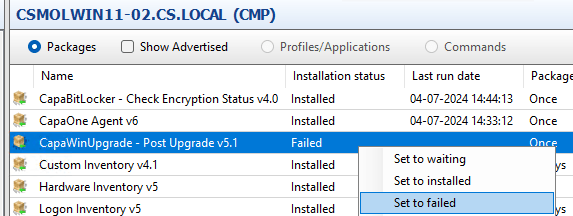
Set WinUpgrade to Failed Status: Since the installation is incomplete, right-click the WinUpgrade package on the unit and select Set to failed. Then restart the computer to refresh the system state.
-
Importing and Running the Cleanup Package:
- Open CapaInstaller Console.
- Import the Installation Screen CleanUp v1.0.zip package into the console.
Installation Screen CleanUp_v1.0.zip - Once imported, link the cleanup package to the client machine that experienced the failed WinUpgrade.
- After linking, restart the agent on the client and wait for the package to be installed. This should help resolve any issues with the installation screen application.
-
Re-running the WinUpgrade Package: Once the cleanup package runs successfully, proceed with re-running the WinUpgrade package on the client machine. The previous error should no longer occur.
Solution-2: Manually Remove a Leftover Installation Screen v1
Section titled “Solution-2: Manually Remove a Leftover Installation Screen v1”If an older version 1 Installation Screen is still on the machine, its leftover files, service, or registry entry can trigger this error even though the check reports the application as “not installed.” Remove it manually on the client:
-
Check installed programs. Open Add/Remove Programs (Programs and Features) and confirm there is no Installation Screen or CapaFactory entry still listed. Uninstall it if there is.
-
Check for a leftover service. Open services.msc and look for a service with “Capa” and “InstallScreen” in the name. If it exists, remove it from an elevated cmd prompt:
sc delete "<name of service>" -
Delete the leftover install folder. This is the most common cause. Browse to
C:\Windowsand check for a folder namedciinst. If it exists, delete it.
After completing these steps, re-run the WinUpgrade package on the client.
Related
Section titled “Related”- Remove Old Install Screen — the CapaSystems package that removes installation screen v1.x components
- CapaWinUpgrade 5.0 - Release Notes — the release that redesigned installation screen handling and retired v1.x
- Windows Feature Upgrade Guidelines — what to check when a feature upgrade fails
- CapaWinUpgrade — the full CapaWinUpgrade documentation