

How to Boot OSD from USB devices
You can boot the CapaInstaller OSD environment from a USB key. This is useful when no network boot service is available to the device that you want to deploy. Images and configurations are still fetched from the OS Deployment server over HTTP. You configure the port for this communication when you set up the OS Deployment Service.
Create the boot.wim file
Section titled “Create the boot.wim file”-
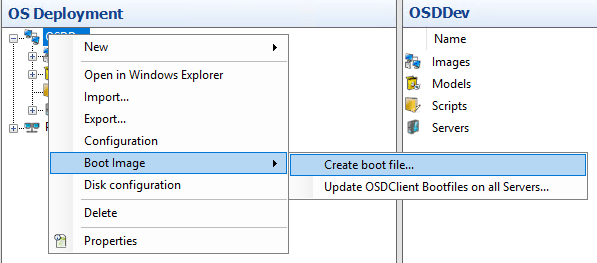
In the CapaInstaller Console, under OS Deployment, right-click your OS Point.
-
Select Boot Image → Create Boot File….
-
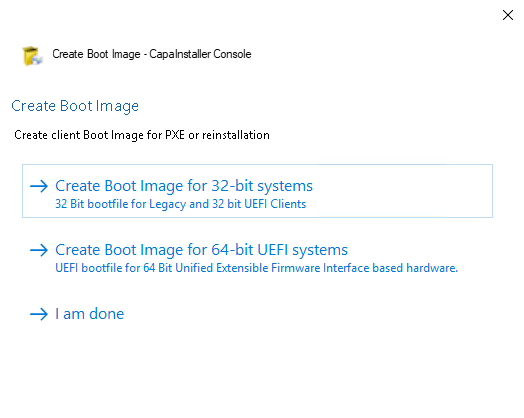
Select Create Boot Image for 32-bit systems or Create Boot Image for 64-bit UEFI systems.
-
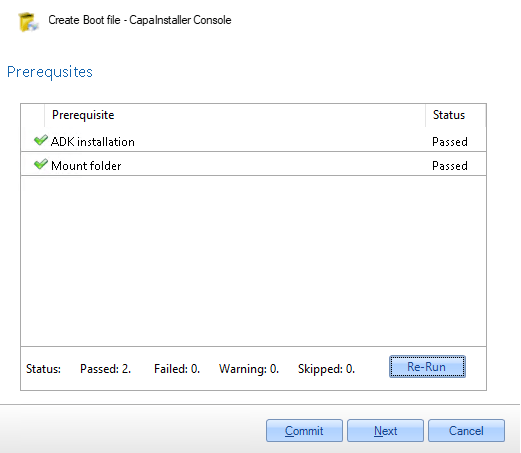
Make sure that the path to your Windows ADK installation is correct.
-
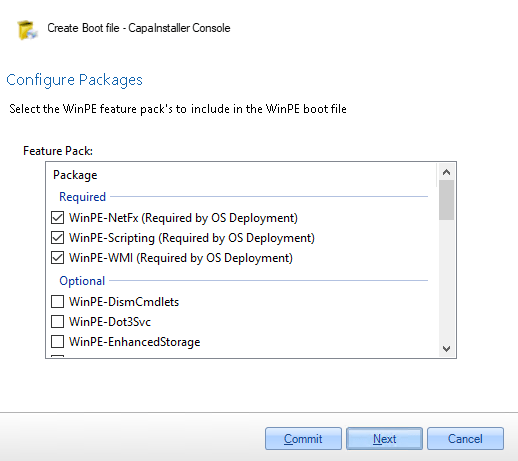
Select Next three times.
-
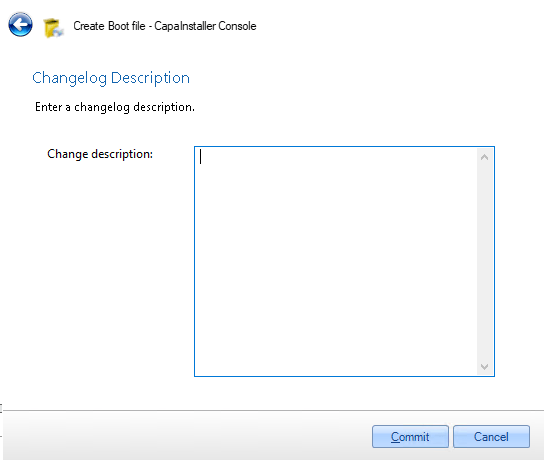
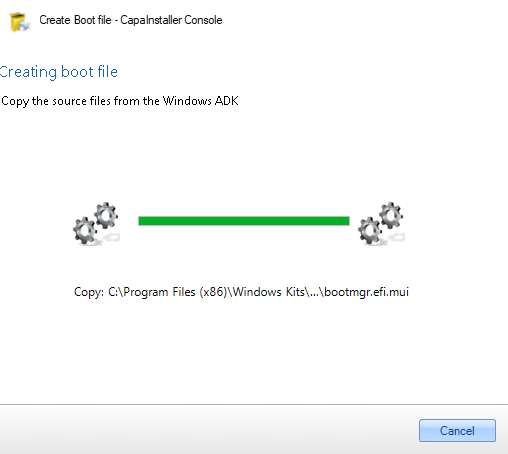
Select Commit. The boot file is created.
-
Locate the
boot.wimfile that was created.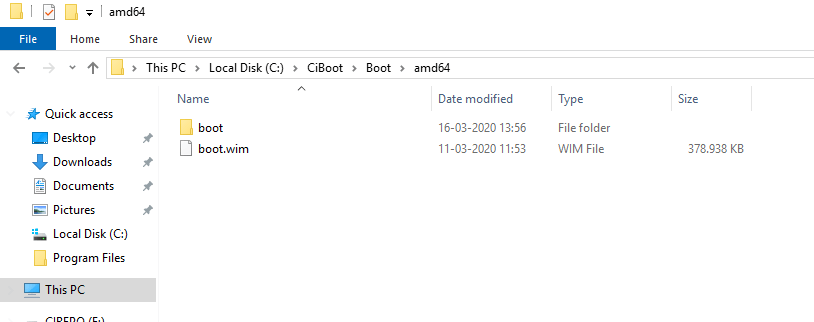
Get the PowerShell script
Section titled “Get the PowerShell script”-
Download BuildUSB.ps1 and save it with the
.ps1extension, for example asC:\USBKeyCreater\BuildUSB.ps1. -
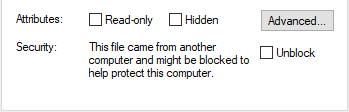
Open the properties of the downloaded script and make sure that it isn’t blocked.
Create the USB key
Section titled “Create the USB key”-
Run a Deployment and Imaging Tools Environment prompt as administrator.

-
Run the script from the prompt:
Powershell -file C:\USBKeyCreater\BuildUSB.ps1 -
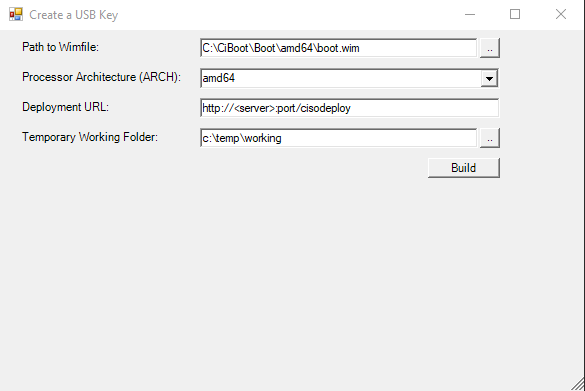
In the Create a USB Key window, enter the values for your environment, and then select Build:
- Path to Wimfile: the
boot.wimfile that you created. - Processor Architecture (ARCH): the architecture of the boot file, for example
amd64. - Deployment URL: the URL of the OS Deployment service in the format
http://<server>:<port>/ciosdeploy. - Temporary Working Folder: a local folder that the script can use while it builds the USB key.
- Path to Wimfile: the
-
If the temporary working folder already exists, you’re prompted to remove it. Press A for Yes to All.

-
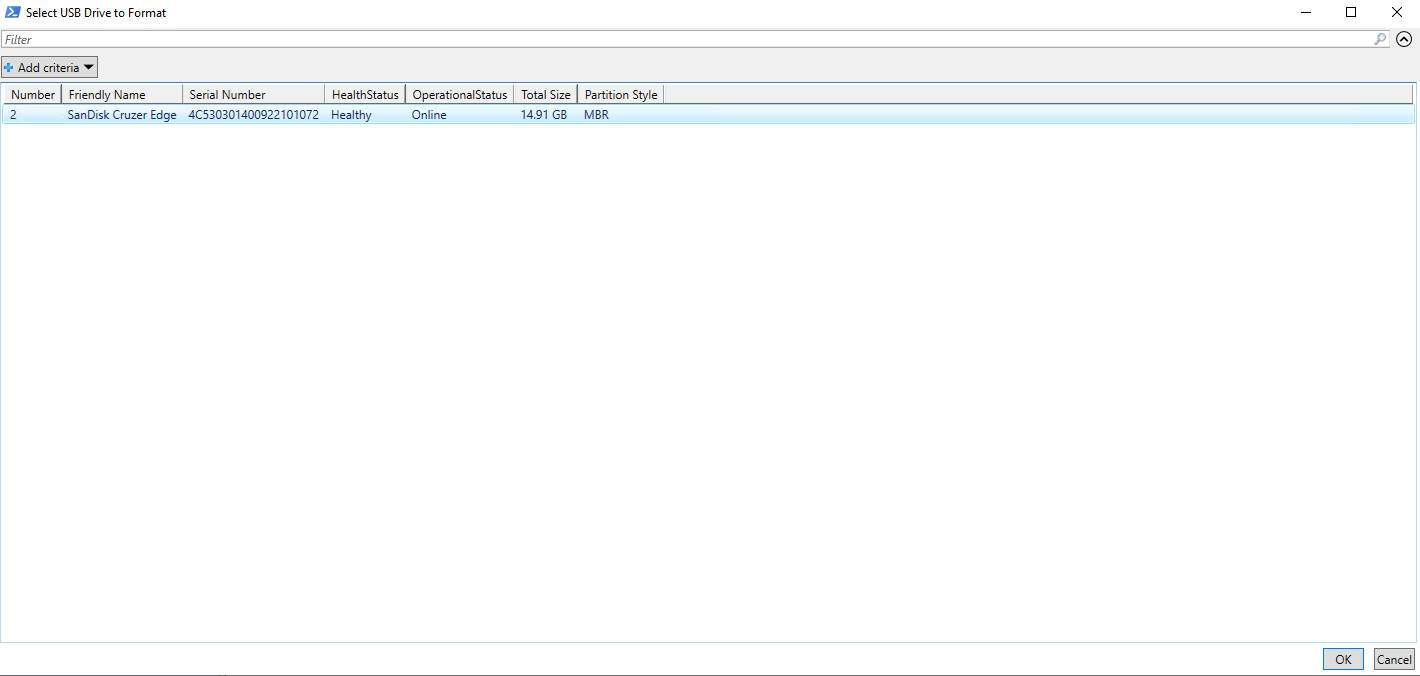
Select the USB key in the list, and then select OK in the lower-right corner.
-
When you’re prompted to confirm that the USB key is cleared, press Y for Yes.

-
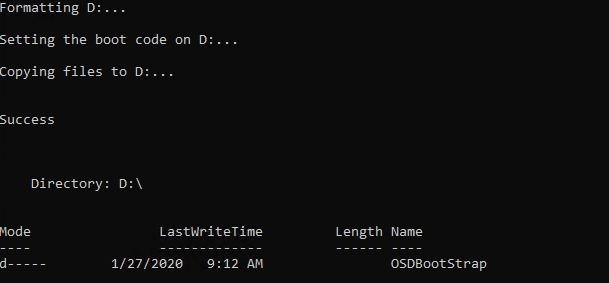
Verify that the script completed successfully.
-
Verify that the USB key has two partitions: a boot partition with the boot files, and an empty partition named
CIREPO.
You can now boot the device from the USB key and start OS Deployment.