

OS Deployment Service
This page describes the requirements, design, command-line interface, and settings of the CapaInstaller OS Deployment Service.
Requirements
Section titled “Requirements”- The OS Deployment Service exposes the same boot interface as ciBoot for BIOS boot.
- The OS Deployment Service supports UEFI boot with the OS Client.
- The OS Deployment Service requires a Back-end Service. It gets its configuration and data through the Back-end Service.
Design
Section titled “Design”- The OS Deployment Service is a Windows service that runs on x64 and x86 processors.
- The service requires Microsoft .NET Framework 4.6.2.
- The service is deployed from the System Administration plugin in the CapaInstaller Console. See Deploy OS Deployment Service.
- The service is installed in
C:\Program Files\CapaInstaller\Services\ciOSDeploy. - The service writes its log file
ciOSD.loginC:\Program Files\CapaInstaller\Logs\Services. - The default port is
5030for HTTP and443for HTTPS. - The service includes a PXE server (DHCP proxy) and a TFTP daemon, which you can enable in the service settings.
Command-line interface
Section titled “Command-line interface”The service gets its configuration through the Back-end Service, but it accepts command-line arguments. Because the OS Deployment Service is a Windows service, supply the arguments with net.exe or sc.exe.
Parameter syntax
Section titled “Parameter syntax”sc [\\computer] start ciosdeploy [/fatal|/f|/error|/e|/warn|/w|/info|/i|/debug|/d|/trace|/t] [/noupdate|/n] [/delay] [/set|/clear] [/help|/h]| Parameter | Meaning |
|---|---|
| /debug or /d | Starts the service with the debug log level. You can also use /fatal or /f, /error or /e, /warn or /w, /info or /i, and /trace or /t. |
| /noupdate or /n | Prevents the automatic update of the service. |
| /delay=## | Delays the start of the service by the specified number of seconds. |
| /set | Saves the stated arguments as default. |
| /clear | Clears the default arguments. |
| /help or /h | Shows the help text. |
Examples
Section titled “Examples”sc \\osdserver01 start ciosdeploy /dStarts the service on the server osdserver01 in debug mode.
sc start ciosdeploy /noupdateStarts the service without the automatic update.
Service settings
Section titled “Service settings”To open the settings, right-click the OS Deployment Service in System Administration and select Service settings…. The dialog has the tabs General, Dependencies, Communication, Configuration, PXE Service, TFTP Deamon, and Boot Profiles. The OS Deployment Service connects to the database through the Back-end Service, so it has no Database tab.
General
Section titled “General”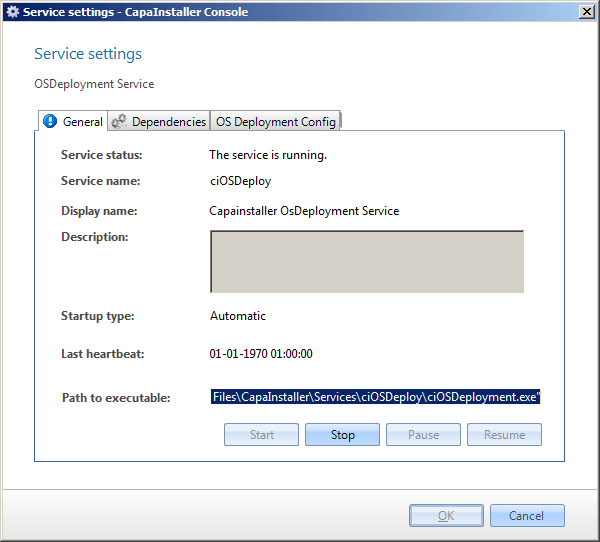
| Element | Description |
|---|---|
| Service status | Status of the service, as shown in Services in Windows. |
| Service name | The name of the service used by the operating system. |
| Display name | The name shown in Services in Windows. |
| Description | Description of the service. |
| Startup type | Automatic, manual, or disabled. The default value is automatic. |
| Last heartbeat | The time of the last heartbeat from the service. |
| Path to executable | The full path to the program that the service starts. |
Other tabs
Section titled “Other tabs”| Tab | Settings |
|---|---|
| Communication | The Internal Url(s), Public Url(s), and SSL Certificate of the service. See Use HTTPS in Backend, Frontend & OS Deployment Service. |
| Configuration | The Back-end Service that the service uses, the File cache folder (default %temp%\OsDeploy), and the Refreshrate in seconds. |
| PXE Service | Enable PXE Server (DHCP proxy) and the Name of the PXE server. |
| TFTP Deamon | Enable TFTP Deamon, the Name, the Port Range, the Localpath (default C:\CiBoot), the Share Name (default CIBOOT), and the transfer settings Default Window Size, Default Block Size, and Use variable Window Size. |
| Boot Profiles | The network boot profiles of the service. See Network Boot Profiles. |