

Send Commands to device
From Configuration Management it is possible to send a number of commands to enrolled devices.
Managing commands
Section titled “Managing commands”These commands will be created as pending in the system and carried out when contact with the device is established.
How to send, view pending and delete commands to devices...
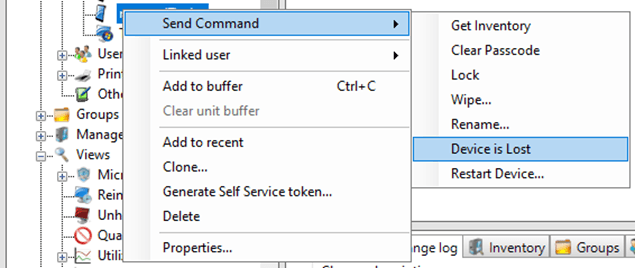
- Right-click the device and expand the ‘Send Command’ context menu.
- Depending on the device a set of available commands will be shown in the “Send Command” menu

Viewing pending commands
Section titled “Viewing pending commands”In order to see which commands have been created and are still pending, select a device in the navigation pane, and select ‘Commands’ in the top panel of the content view.
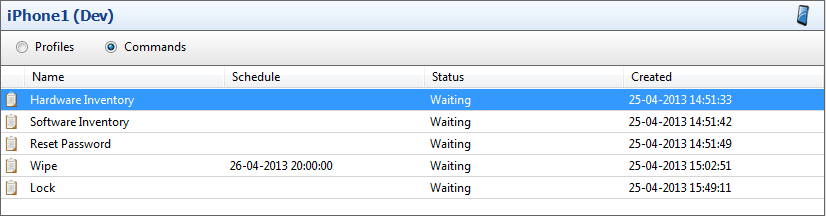
Canceling device commands
Section titled “Canceling device commands”Commands that have been issued to devices, can be canceled if they haven’t yet been sent to the device.
In order to see which commands have been created and are still pending on a device, select it in the navigation pane, and click ‘Commands’ in the top panel of the content view.
Right-click the command or commands that are no longer needed, and select ‘Delete’.
Common commands
Section titled “Common commands”Available commands all CapaInstaller managed devices
-
Get Inventory
Section titled “Get Inventory”Collects inventory data from the device, which is then available in the detail view for that device in the CapaInstaller Console
-
Clear passcode
Section titled “Clear passcode”Enables the device to be unlocked without the need for a passcode. If a policy exists that requires a passcode, a grace period will be given to enter a new passcode
-
Requires a lock screen to be set up on the device, with either pin, password, or pattern.
Will cause the device to be remotely locked like pressing the lock button on the device.
If authentication is set up it will be required to unlock the device.
-
The Wipe command erases all device data and restores it to factory defaults.
This command can be scheduled for a specific time
-
Rename
Section titled “Rename”Renames the selected device
Device Owner commands
Section titled “Device Owner commands”-
Lost Mode
Section titled “Lost Mode”Step Configuration 1 First, right-click your device, expand “Send Command”, and click “Device is lost”
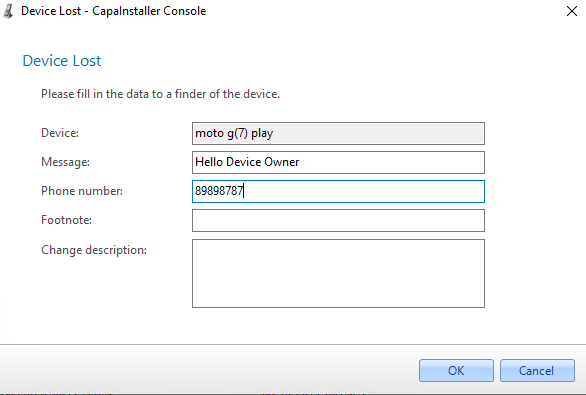
2 Type a message, and phone number, and click “OK”.
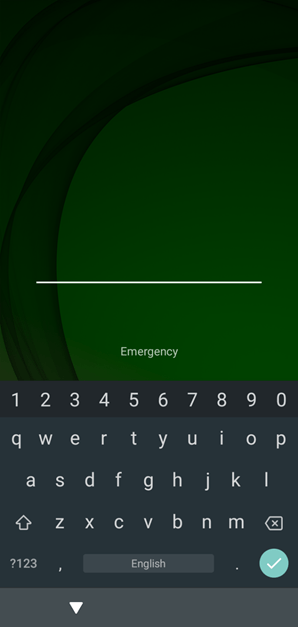
3 On the device, it will look like this, and to use the device, the user must enter the passcode set in Enterprise Profile Removal Passcode in the Agent Configuration Payload: 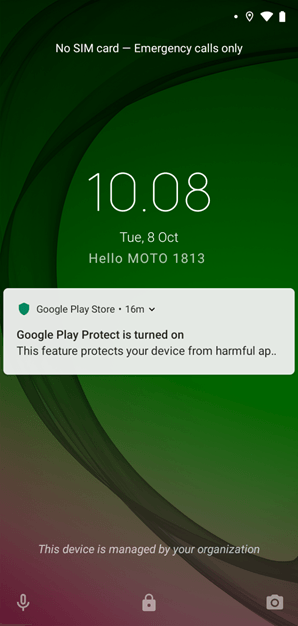
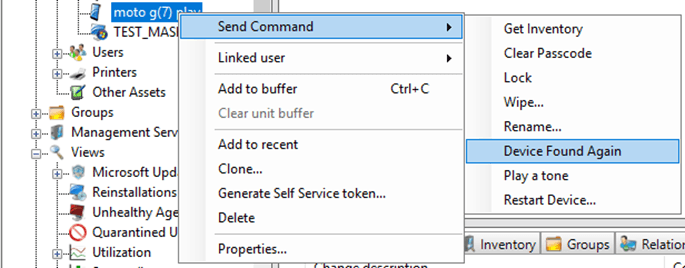
4 When you have found your device, right-click your device, click “Send Command” and click “Device Found Again”
Samsung Knox commands
Section titled “Samsung Knox commands”-
Lost Mode
Section titled “Lost Mode”Step Configuration 1 First, right-click your device, expand “Send Command”, and click “Device is lost”
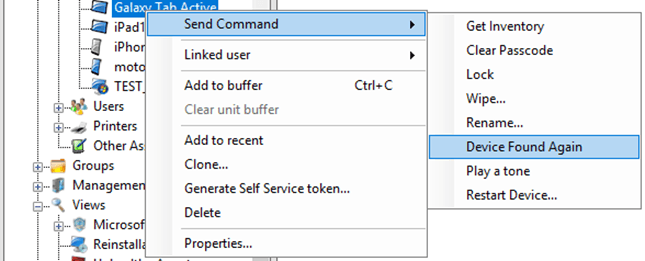
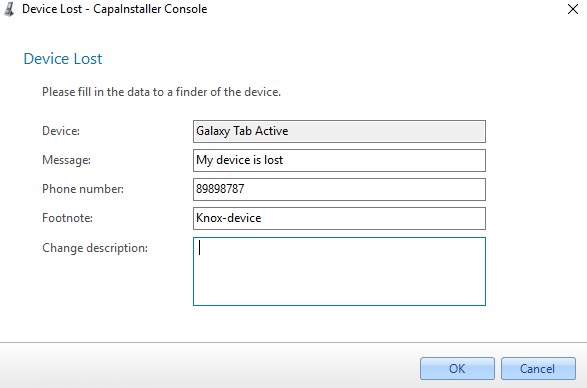
2 Type a message, phone number, and footnote and click “OK”.
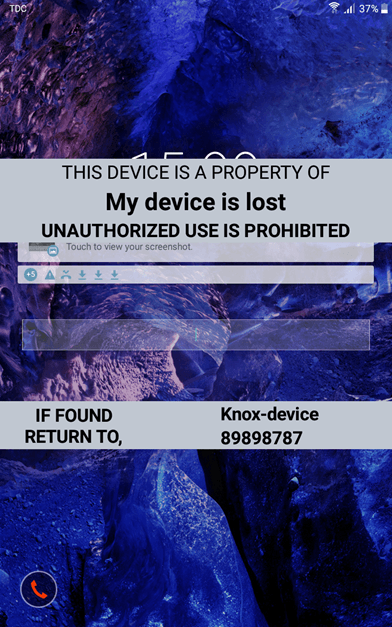
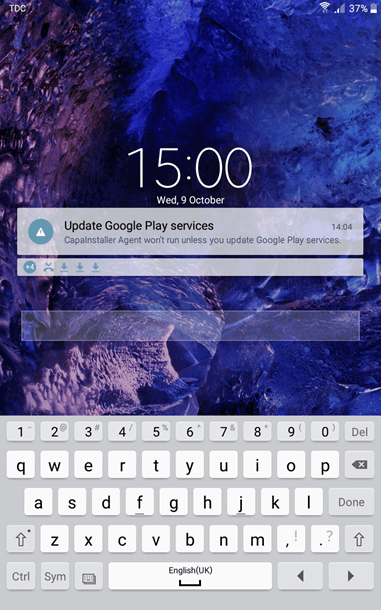
3 On the device, it will look like this, and to use the device, the user must enter the passcode set in Enterprise Profile Removal Passcode in the Agent Configuration Payload:
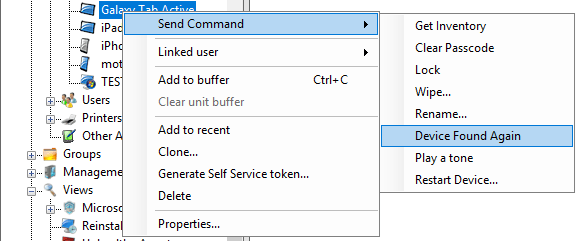
4 When you have found your device, right-click your device, click “Send Command” and click “Device found again”:
iOS commands
Section titled “iOS commands”Specific commands for devices running iOS
-
Lost Mode
Section titled “Lost Mode”Step Configuration 1 First, right-click your device, expand “Send Command”, and click “Device is lost”
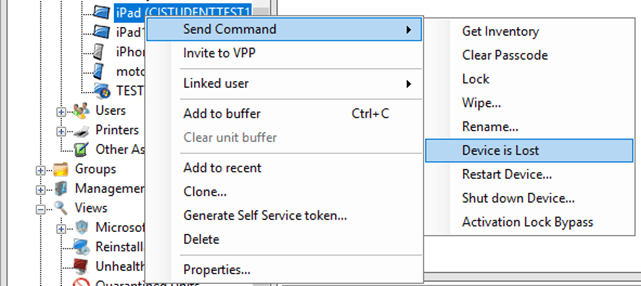
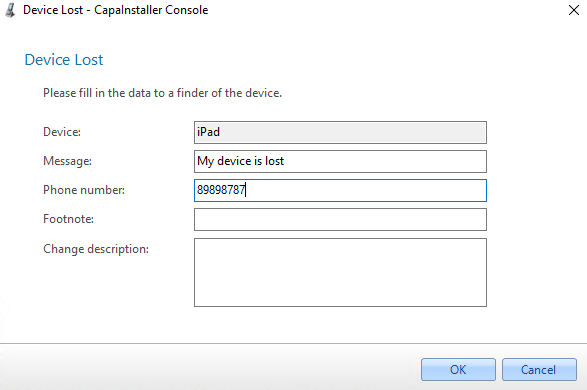
2 Type a message, and phone number, and click “OK”.
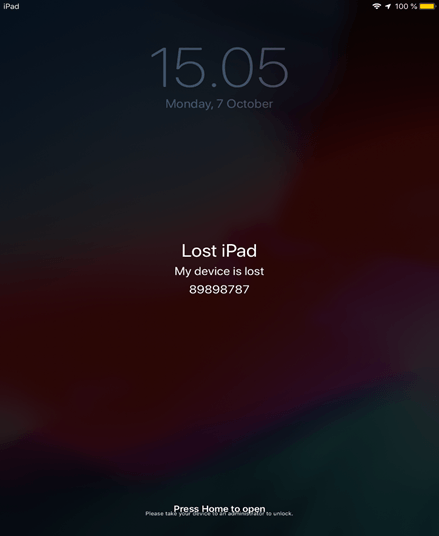
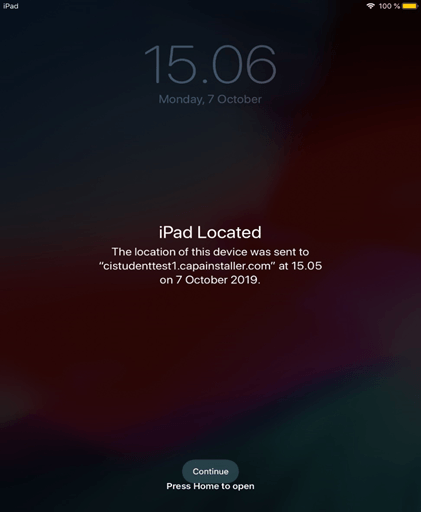
3 On the device, it will look like this:
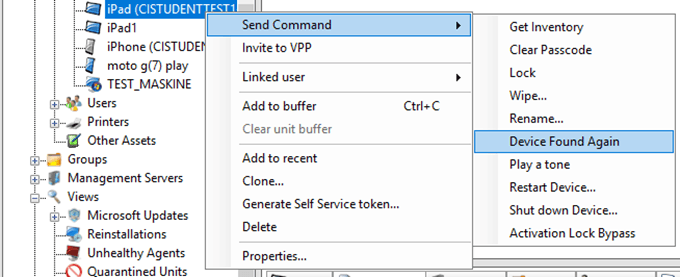
4 When you have found your device, right-click your device, click “Send Command” and click “Device found again”
5 On the device, it will look like this:
-
Update operating system for iOS
Section titled “Update operating system for iOS”
| Step | Configuration |
|---|---|
| 1 | First, make sure that “Update Is Available” is set to “True”  |
| 2 | Right-click your apple device, click send command, and then click “Update Operating System” 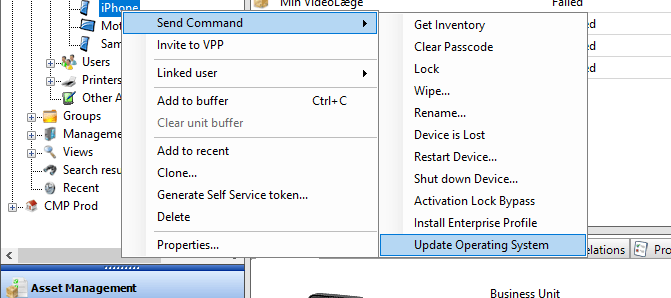 |
| 3 | Click on “Download and install update”. (Note that the device will restart) 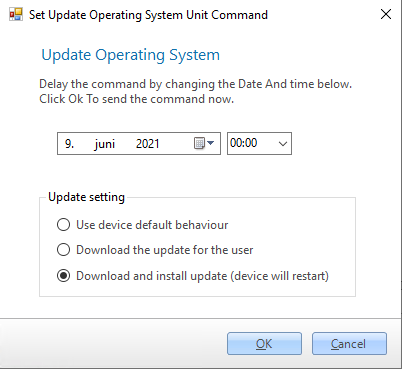 |
| 4 | Check the update has started under inventory in your device  |
| 5 | Make sure that the update status now is set to “installing” ❗ Be aware that the “Installing” status will not update until a user is logging on to the iOS device  |
| 6 | Make sure you have the software update installed.  |
Other commands
Section titled “Other commands”Depending on the platform and the capabilities of the device, the Send Command menu can also contain these commands:
- Play a tone (only while the device is in lost mode)
- Restart Device… and Shut down Device…
- Activation Lock Bypass (see Apple Activation Lock (Find my iPhone))
- Install Enterprise Profile…
- Update TimeZone…
- Update Operating System Now…
- Unenroll device from CapaInstaller…