

Whitelist App Payload
Description
Section titled “Description”This payload limits an Android device so that only the whitelisted apps can be used. In the Profile Editor it’s listed as Whitelist Apps under Android, and it applies to Samsung Knox, Android Device Owner, and Android Profile Owner devices. Test the payload on the device models you use before you deploy it widely.
Some apps are always allowed, even if you don’t add them to the list:
- The device’s default launcher (home screen) app
- The CapaInstaller Android agent
- Google Play services
- The device’s system apps
- The Android Settings app, if Allow use of settings (including PIN/Passcode settings) is selected
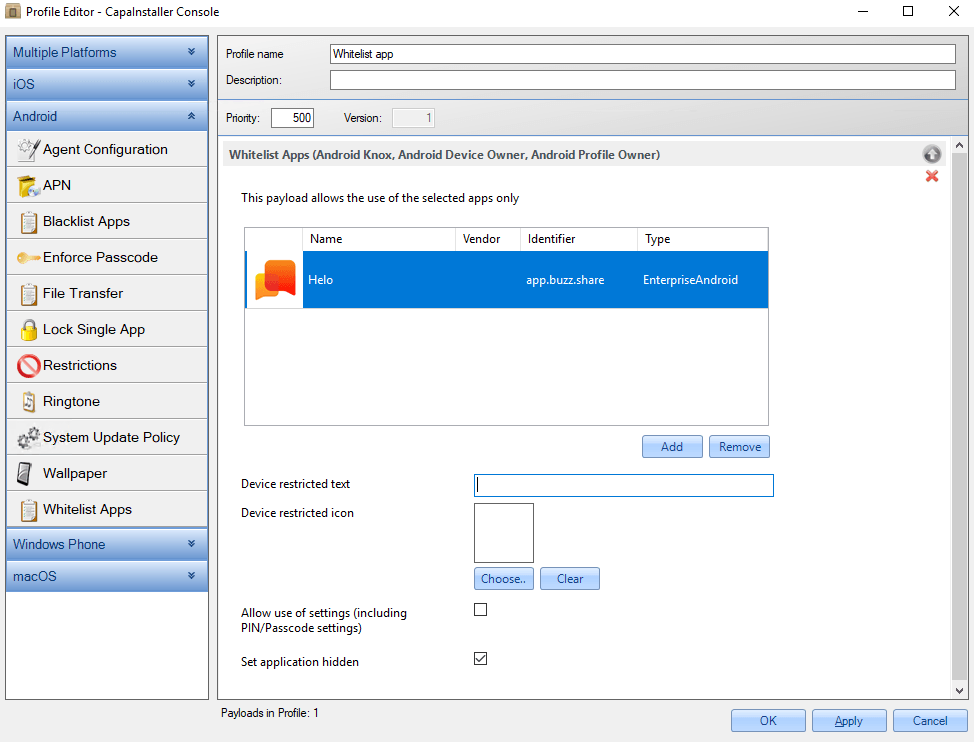
Configuration
Section titled “Configuration”| MANDATORY | CONFIGURATION | DESCRIPTION | EXAMPLE |
|---|---|---|---|
| Yes | Add | Click Add and select the apps that the device is allowed to run. It can be one of the standard preinstalled apps (like Gmail or the dialer), or an app from Google Play or an enterprise app. | |
| Device restricted text | The text shown to the user when they open an app that isn’t whitelisted. If the user taps the restriction note that blocks the screen, the device shows the identifier of the blocked app. | This app is not allowed to be used | |
| Device restricted icon | A company icon (PNG) shown together with the restriction note. | ||
| Allow use of settings (including PIN/Passcode settings) | Select this to let the user open the Android Settings app. | [Not Checked] | |
| Set application hidden | Hides the apps that aren’t whitelisted. A hidden app can’t be used, but its data and app files stay on the device. | [Checked] |