Deploy Replicator
This page describes how to deploy a Replicator. You create Replicators in the System Administration plugin, and the Replicator is deployed to the server you select.
-
In System Administration, expand Services, right-click Replicators, and select Deploy Replicator…. The wizard opens.
-
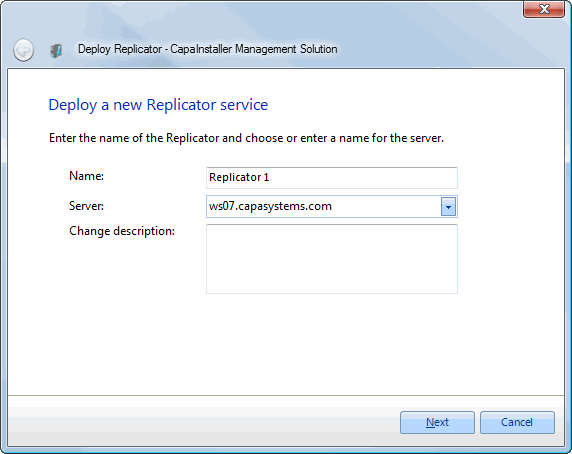
Enter a name for the Replicator, select the Management Server, and enter the name of the Windows server that will run the Replicator. Enter a description.
-
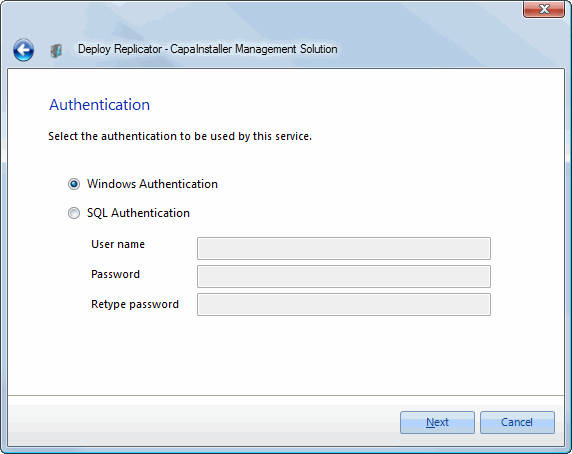
Select the authentication that the service uses to connect to the database: Windows Authentication or SQL Authentication.
Then select the account that the Replicator runs as: Local System account or This account. To use a different account, enter it as
computername\usernameorfqdn\username.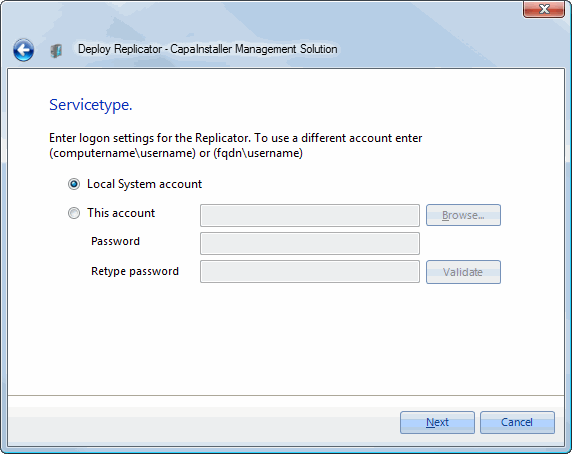
-
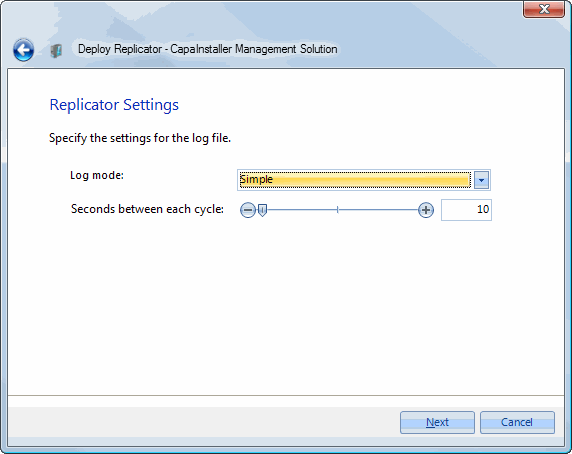
Select the log mode. Use the advanced mode only for debugging. Set the number of seconds between each cycle.
-
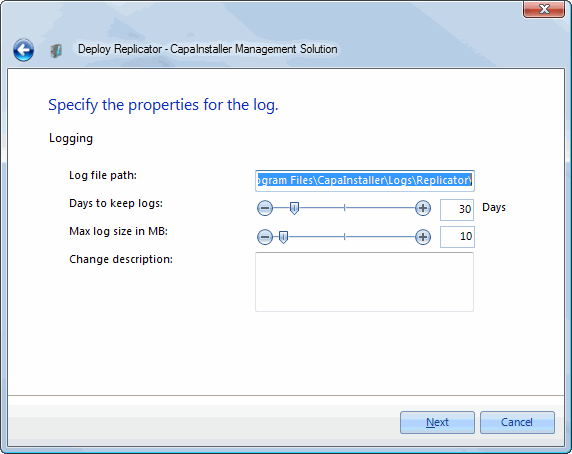
Enter the path to the log files, the number of days before log files are deleted, and the maximum log size in MB. Enter a change description.
-
Select how the service files and the framework files are copied to the target server, and select the source server.
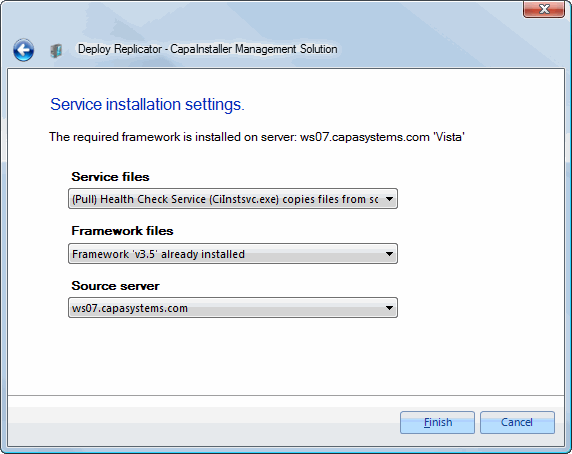
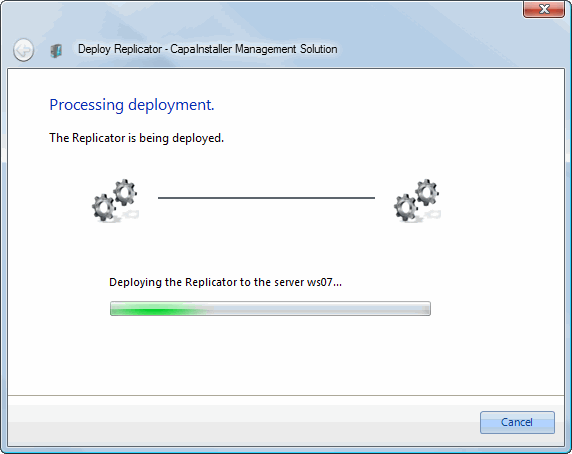
The Replicator is installed.
-
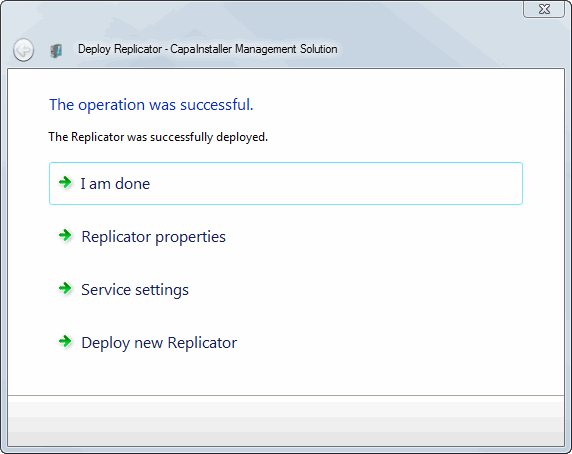
After the Replicator is deployed, select one of the options:
- I am done closes the wizard.
- Goto properties opens the properties of the Replicator.
- Goto Service properties opens the service settings.
- Deploy new Replicator starts the wizard again.