

Adding to the buffer
Use the buffer to collect several items and then apply them in one operation, for example to link many computers to a package or to add them to a group.
Unlike the clipboard in most programs, the buffer grows each time you add items to it. It keeps everything you add during the session, so you can collect items from several places in the navigation pane before you paste them.
Configuration Management has separate buffers for each kind of item:
- Unit buffer — computers, devices, users, and printers.
- Package buffer — computer and user packages.
- Profile/Application buffer — profiles and device applications.
Add computers to a package with the buffer
Section titled “Add computers to a package with the buffer”-
In the navigation pane, select Computers and Devices under Units. The computers are listed in the content view.
-
Select the computers you want to add.
-
Right-click the selection and select Add to buffer, or press Ctrl+C. A Unit buffer button that shows the number of units in the buffer appears in the toolbar.
-
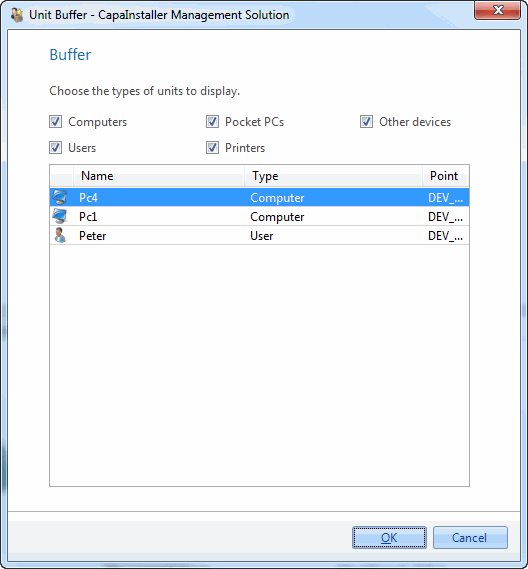
Optional: to check the content of the buffer, click the Unit buffer button in the toolbar, or select View → Unit buffer…. The Unit Buffer window lists the units in the buffer. Close the window when you are done.
-
Right-click the package you want to add the computers to, and select Paste computers, or press Ctrl+B.
-
Confirm the operation.
The computers are listed as waiting to install the package when you select the package in the navigation pane. The units you worked with are also added to the Recent node.
By default, the items are removed from the buffer after you paste them. To keep them in the buffer so that you can paste them again, go to Tools → Options → Configuration Management → Miscellaneous and clear Remove from buffer after Paste.
Related tasks
Section titled “Related tasks”| If you want to… | You can… |
|---|---|
| Remove a unit from the buffer | Open the Unit Buffer window, right-click the unit, and select Remove. |
| Empty the unit buffer | Select Edit → Clear unit buffer, or press Ctrl+D. |
| Paste packages from the package buffer | Select Edit → Paste from package buffer, or press Ctrl+V. |
| Paste profiles or applications from the profile buffer | Select Edit → Paste from profile buffer, or press Ctrl+G. |
| Learn about the buffer | See The buffer. |