

Server Deployment Templates
To ease the creation of servers, CapaInstaller offers an automated process, triggered and executed by the CapaInstaller Agent. This process is able to differentiate between individual customer packages, images, and model assignments.
The distribution server role can be assigned via a package installation on an existing server, a new physical or virtual server. These distribution servers can reside on Windows server and desktop operating systems with a CapaInstaller Agent installed.
A server can also have a WSUS downstream server role assigned via an offline deployment package, to support the distribution of Windows Updates.
The PXE, Front-end, OS Deployment, and Configuration Management server roles are also supported by the templates. Naturally, the roles can be combined in one Template to automate deployment further.
This wizard has a CapaInstaller Computer Package as output and uses the Silent Server Installer (SSI) to perform the installation.
| Step | Action |
| 1 | In System Administration, select Actions → Server Deployment Templates… |
| 2 | Create or edit a template 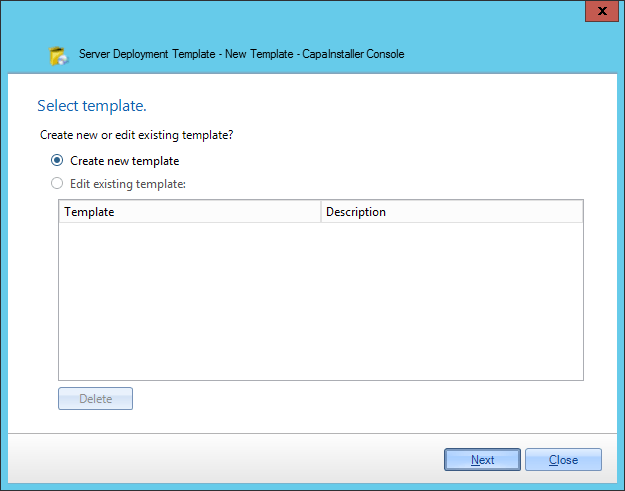 |
| 3 | Choose what points the package should install 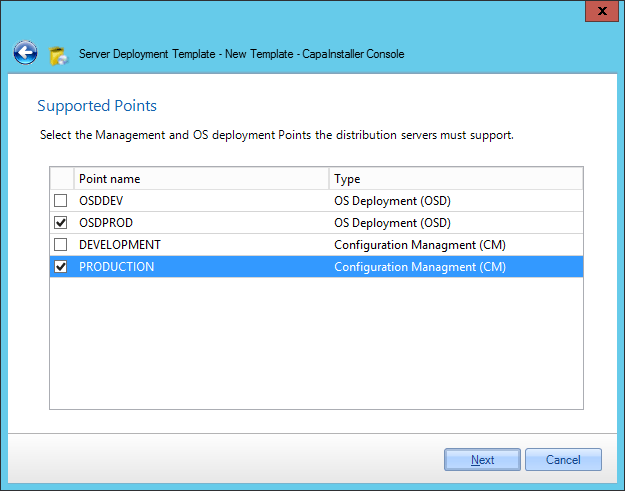 note: a template does not require points. If you don’t want this template to install any servers, no point selected, continue with step 8 |
| 4 | Specify data directories 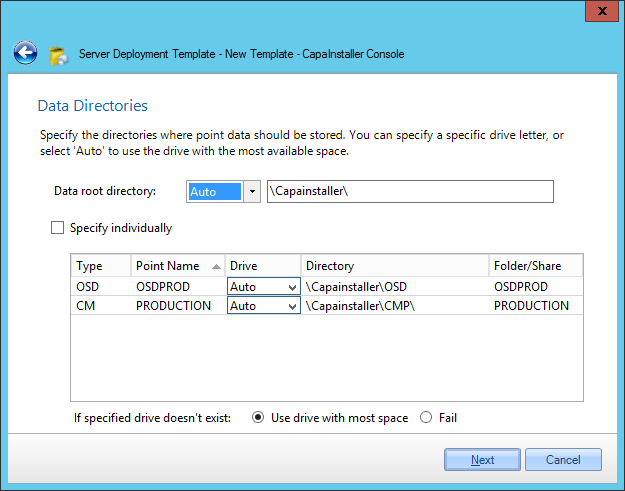 |
| 5 | Decide what schedules should be set for the points 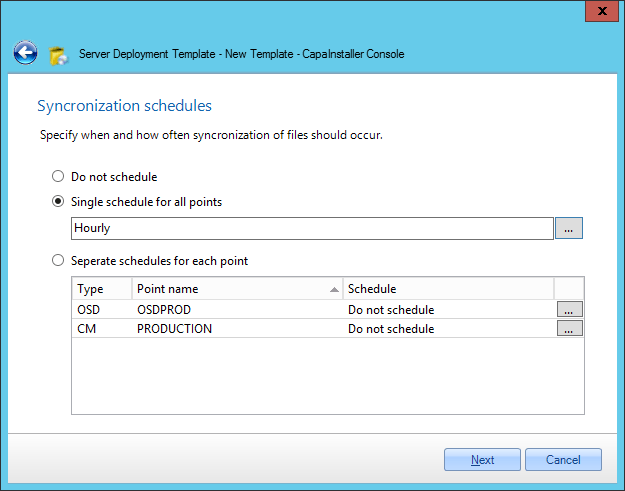 |
| 6 | Server relationship and content 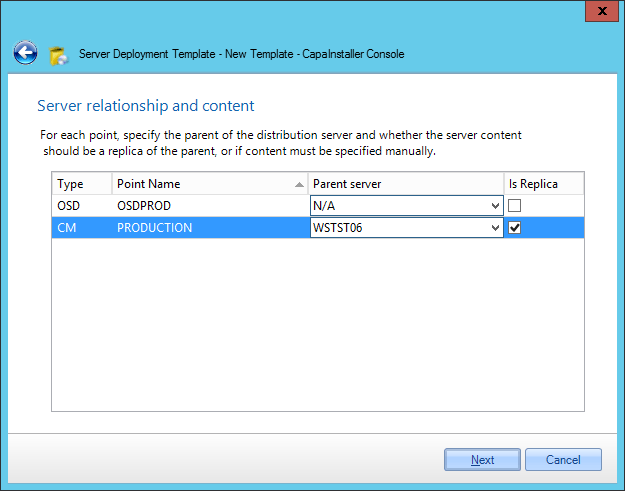 |
| 7 | Boot menu definition 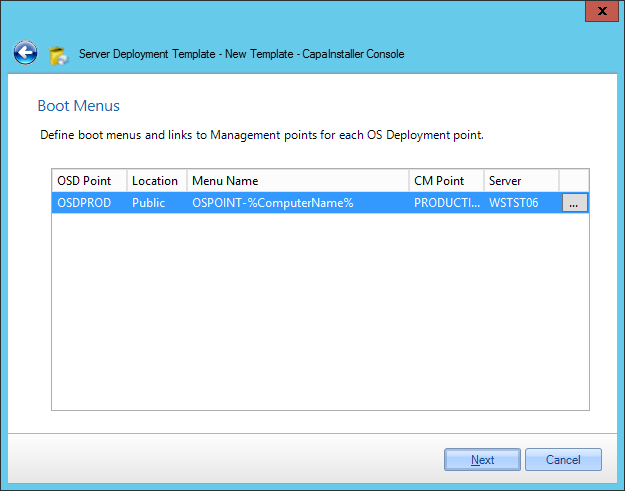 |
| 8 | Select the services this template should deploy. 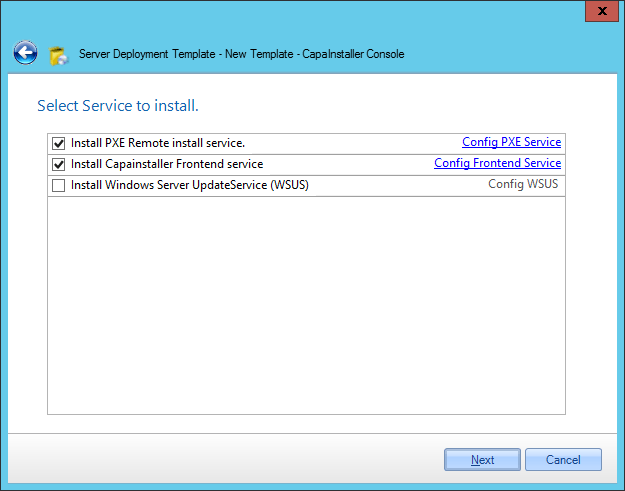 Configure the service templates - Configuring the Front-end Service - Configuring the PXE Service |
| 9 | Select the authentication used by the services installed using this template 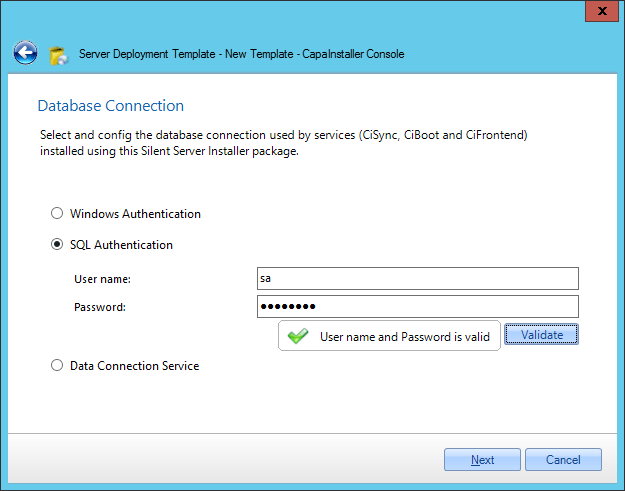 |
| 10 | Select the authentication used by the Silent Server Installer package 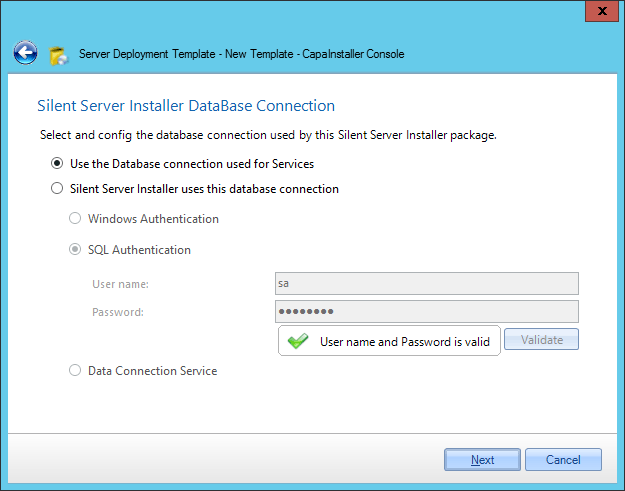 |
| 11 | Verify summary 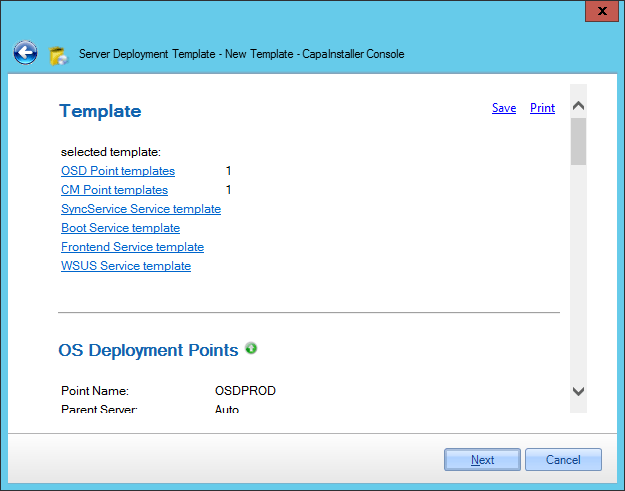 |
| 12 | Save Template to future use, optionally create or update SSI package 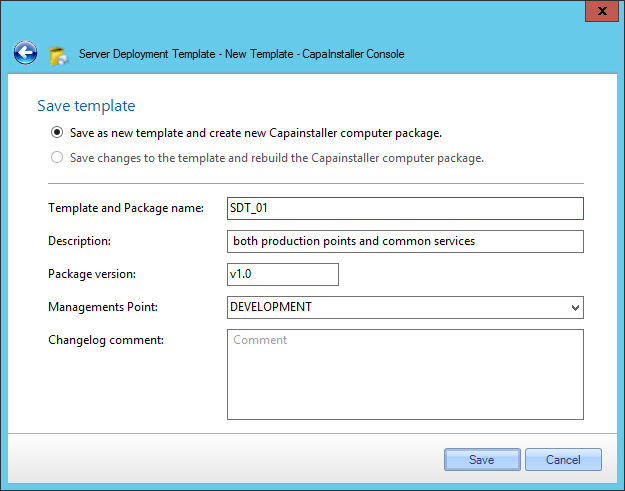 |
| 13 | Finished page 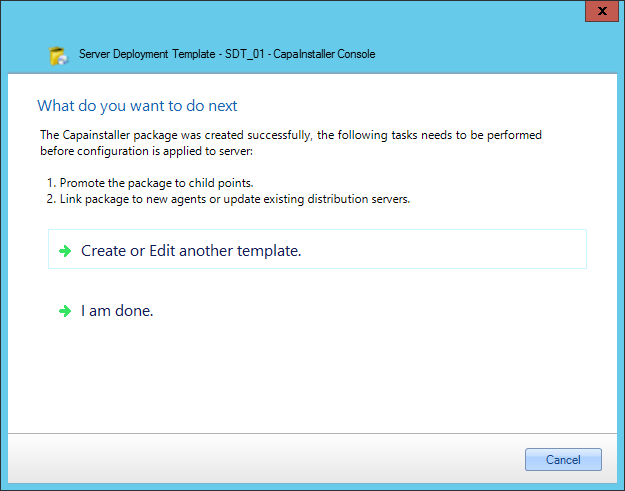 |
In this section
Section titled “In this section”Read more about configuring the Offline Deployment Packages: