

Power schemes properties
The following is a description of the different properties available on a power scheme.
Notice that some settings are available on some operating systems, but not on others. There are for example a lot of extra settings on Vista, that cant be found on XP. Any settings that the operating system doesn’t support is simply ignored when applying the power scheme, which makes it possible to use the same power scheme, on workstations using different operating systems.
The same is applicable for the battery settings. The battery settings of a power scheme will be ignored when applied to a stationary workstation without batteries but will be applied to laptops with batteries.
On the operating systems; Win XP, Win 2000 and Win 2003 Server, only the following four settings are supported: “Turn off display after”, “Turn off hard disk after”, “Sleep after” and “Hibernate after.” All of these settings can be found on the second tab.
In the power scheme property window, you will find four tabs, and the elements of each tab will be explained below. On the Common Settings, Device Settings and Software Behavior tabs, each setting has a Plugged in value and a Battery value.

Properties
Section titled “Properties”
Power Scheme (Tab 1)
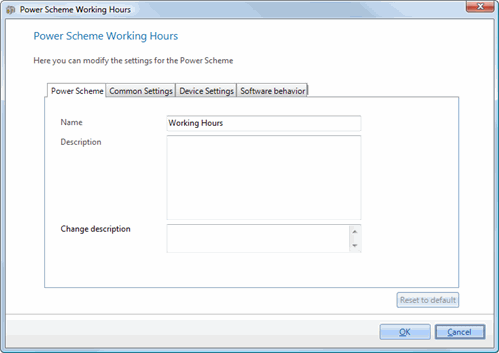
| Element | Description |
| Name | Name of the power scheme. |
| Description | Description of the power scheme. |
| Change description | a custom comment that will be added to the changelog, when changing any values. |
Common Settings (Tab 2)
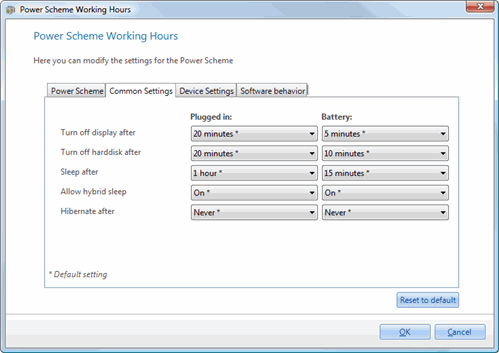
| Element | Description |
| Turn off display after | Specify how long your computer is inactive before your display turns off. |
| Turn off hard disk after | Specify how long your hard drive is inactive before the disk turns off. |
| Sleep after | Specify how long your computer is inactive before going to sleep. |
| Allow hybrid sleep | Allow windows to save your work and enter a low-power state so that you can resume working almost immediately. |
| Hibernate after | Specify how long your computer is inactive before hibernating. |
| Reset to default | Resets all settings to their default values. Default values are marked with an asterisk (*). |
Device Settings (Tab 3)
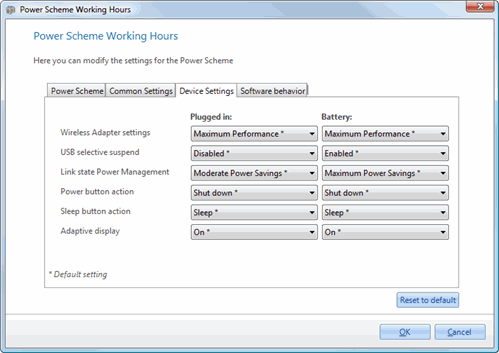
| Element | Description |
| Wireless Adapter settings | Control the power saving mode of wireless adapters. |
| USB selective suspend | Specify whether USB selective suspend is turned on or off. |
| Link state Power Management | Specifies the Active State Power Management (ASPM) policy to use for capable links when the link is idle. |
| Power button action | Specify the action to take when you press the power button. |
| Sleep button action | Specify the action to take when you press the sleep button. |
| Adaptive display | Extends the time that Windows waits to turn off the display if you repeatedly turn on the display with the keyboard or mouse. |
| Lid close action | Specify the action to take when you close the lid of a laptop. |
| Reset to default | Resets all settings to their default values. Default values are marked with an asterisk (*). |
Software Behavior (Tab 4)
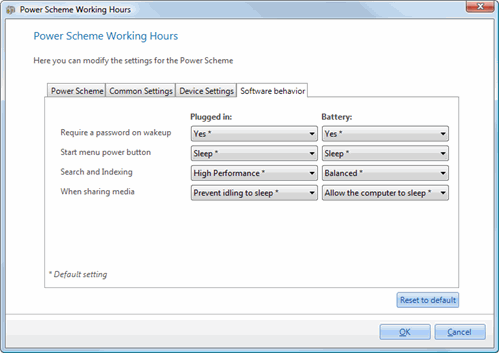
| Element | Description |
| Require a password on wakeup | Require a password to unlock the computer when it wakes from sleep. |
| Start menu power button | Specify the action to take when you press the Start menu power button. |
| Search and Indexing | Specify power savings mode for Search and Indexing |
| When sharing media | Specify what your computer does when a device or computer is playing media from your computer |
| Reset to default | Resets all settings to their default values. Default values are marked with an asterisk (*). |