

Create new Business Unit
The New Business Unit wizard is used to create a new Business Unit for CapaInstaller. The created Business Unit will be listed in System Administration and represented in all Management Points in Configuration Management.
| Step | Action |
| 1 | Go to System Administration. |
| 2 | Click Business Units in the tree view, and then click New |
| 3 | 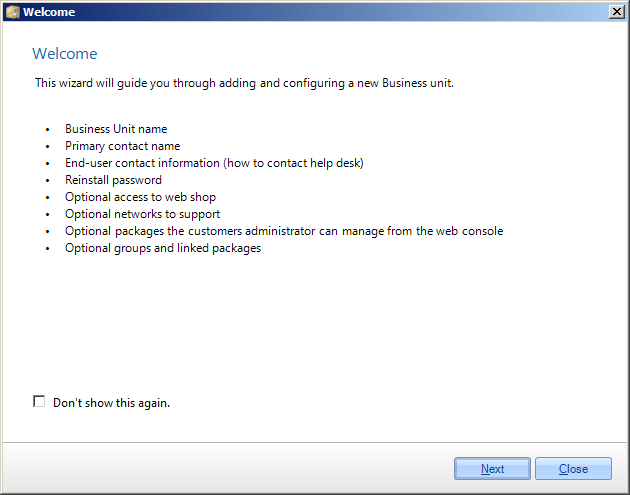 On the first page, the welcome pages describes the wizard. Click Don’t show this again, to avoid seeing this page in the future. Click Next to move to the next page. |
| 4 | 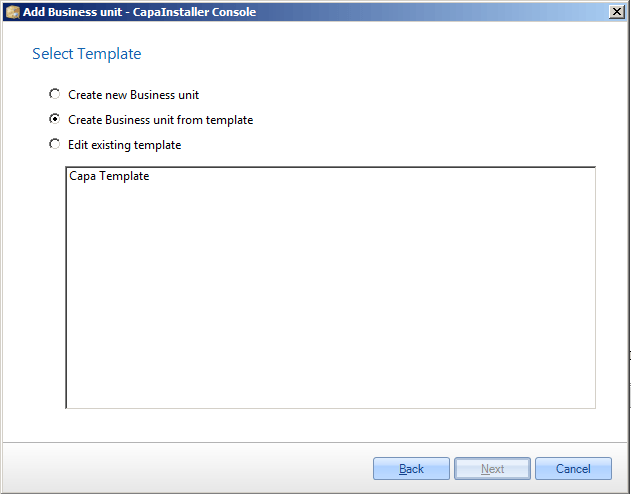 When all the steps in this wizard have been completed, the choices made can be saved as a template. Select between creating a new business unit, which can be based on a previously created template, or edit a template. |
| 5 | 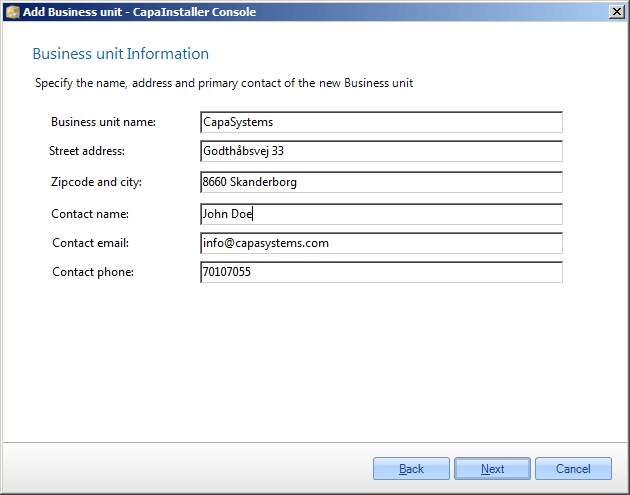 Enter the contact information for the new Business Unit. This information is unique, and will not be saved in a template. |
| 6 | 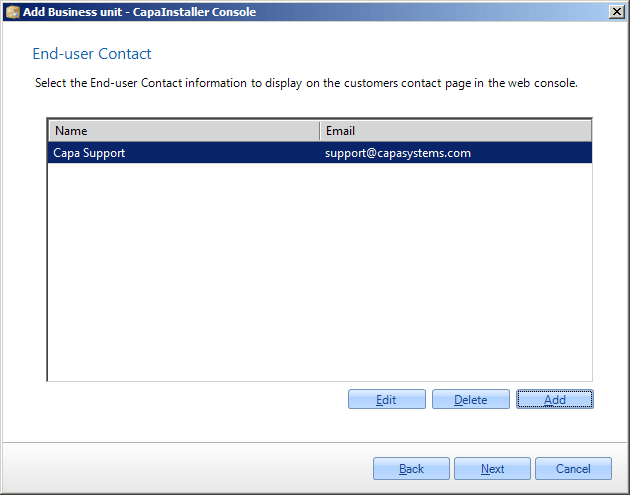 Select or create a new End-user contact. The end-user contact is the contact or help desk, the end-user can contact, if there are any problems with their computer. Clicking Add or Edit will show the form below. |
| 7 | 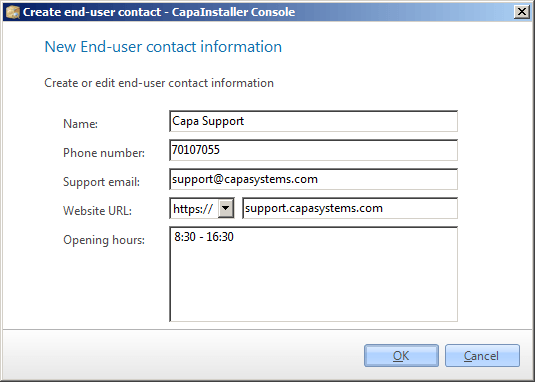 This is the form for creating or editing an end-user contact. The end-user contact is the person or help desk, the end-user of the Business Unit should contact. Click OK to create or edit the end-user contact. |
| 8 | 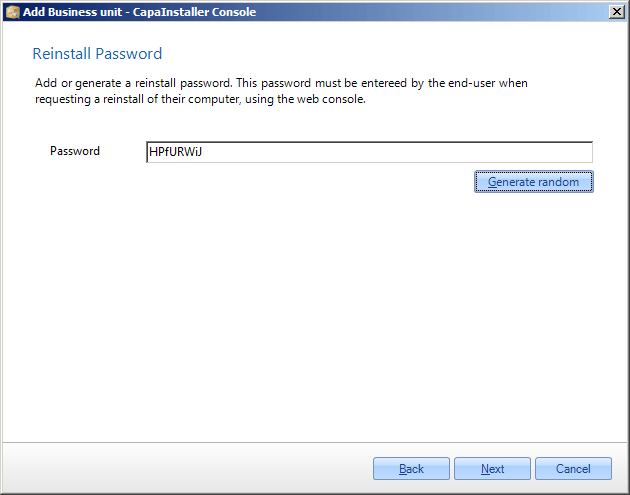 Enter a password for reinstall or auto-generate a password. The reinstall password is used when setting a computer to reinstall in the web console. ❗ Web Console The Web Console is only available to CapaInstaller As A Service Partners. If you are not a Partner this password will not be used or requested elsewhere. |
| 9 | 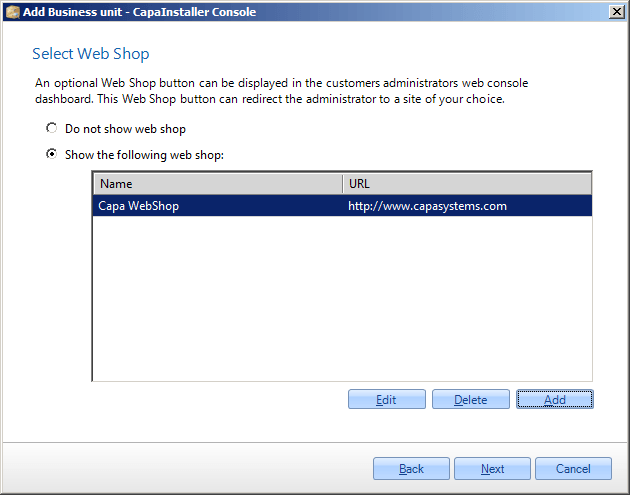 Choose between using or not using a webshop. Select one of the existing webshops or add a new one. Clicking Add or Edit will show the form below. ❗ Web Console The Web Console is only available to CapaInstaller As A Service Partners. |
| 10 | 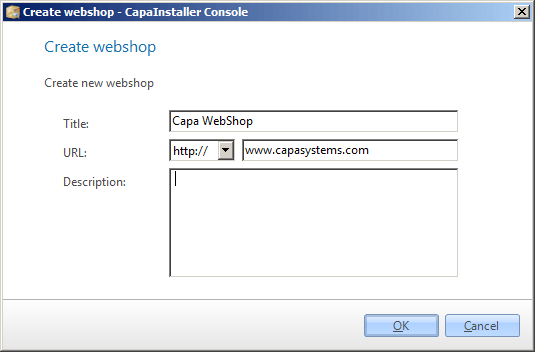 This is the form for creating or editing a webshop. The webshop will show as a link in the web console Click OK to create or edit the web shop. |
| 11 | 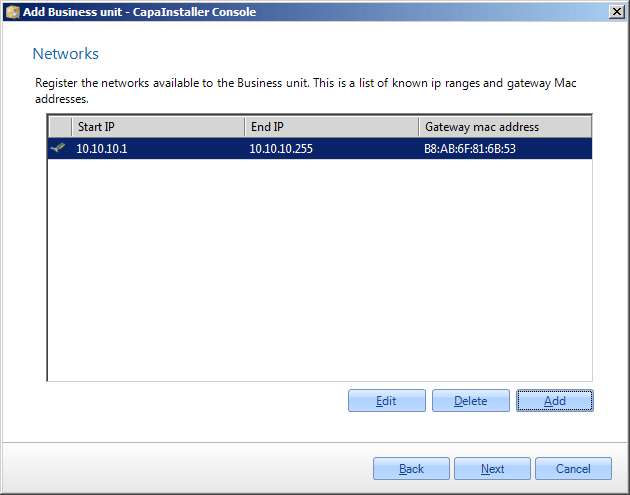 Allow for the registration of networks, that computer request can arrive from. This is based on the Default gateway mac address and IP start/end addresses. This information is unique, and will not be saved in a template. Clicking Add or Edit will show the form below. ❗ Web Console This is only used for CapaInstaller As A Service Partners and is not used in an Enterprise CapaInstaller Installation. |
| 12 | 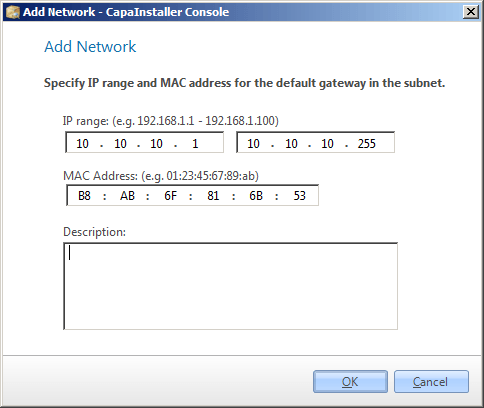 This is the form for creating or editing a network. |
| 13 | 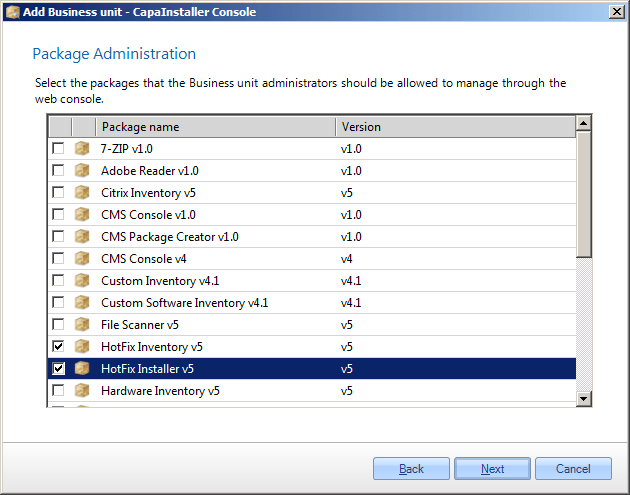 Select the packages to be linked directly to the new Business Unit, to allow for administrators to assign to his computers. |
| 14 | 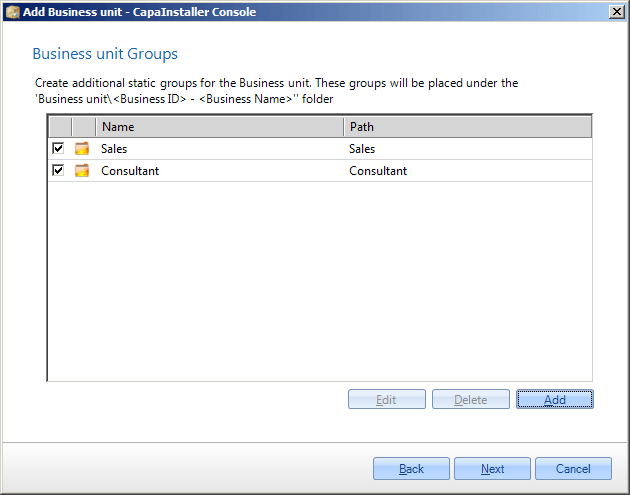 Create or edit custom static groups and assign predefined packages to the groups. The selected groups will be created inside the new Business Unit. Clicking Add or Edit will show the form below. |
| 15 | 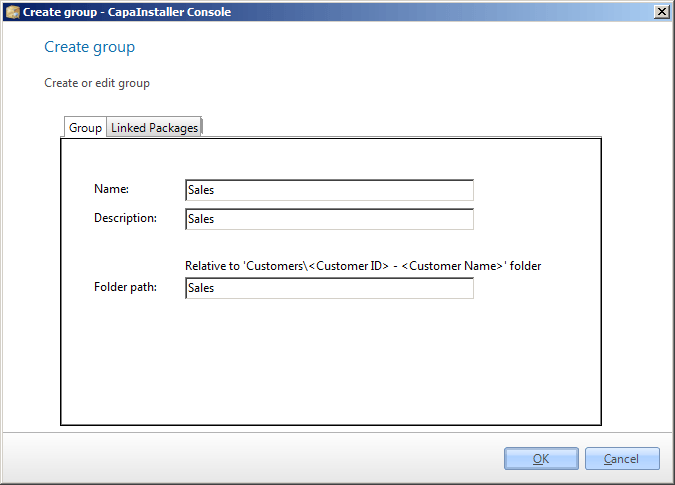 Create a static group and assign packages to the group. The group will be created inside the new Business Unit. |
| 16 | 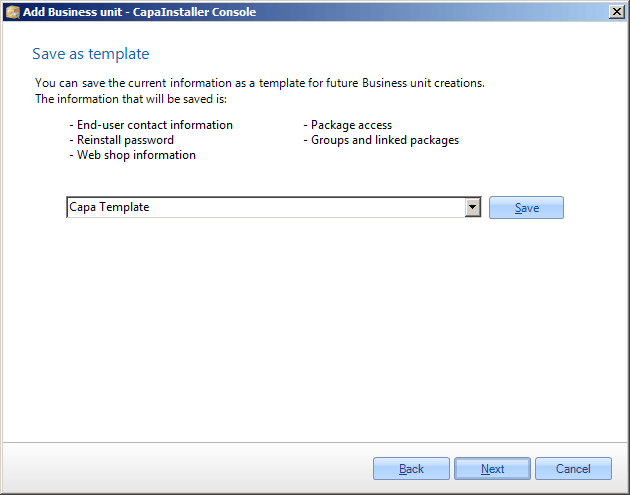 Select an existing template or enter a new template name. Click Save, to save the template to the database. |
| 17 | 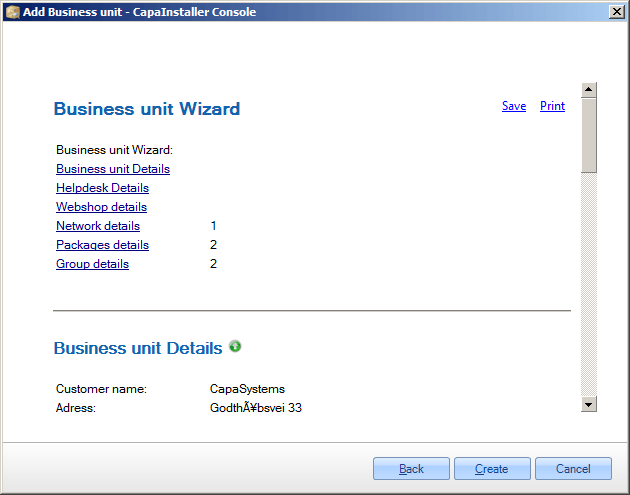 The summary page shows the entered and selected items in HTML format. Click Save to save the HTML file or Print to print out the document. When clicking Create, then a new Business Unit will be created in the database. Clicking Cancel will not save anything. |
| 18 | 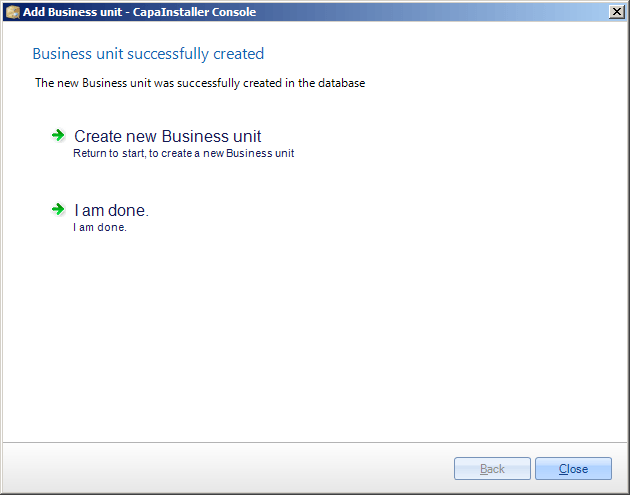 On the last page, it is possible to quit the wizard or return to the beginning to create a new Business Unit. |