

Create Linked Reports to Business Units
Create linked reports for each Business Unit on the Reporting Services server. Each Business Unit gets its own folder, and a linked report is created in each folder with the Business Unit filled in. For more information, go to Reporting Services linked reports.
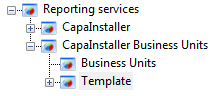
The folder structure under /CapaInstaller Business Units is created the first time the console connects to Reporting Services. It contains the folders Business Units and Template.
-
Select File → Create linked reports to Business units.
-
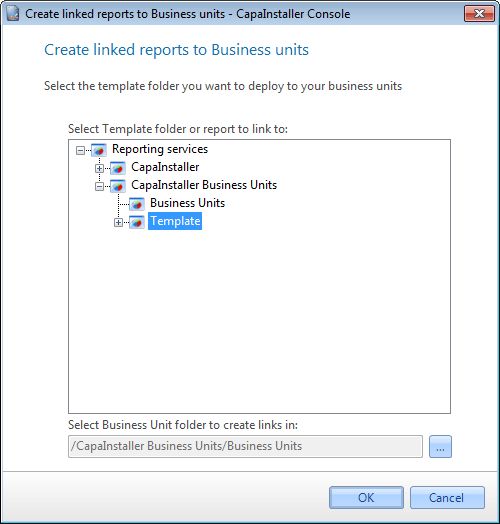
In Select Template folder or report to link to, select the folder or the report you want to create linked reports for. The
Templatefolder is selected by default.- If you select a folder, its subfolders are also created under each Business Unit.
- A linked report is created only for reports that have the Business Unit parameter. If a report doesn’t have it, you’re asked whether to continue with the rest of the reports.
-
In Select Business Unit folder to create links in, select the … button to choose the folder for the linked reports. The folder
/CapaInstaller Business Units/Business Unitsis selected by default.
-
Select OK to create the linked reports.
A folder for each Business Unit is created in the selected folder, and it contains the linked reports. Each folder is named after the ID of the Business Unit with five digits, for example 00001, and has the name of the Business Unit as its description. The linked reports don’t prompt for a Business Unit.
Related tasks
Section titled “Related tasks”| If you want to… | You can… |
|---|---|
| Create a custom made report | Create a report to see how. |
| Create report for linked reports | Create report for linked reports with Business Unit to see how. |
| Manage report services | Manage reporting services to see how. |
| Deploy to reporting services | Deploy to reporting services to see how. |
| Learn what linked reports are | Reporting Services linked reports |