

Apple Push Notification Certificate
To communicate with Apple devices, CapaInstaller uses the Apple Push Notification service (APNs). APNs requires a certificate issued by Apple, so only authorized services can contact your devices. Before Apple issues the certificate, the certificate request must be signed by an authorized MDM vendor, in this case CapaSystems A/S. The Apple Push Certificate request wizard in the CapaInstaller Console handles the request, the signing, and the conversion of the certificate.
Since CapaInstaller 6.1, push messages for Apple and Android devices are sent from CapaOne. The Apple Push Certificate is uploaded to CapaOne and is no longer installed on your Mobile Device Management (MDM) servers.
Request and create or renew the certificate
Section titled “Request and create or renew the certificate”-
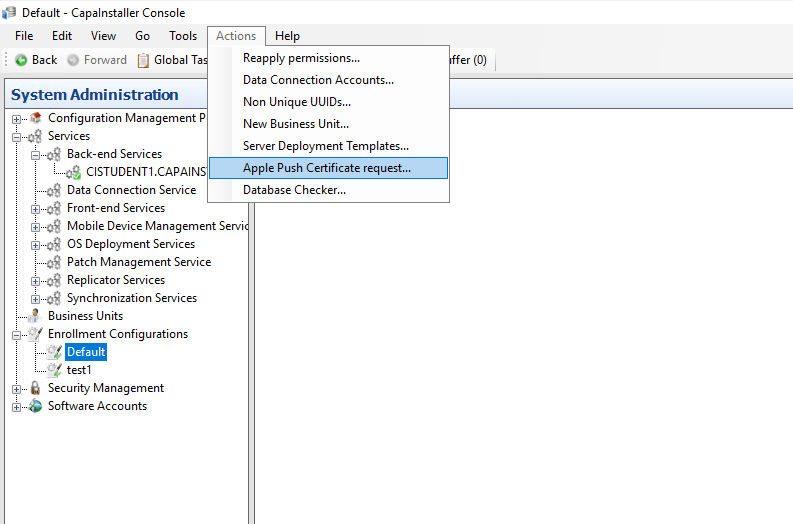
In System Administration, select Actions → Apple Push Certificate request….
-
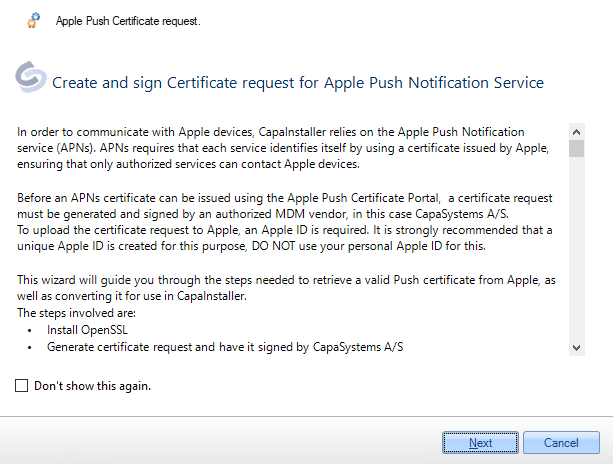
On the welcome page, click Next.
-
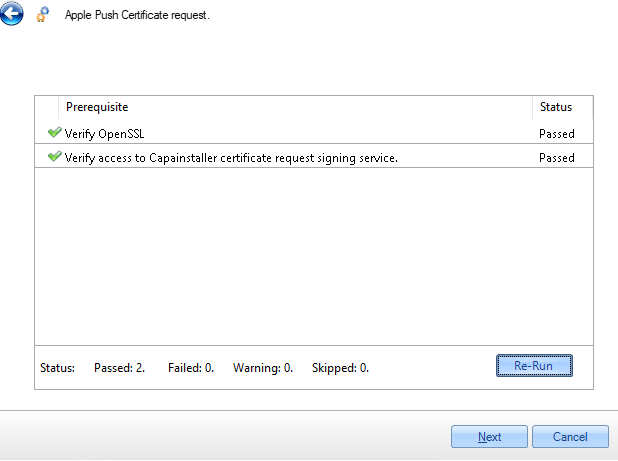
Wait for the prerequisite checks to finish:
- If Verify OpenSSL doesn’t pass, see OpenSSL.
- If Verify access to Capainstaller certificate request signing service fails, check that the computer can reach CapaOne over HTTPS (port 443) through your firewall and proxy.
-
Select an Output Folder, click Start, and click Next when the request is finished. The wizard creates the certificate request, has it signed by CapaSystems, and saves it as the file
plist_encodedin the output folder.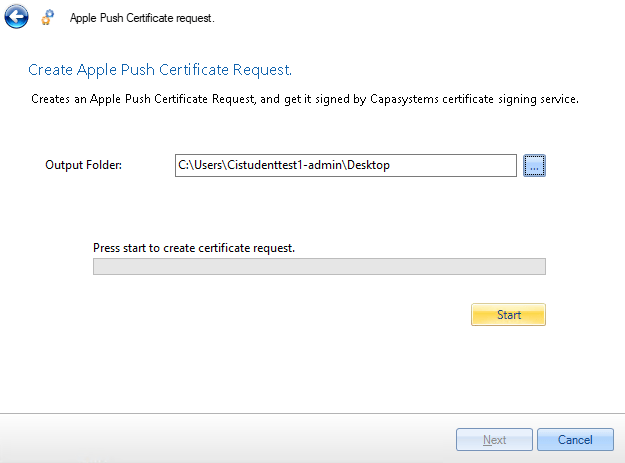
-
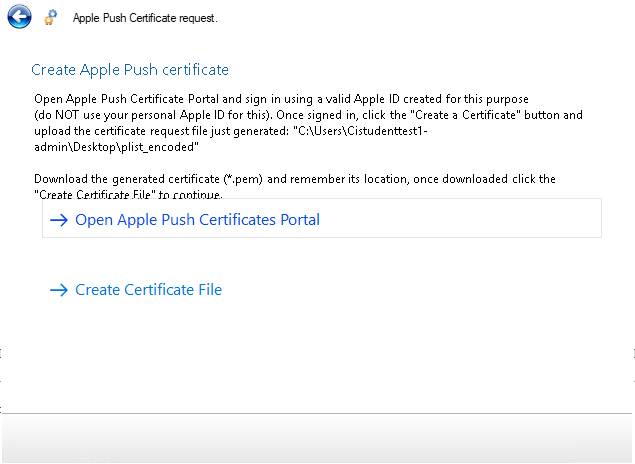
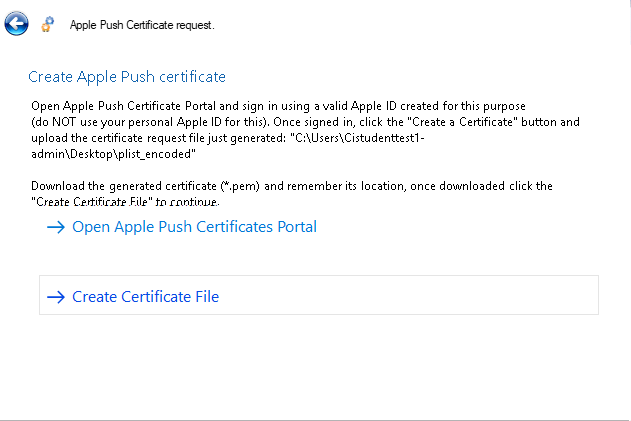
Click Open Apple Push Certificates Portal. The portal opens in your browser.
-
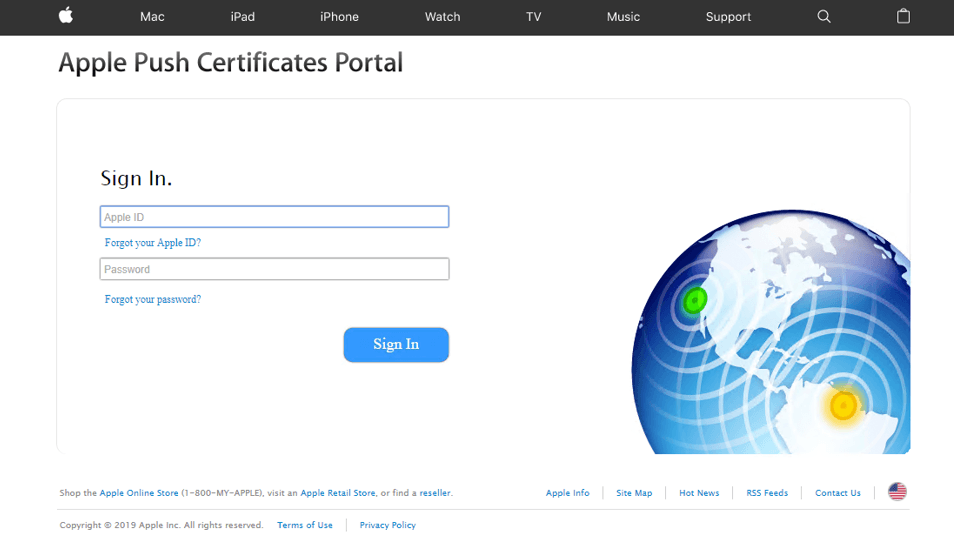
Sign in with the Apple ID you use for push certificates.
-
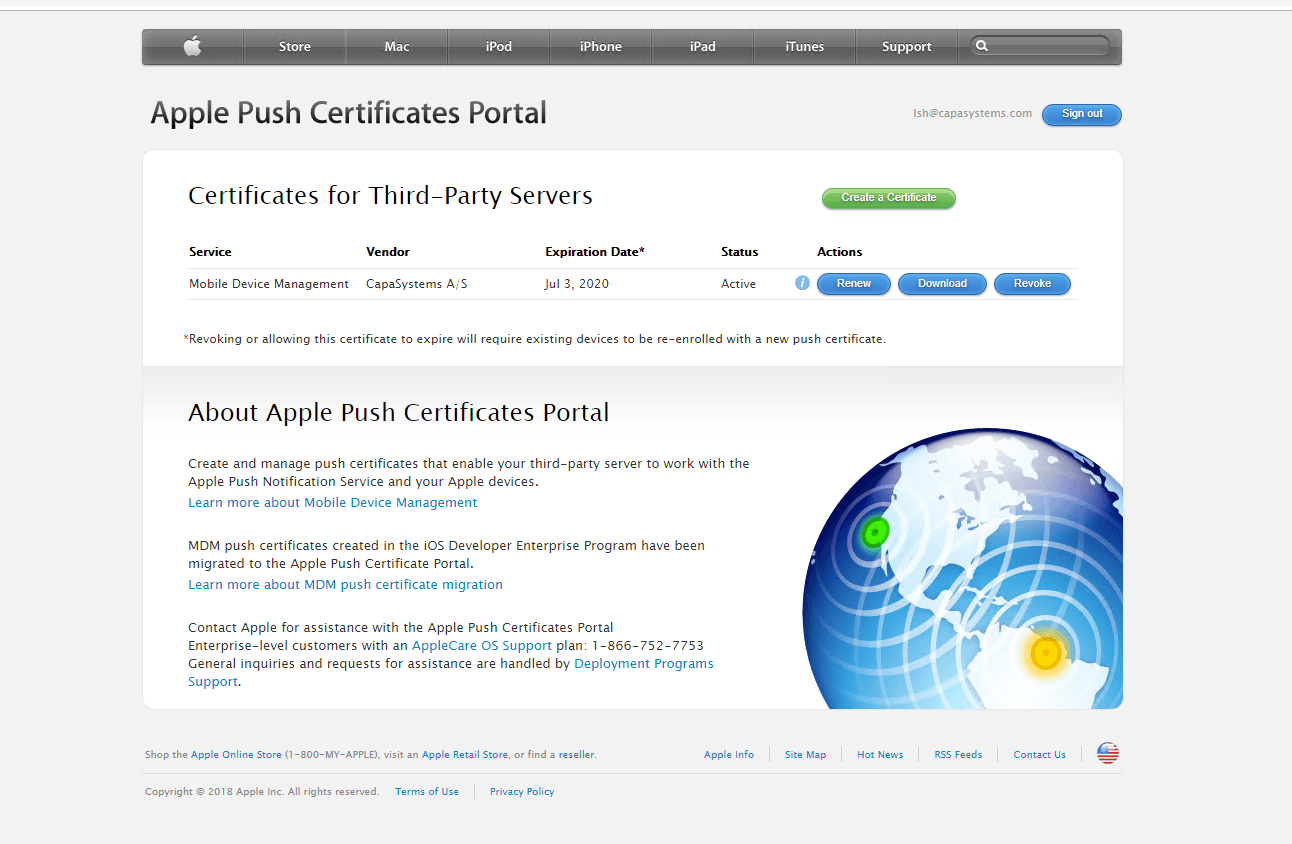
Do one of the following:
- To renew an existing certificate, select it and click Renew.
- To create your first certificate, click Create a Certificate.
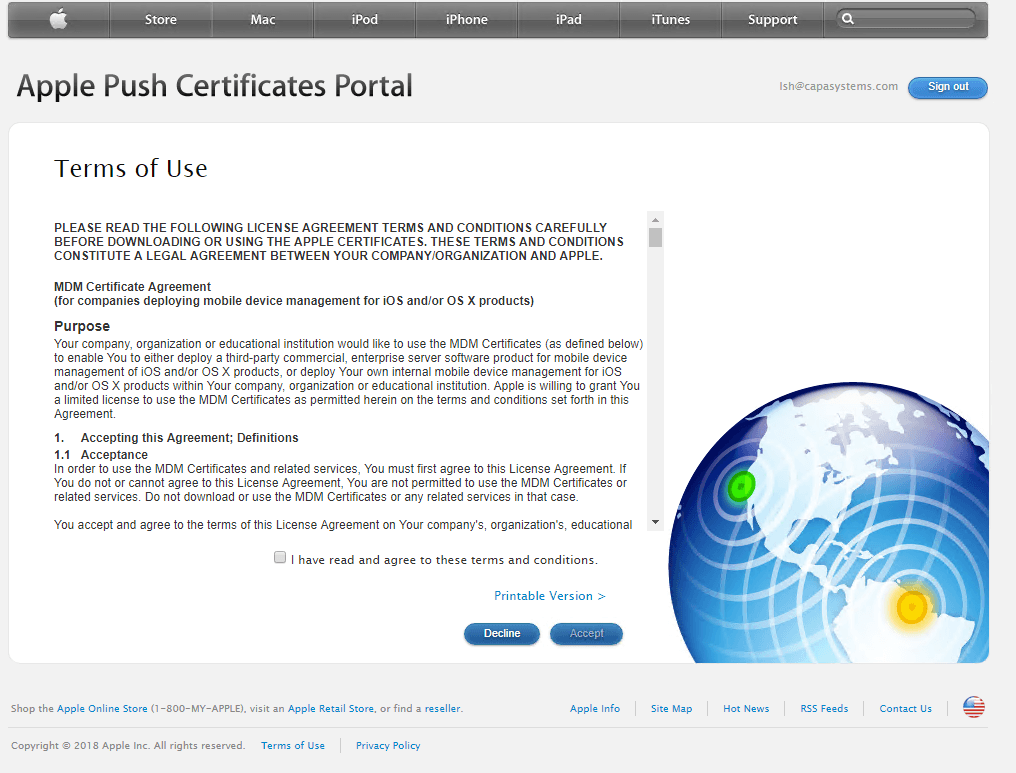
If Apple shows its terms of use, read and accept them.
-
Click Choose File, select the
plist_encodedfile from the output folder, and click Upload.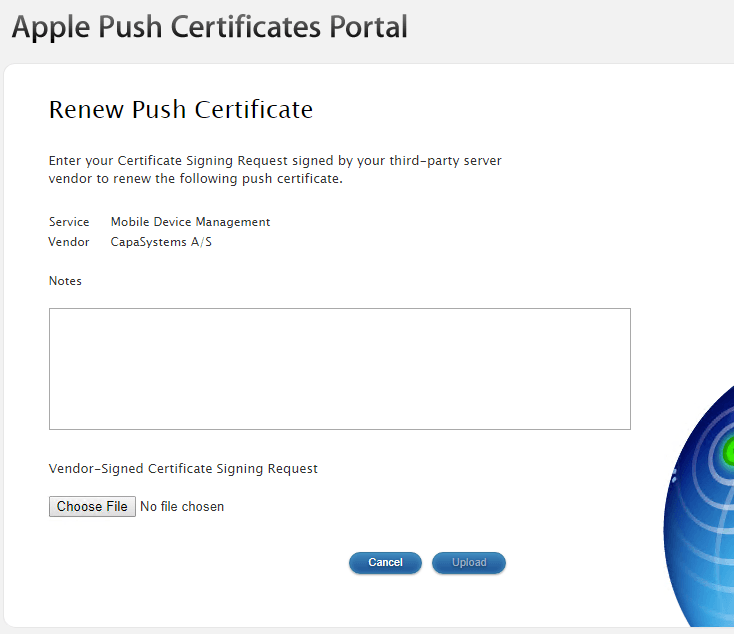
-
Download the issued certificate. The file is named
MDM_<name>.pem. Note the expiration date, and add a reminder to your calendar a month before it.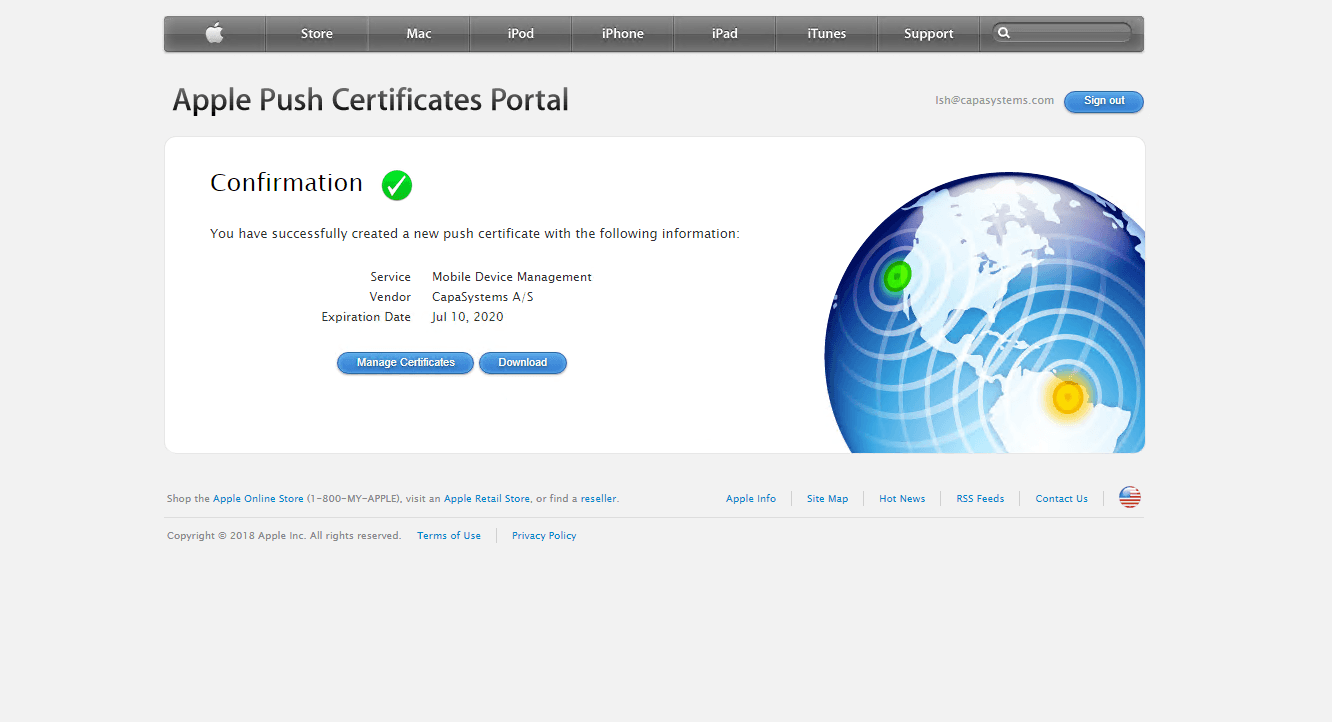
-
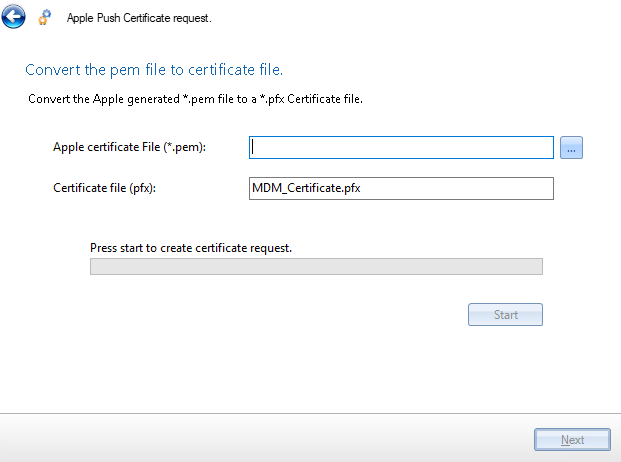
In the wizard, click Create Certificate File.
-
In Apple certificate File (*.pem), select the file you downloaded from Apple. Keep or change the name in Certificate file (pfx), click Start, and then click Next.
-
The wizard creates the
.pfxcertificate file in the output folder and uploads it to CapaOne.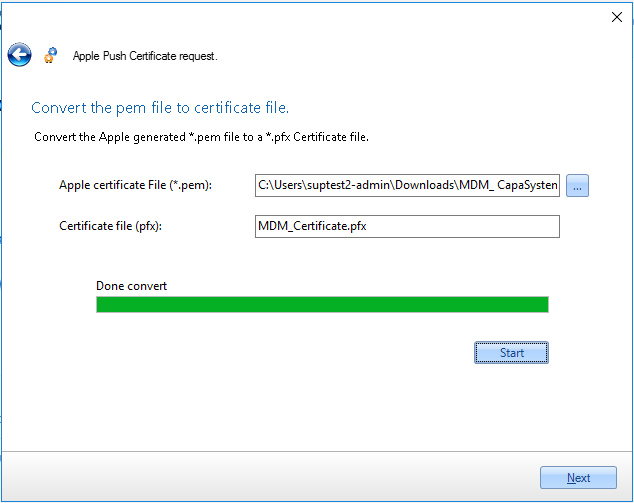
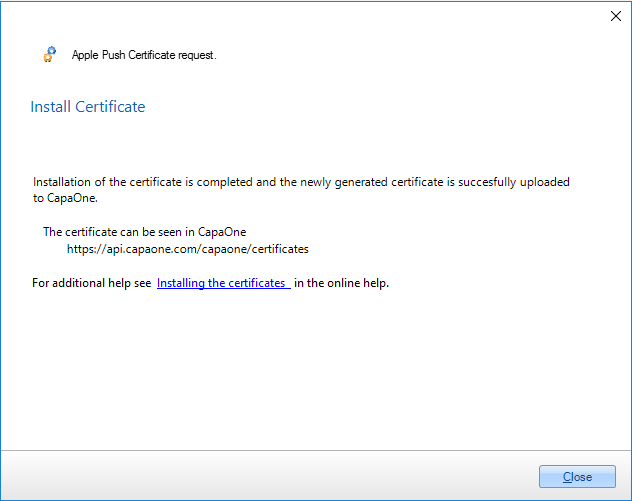
If the upload to CapaOne fails, the final page tells you to upload the .pfx file manually on the Certificates page in the CapaOne portal.
Check the certificate in CapaOne
Section titled “Check the certificate in CapaOne”-
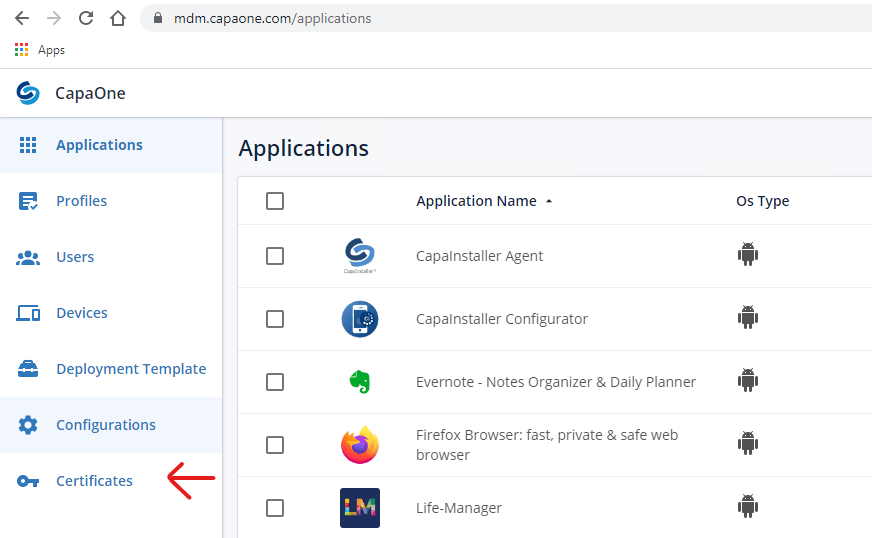
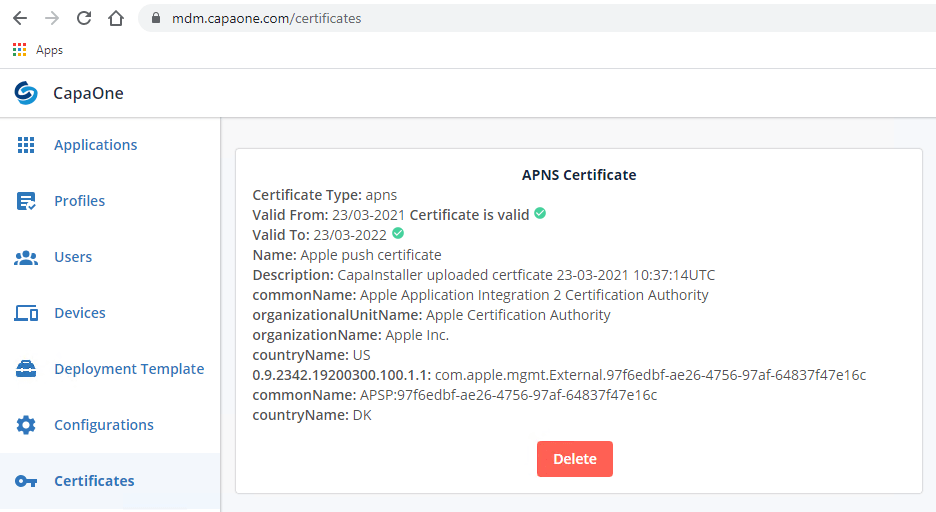
Sign in to https://mdm.capaone.com and select Certificates.
-
Check that the Apple Push Certificate is listed and valid.
Upgrading from CapaInstaller 6.0
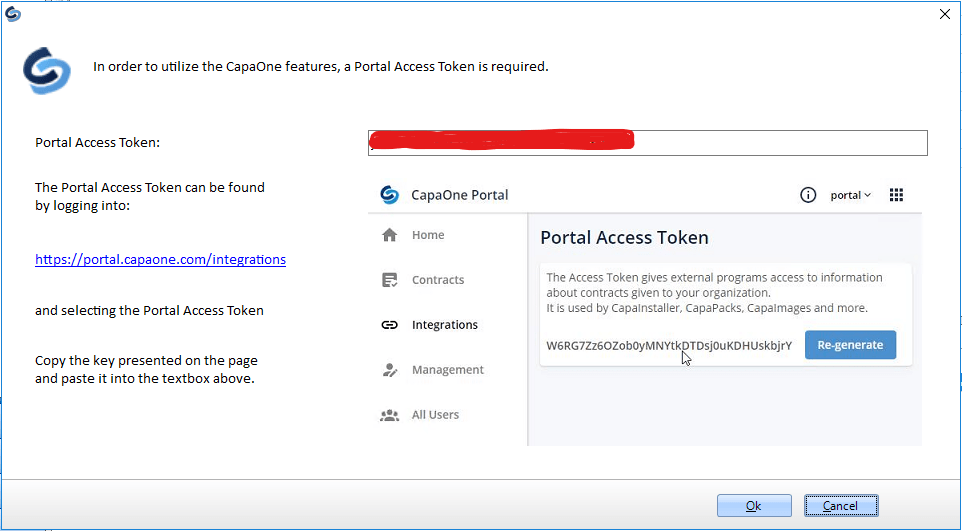
Section titled “Upgrading from CapaInstaller 6.0”If you upgrade from CapaInstaller 6.0 or earlier, the Apple Push Certificate must be uploaded to CapaOne. Renew the certificate with the Apple Push Certificate request wizard after the upgrade, and the wizard uploads it for you. You can also upload your existing .pfx file on the Certificates page in the CapaOne MDM portal. Before you run it, check that the Portal Access Token is present under Software Accounts → CapaOne.