

Using Alternative Color Scheme with InfoCenter Balloon messages
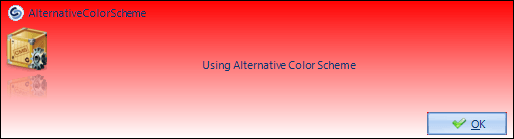
This page describes how to use an Alternative Color Scheme (ACS) with InfoCenter balloon messages.
ACS can be used in combination with EndUserCancellation or it can be used on a single custom balloon message.
How to use
Section titled “How to use”If you want to use ACS with EndUserCancellation you have the option to define how many remaining cancellations should activate ACS. For more info CMS_UseAlternativeColorSchemeAt
If you want to use ACS with a custom balloon message make a call to CMS_ActivateAlternativeColorScheme which will make the next balloon message display with ACS. For more info CMS_ActivateAlternativeColorScheme
Note: InfoCenter will only use ACS once. The next balloon message will use a standard color scheme if ACS is not reactivated.
Using custom colors
Section titled “Using custom colors”If you do not want the default color scheme for ACS you can create your own scheme.
To do that you can call the functions below to change color from the default color:
CMS_SetTopColor
CMS_SetBottomColor
CMS_SetBorderColor
CMS_SetTextColor
All functions take a Color HEX value parameter e.g. #FF0000. The balloon message uses a gradient background which is why both a top and bottom color can be provided. If you want a flat style use the same color value for both functions.
You do not need to call all functions. Only those you wish to change.
For more information about HEX color values, see HTML Colors (W3Schools).
Example of a custom color scheme
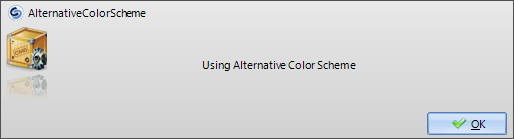
Section titled “Example of a custom color scheme”If bStatus Then bStatus=CMS_SetTopColor("#E8E8E8")If bStatus Then bStatus=CMS_SetBottomColor("#D0D0D0")If bStatus Then bStatus=CMS_SetBorderColor("#505050")If bStatus Then bStatus=CMS_SetTextColor("#000000")Using the above code an ACS will look like below
Known issues
Section titled “Known issues”It is not possible to change the color of the buttons.