

Approve from All updates
From All updates, you can approve updates or set them to Not approved in the groups you select. Declining an update is a separate action. See Decline Updates. For more information about the statuses, see Updates.
-
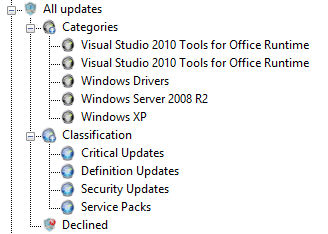
In the Patch Management tree, go to All updates and select the category or classification that contains the updates you want to change.
-
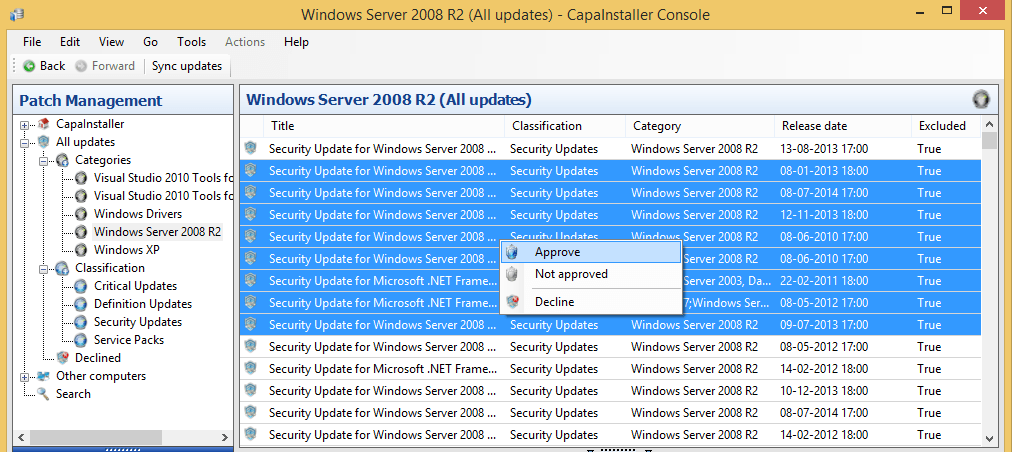
In the content pane, select one or more updates. Right-click them and select Approve or Not approved. To decline updates, see Decline Updates.
-
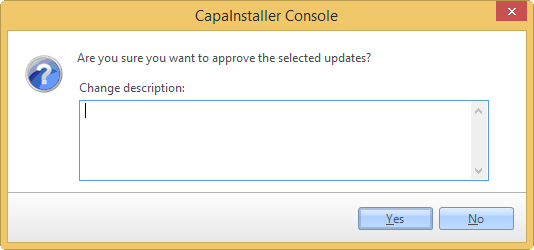
Confirm that you want to change the selected updates. If necessary, write a change description.
-
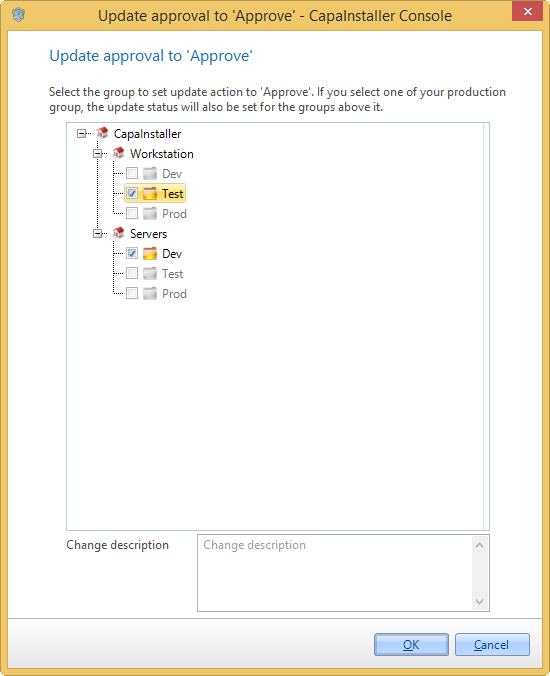
Select the groups you want to change the selected updates for, and then click OK. You can select only one group for each child point. If you select a group that has groups above it under the same child point, the updates are also changed for those groups.
-
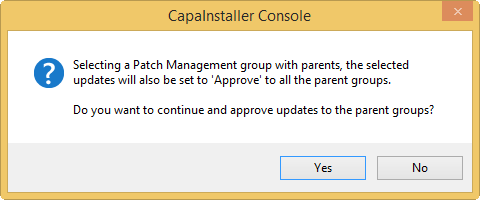
If you selected a group with groups above it, a message asks you to confirm that the updates are also changed for those groups.
-
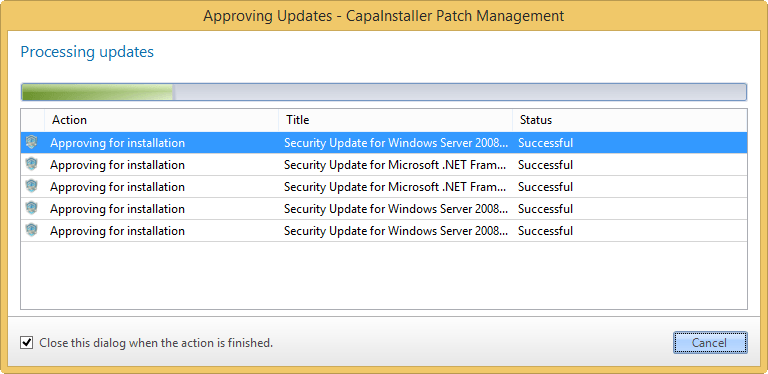
The progress dialog shows the status of each update.
Related tasks
Section titled “Related tasks”| If you want to… | You can… |
|---|---|
| Approve updates | Approve updates |
| Automatically approve updates | Approval rules |
| Learn more about classifications and categories | Categories and Classifications |