

Microsoft Defender
When defining scanner exclusions for Microsoft Defender, there are three folders you can exclude:
%ProgramFiles%\CapaInstaller%ProgramFiles(X86)%\CapaInstaller%ProgramData%\CiBaseAgent\Cache
Create a Group Policy
Section titled “Create a Group Policy”Open your Group policy management Console.
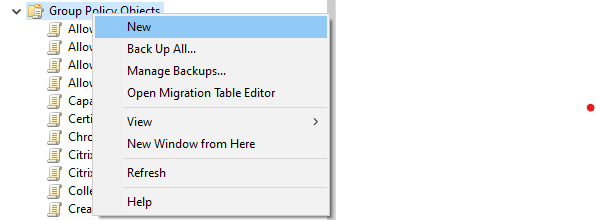
Browse to Group Policy Objects. This is found under.
Forest:”Your Domain name” → Domains → “Your Domain name“ → Group Policy Objects
Right click to create a new Group policy :
Give it a name :
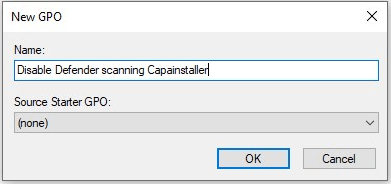
Click OK. Now you have created an Empty policy. Now you should edit your newly created policy.
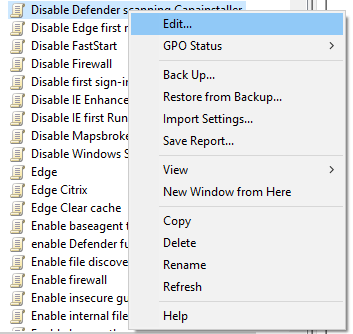
Now Browse to
Computer Configuration → Policies → Administrative Templates → Windows Components → Microsoft Defender Antivirus → Exclusions
In older administrative templates, the folder is named Windows Defender Antivirus.
Here you have the options for adding exclusions.
We are adding folders to exclude. This setting will disable all defender scanning in these folders.
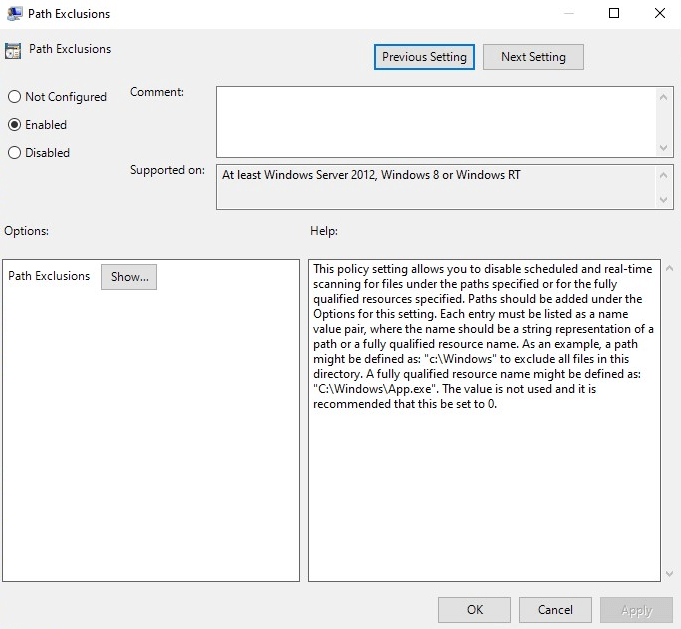
Click Show to edit list of folders to exclude.
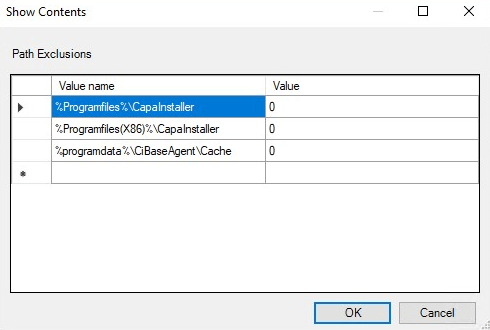
Here we have added the basic Capainstaller folders.
Click OK and your policy are now ready for deployment.
Deploy the policy
Section titled “Deploy the policy”Deploy policy by linking it to an Organization Unit (OU).
- Browse to the OU. (You should test First).
- Right click and choose “Link an Existing GPO”.
- Choose your newly created policy.
- Click OK
Now test your policy on the clients that should be affected by the new policy.