Use of Supervised mode for Apple devices
Description
Section titled “Description”Some features in Apple devices can only be enabled if the device is Supervised. The supervised mode makes it possible to prevent a user from connecting the device to other PC’s, and can on top of enabling these settings also be used to set special configuration profiles on a device.
The supervised mode can be used together with the CapaInstaller Mobile Device Management.
Needed tools
Section titled “Needed tools”In order to supervise an iPhone / iPad, you will need to have a Mac computer and a USB cable.
The Mac computer needs to have an “Apple Configurator” installed.
Cookbook for supervising a device
Section titled “Cookbook for supervising a device”| # | Description |
|---|---|
| 1 | Open “Apple Configurator” |
| 2 | 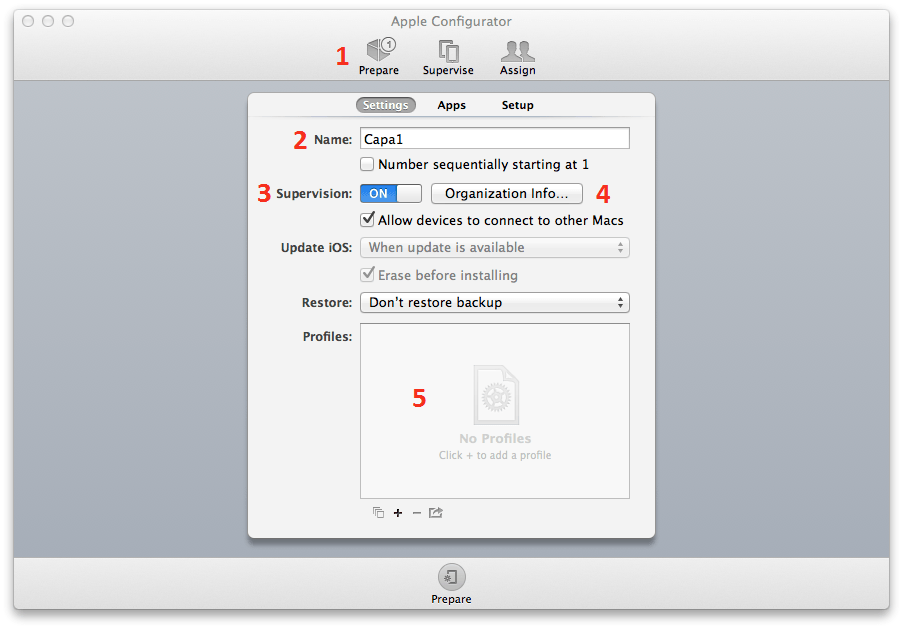 1. Select Prepare, Here you can prepare your “supervised” profile. 2. Select a name for the device. It can be beneficial to use a name which ends 1, because then “Apple Configurator” will automatically increment the number for each new device. 3. Decide if the device needs to be Supervised. 4. Set your organization information. 5. Here you can configure some configuration profiles you will prefer to include with the supervised setting. |
| 3 | By clicking apps tab you can deploy some apps together with the profile 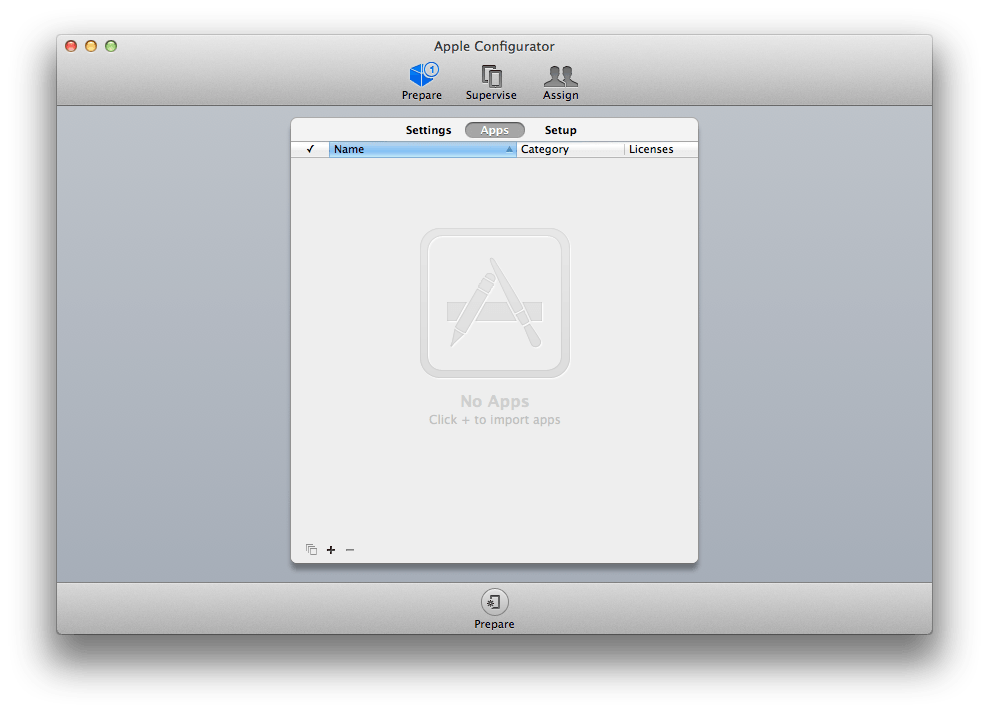 |
| 4 | By clicking the Setup tab you can decide what pages of the “device setup assistant” that needs to be shown. After a device has been supervised, it will be completely erased and start as a new device. 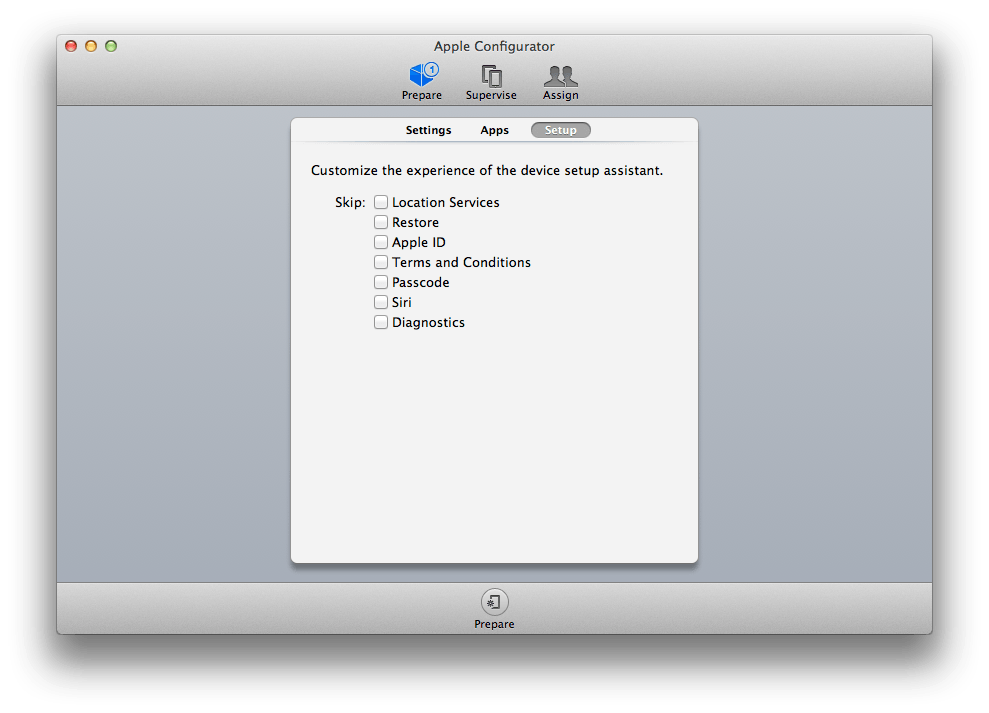 |
| 5 | Now connect the device or devices you prefer to “supervise” if many devices need to be supervised it can be beneficial to connect the devices through a USB hub. Click the “Prepare” button in the bottom of the configurator 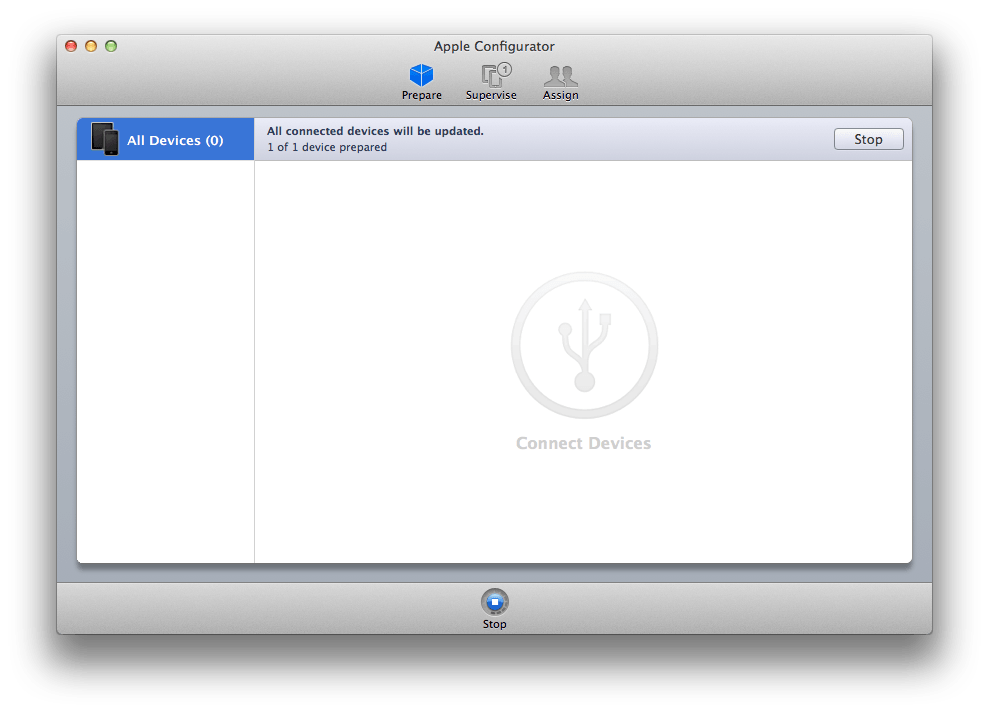 |
| 6 | The connected devices will now be supervised (it can take up to 10 minutes for each device) 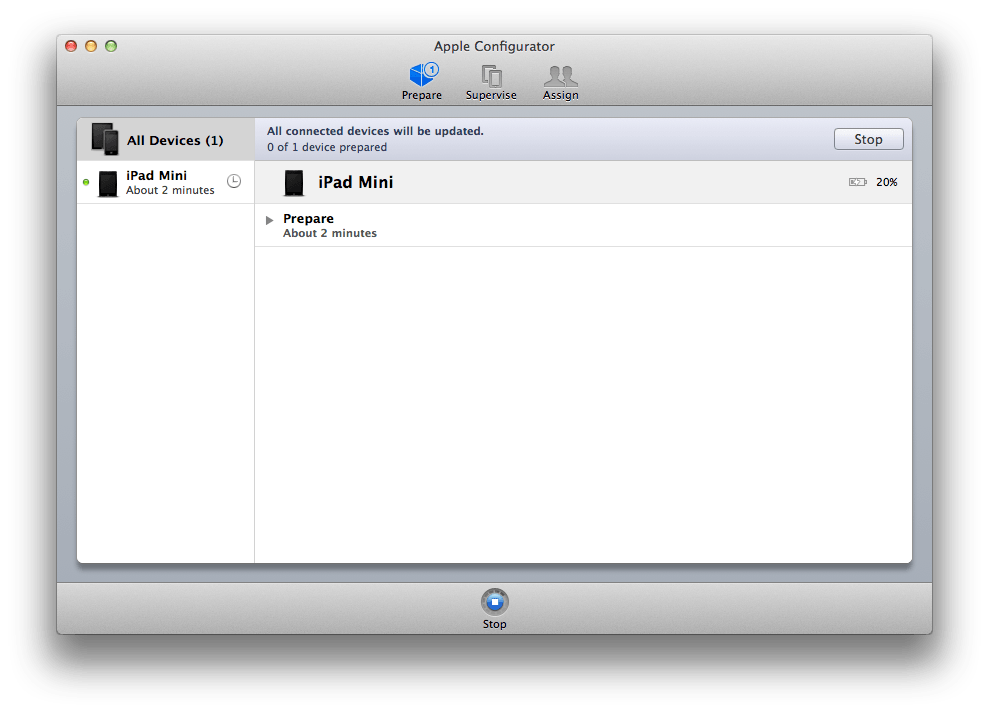 |
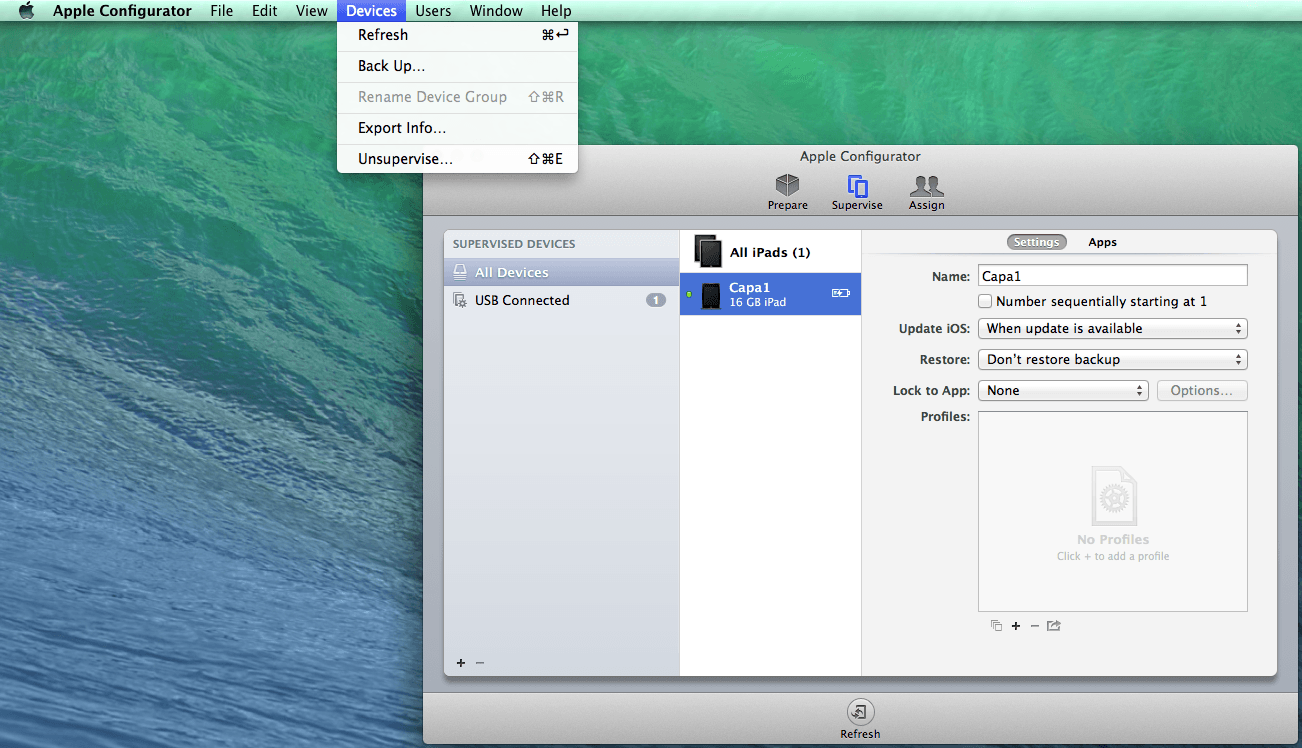
| 7 | After the device(s) has been supervised, the device(s) can be seen in the supervised pane 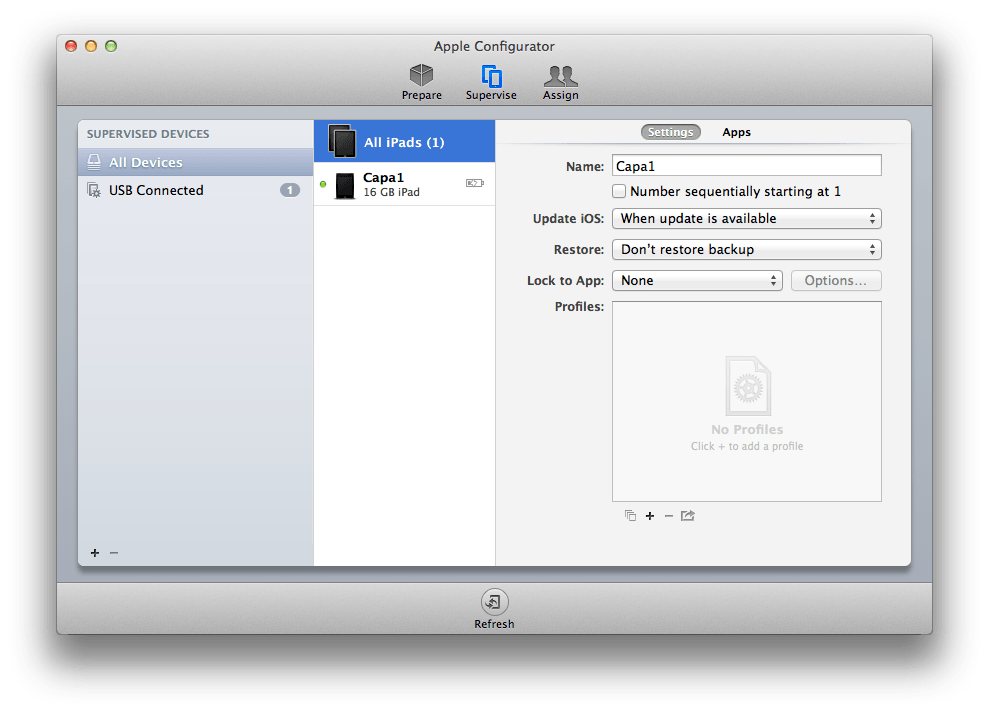 |
| 8 | Here you can add or remove some profiles or change other settings. |
| 9 | Now you can enroll the device in CapaInstaller. |
UnSupervising a device
Section titled “UnSupervising a device”You can remove the supervision state of the device by either wiping the device or by connecting it to the “Apple Configurator”, in the “Supervise” pane and select “Unsupervised” from the menu