

Transaction Filters Don't Work
If you have set up Transaction Filters, and you subsequently find that those transaction filters don’t work for some or all of your organization’s computers, consider the following:
Agent configuration settings
Section titled “Agent configuration settings”The Frontend server sends all saved transaction filters to all agents. For the filters to work, the agent configuration group that the computers belong to must also collect the relevant browser data. To verify this, do the following in the PerformanceGuard web interface:
- Select ADMINISTRATION > Agent Configuration > Configurations.
- Click the Edit link next to the agent configuration group that the required computers belong to.
- On the Agent configuration tab, scroll down to the Network Report section. For IE transaction filters, verify that Enable IE Reports is selected. For Chromium web applications, verify that Enable Chrome/Edge Extension as Local Machine Policy is selected.
If you make any changes to the agent configuration, make sure to click the Save Configuration button at the bottom of the page.
Internet Explorer Helper incompatibility
Section titled “Internet Explorer Helper incompatibility”PerformanceGuard agents use an add-on called the PerformanceGuard Internet Explorer Helper to collect data such as Internet Explorer response times on computers. The add-on can’t run when Internet Explorer’s Enhanced Protected Mode is turned on, and Internet Explorer then shows a message that the add-on isn’t compatible. See Internet Explorer Helper Is Not Compatible.
Internet Explorer Helper not loaded
Section titled “Internet Explorer Helper not loaded”PerformanceGuard agents use an add-on called the PerformanceGuard Internet Explorer Helper to collect data such as Internet Explorer response times on computers.
Such add-ons may be disabled, for example through group policies, and if the PerformanceGuard Internet Explorer Helper add-on is disabled, IE transaction filters won’t work.
To learn more about how to enable add-ons, go to msdn.microsoft.com and search for Enable and disable add-ons.
When you manage add-ons in Internet Explorer, the PerformanceGuard Internet Explorer Helper appears under the name CapaSystems PerformanceGuard Helper (in older agent versions Premitech PerformanceGuard Helper) from the publisher CapaSystems A/S.
Syntax
Section titled “Syntax”Incorrect syntax in your transaction filters may prevent them from working. See Web Applications.
Debug transaction filters
Section titled “Debug transaction filters”The following will help you locate and correct errors in your transaction filters.
Check the log for error messages
Section titled “Check the log for error messages”If there are errors when parsing the tag configuration, the agent will log error messages. You can view these in the PerformanceGuard web interface (ADMINISTRATION > Status > Errors).
You can only do this if you’re a PerformanceGuard administrator.
Edit HTTP and IE transaction filter configurations locally on the agent
Section titled “Edit HTTP and IE transaction filter configurations locally on the agent”If a transaction filter doesn’t work, you may want to edit it to find out what’s wrong. When you edit transaction filters, you often want to avoid the delay that can occur from the moment that you create a transaction definition in the PerformanceGuard web interface and until the new configuration arrives at the PerformanceGuard agent. To avoid the delay you can edit transaction filters directly on an agent.
Modifications only affect the agent on which they are made.
Before you edit anything, you should consider if you want data from a locally modified agent to be transmitted to the Frontend server. In order to avoid such data being sent to the Frontend server, you can configure the agent so that it won’t communicate with the Frontend server:
- On the computer that has the agent installed, open a browser and go to
http://localhost:4007. - In the agent information window that opens, find the yellow menu ribbon and select Config. Make sure that the Send Reports option is disabled (that is there is no >> in front of the option in the menu) before applying any modified configurations.
When you edit the configuration locally on an agent (Actions > Edit Configuration in the agent window’s yellow menu ribbon), you must use a slightly different syntax for the transaction configuration lines than when using the PerformanceGuard web interface. The following example shows a local configuration of a HTTP transaction filter:
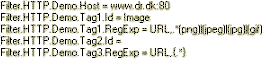
Note that all transaction filter configuration lines in the example start with Filter.HTTP.Demo. The Filter.HTTP prefix specifies that the transaction filter is of the type HTTP (rather than IE). Demo is simply the name of the example transaction filter. Note that there is no specific line that creates the named filter, the filter is implicitly created by the first line that sets an attribute for it.
When you have edited the agent configuration locally, you must apply the new configuration to the agent (Actions > Reconfigure in the yellow menu ribbon). After a few moments the agent will show the status view (the same view that you can obtain by selecting View > Status in the yellow menu ribbon).
IE transaction filters
Section titled “IE transaction filters”When you edit IE transaction filters as described in the previous, you need to specify Filter.IE instead of Filter.HTTP.
Example of IE transaction filter with HTTPS:
When you define IE transaction filters for use with HTTPS sites you must include the SSL port (443 in the example) in the host attribute of the filter.
The Internet Explorer Agent will assign the port number 443 to the host when an HTTPS URI is used to access the resource.
Remember to apply the modified configuration (Actions > Reconfigure in the agent window’s yellow menu ribbon). The Internet Explorer Agent will then load the new configuration after the next web page is loaded.
When the Internet Explorer Agent has reloaded the transaction definitions, you can check that they have been parsed correctly by entering about:ieagent:settings in Internet Explorer to look at the interface of the Internet Explorer Agent itself
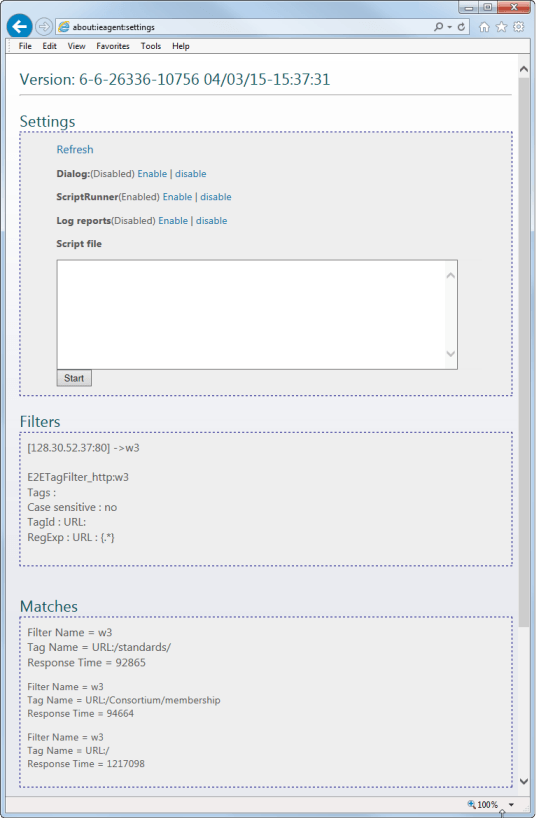
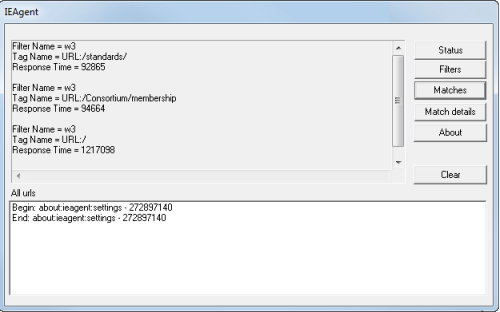
To check the matches generated by the Internet Explorer Agent you can enable the Internet Explorer Agent console window: Click the Dialog > Enable link on the about:ieagent:settings page. In the console window that appears, click the Matches button in the upper right part of the window to get a list of the tags that have been generated:
Use the agent to debug request packets
Section titled “Use the agent to debug request packets”You can make the agent log regular expression sources extracted from HTTP requests as well as any tags generated by running the transaction filter on those requests.
In order to capture the request packets you need to do two things:
- Add the line
Logging = trueto the transaction filter. - Under
HKEY_LOCAL_MACHINE\SOFTWARE\PremiTech\E2EAgent, create a string value calledTagDebugDir, and set it to the folder where you want the log files to be created.
The agent then creates a log file named <filter name>.log in that folder for each transaction filter that has logging enabled.