

Use PerformanceGuard in ServiceNow Incidents
When the PerformanceGuard Incident Management Connector is installed in ServiceNow, incidents show PerformanceGuard data about the affected computer. Service desk staff can use it to diagnose performance problems without leaving the incident.
Show PerformanceGuard data on an incident
Section titled “Show PerformanceGuard data on an incident”- In ServiceNow, open an incident or create a new one.
- In Configuration item, select the computer the incident is about.
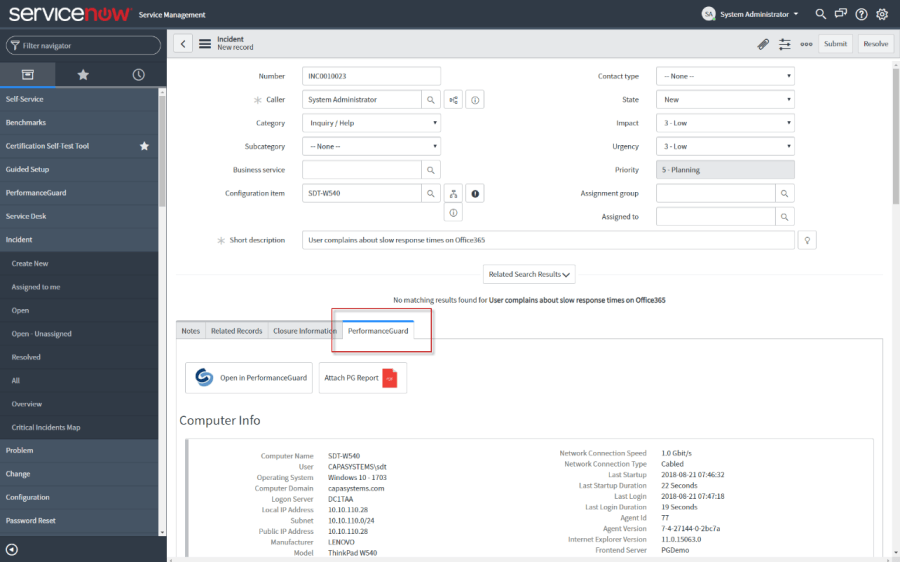
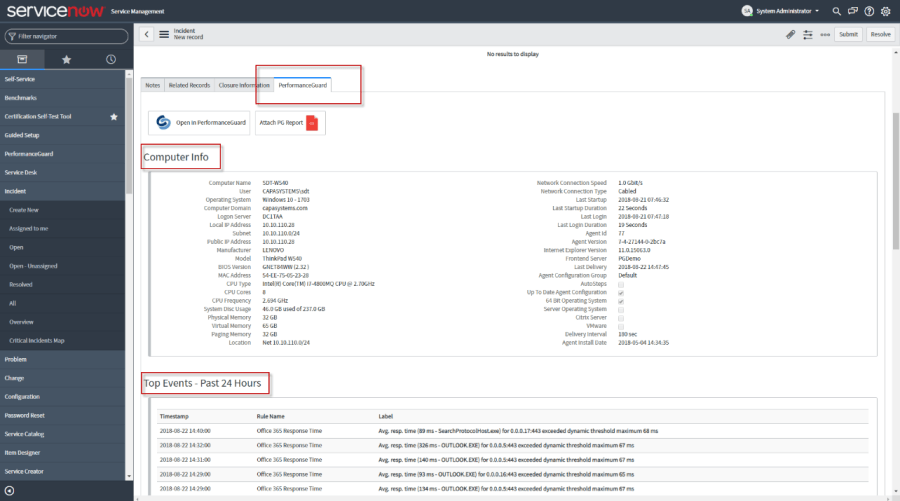
The connector looks up the computer name in PerformanceGuard. If it finds a PerformanceGuard agent with that name, a PerformanceGuard tab appears on the incident form. If it doesn’t find an agent, the tab stays hidden.
What the PerformanceGuard tab shows
Section titled “What the PerformanceGuard tab shows”| Part | What it shows |
|---|---|
| Computer Info | Details about the computer from PerformanceGuard, such as hardware, operating system, network, recent startup and login times, and agent details. If PerformanceGuard has no agent for the computer, it shows No PerformanceGuard Agent Found. |
| Top Events - Past 24 Hours | The PerformanceGuard events for the computer in the 24 hours before the incident was created. The table shows the time, the event rule name, and the event label. Select a column heading to sort by it, and select it again to reverse the order. |
| Buttons | Open in PerformanceGuard and Attach PerformanceGuard Report. See the following sections. |
For more about the event rules behind the events, see Alert Rules.
Open the computer in PerformanceGuard
Section titled “Open the computer in PerformanceGuard”- On the PerformanceGuard tab, select Open in PerformanceGuard.
- Confirm that you want to open PerformanceGuard in a new tab.
PerformanceGuard opens the dashboard that your administrator chose for the connector, showing data for the incident’s computer. You may have to sign in to PerformanceGuard first.
Attach a PerformanceGuard report
Section titled “Attach a PerformanceGuard report”-
On the PerformanceGuard tab, select Attach PerformanceGuard Report. In older versions of the connector, the button is called Attach PG Report.
The button shows Getting PDF Link… while PerformanceGuard creates a PDF of the dashboard for the computer.
-
When the button changes to Download Attached PDF, save the incident to keep the report link on it.
Anyone who opens the incident later can select Download Attached PDF to open the report as it looked when it was created.