

Computer and Neighborhood Status Widget
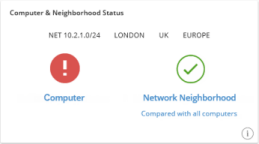
The Computer and Neighborhood Status Widget widget makes it easy to compare the performance of a selected computer with the performance of other nearby computers. If there is a performance problem, the widget helps you quickly determine if a problem is computer-specific, or if the problem affects multiple computers.
The widget looks at events that have happened on the selected computer, and compares that with events that have happened on neighboring computers. Remember what an event is? It’s a threshold violation, for example a response time that isn’t acceptable.
It’s very simple to view the overall result of the comparison: If things are OK, you’ll see a green icon  . If things are bad, you’ll see a red icon
  .
.
If you want to know which events have happened, click the widget’s Computer or Network Neighborhood links.
However, there’s something important that you need to know:
The widget displays the result of a comparison. A comparison gives you a good indication of the state of affairs, but it doesn’t necessarily tell you the full truth about performance. For example, if the selected computer has performed better than computers in its neighborhood, does that mean that the selected computer has performed perfectly?
Not necessarily, because what if all the neighboring computers have performed really bad? In that case, the selected computer could get a green icon just because it has performed better than its neighbors, not because it has performed perfectly. There could thus still be performance problems on the selected computer. Always bear that in mind.
Number of Computers in the Neighborhood
Section titled “Number of Computers in the Neighborhood”You use the neighborhood to compare the performance of a selected computer with the performance of other computers that are physically located near the selected computer.
When you or your PerformanceGuard administrator sets up the widget, you specify a minimum number of computers to compare with. If you specify 100, PerformanceGuard will look at the location of the selected computer and check if there is a minimum of 100 other computers to compare with at that location. If there is, PerformanceGuard will use all computers at the location for comparison—also if the location has 500 computers, because the 100 computers that you specified is a minimum number.
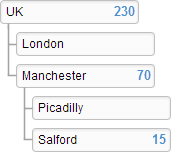
So, what if you specify 100, but there’s only, say, 15 other computers at the selected computer’s location? In such cases, PerformanceGuard will compare with all computers at the selected computer’s location plus all computers at the location level above it.
Look at the illustration:
- The selected computer is at the Salford location, but because you want to compare with a minimum of 100 other computers, the 15 computers at the Salford location aren’t enough.
- So PerformanceGuard moves one step up in the location hierarchy to the Manchester location. The Manchester location and its two sublocations have a total of 70 computers, but that’s still not enough.
- So PerformanceGuard moves one step further up in the hierarchy to the UK location. The UK location and its sublocations have a total of 230 computers, so you’ll compare the selected computer with 229 other computers.
Comparison Period
Section titled “Comparison Period”PerformanceGuard compares the performance of the selected computer with the performance of the neighboring computers during the last hour as well as the same hour from the previous working day.
More Information
Section titled “More Information”If you want to learn about events, and how to define the thresholds that determine whether something is acceptable or not, read Manage Thresholds and Events.
If you want to learn how to set up location hierarchies, read Grouping of Computers.