

Custom Counter Cleanup
Custom counter data is cleaned up automatically after the data has exceeded its retention period. See Aggregation of Data.
You can also delete individual custom counters, for example a counter that you have removed from a template and no longer want to see in lists. Deleting a counter doesn’t remove it from the custom counter template or the agent configuration group. If an agent still reports data for the counter, PerformanceGuard creates the counter again.
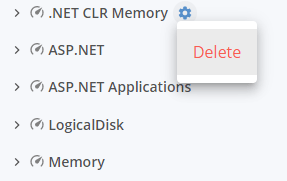
- Select Administration → Agent configuration → Custom Counter Cleanup. The page lists the custom counters that PerformanceGuard has received data for.
- To find a counter, expand the tree, or type part of the name in the search field.
- Select the menu button next to the counter, and then select Delete.
- If PerformanceGuard asks you to confirm, select Accept.
To stop agents from collecting a counter, remove it from the custom counter template. See Custom Counters.