

Install PerformanceGuard Server 8.1 or Newer
Important prerequisites
Section titled “Important prerequisites”-
A computer/server with:
- a 64-bit Microsoft Windows operating system (Software Requirements)
- Microsoft .NET Framework 4.6 or newer
- PerformanceGuard 7.5 and newer uses OpenJDK included in the installation file
- Administrative rights on the computer that you are going to perform the installation on (local administrator).
- A Microsoft SQL Server (MS SQL Server 2012 or newer, either on the same computer as PerformanceGuard or on a dedicated server).
PerformanceGuard doesn’t itself use SQL Server Enterprise features, but you may use them in case you want to exploit more memory on large installations.
-
During installation, you’ll get the option of authenticating service access to the PerformanceGuard databases through the Windows credentials of one or more existing Active Directory users. If you intend to use that option, make sure that the relevant user accounts have been set up in Active Directory.
-
During installation you’ll specify the user accounts that will run the various components of PerformanceGuard. If you are going to use Windows authentication (see the previous item), the user accounts must have:
- Full access to the folder in which you’ll install the component in question
- Full access to the Windows registry on the computer in question
-
Download the PerformanceGuard server installer,
PerformanceGuardServer.exe. The Changelog has download links for the current release.
A new installation
Section titled “A new installation”Step 1: Run the installer PerformanceGuardServer.exe
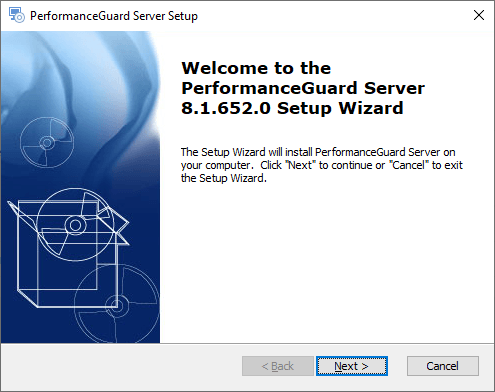
Section titled “Step 1: Run the installer PerformanceGuardServer.exe”Run PerformanceGuardServer.exe as an administrator and follow the wizard.
Step 2: Accept the end-user license agreement
Section titled “Step 2: Accept the end-user license agreement”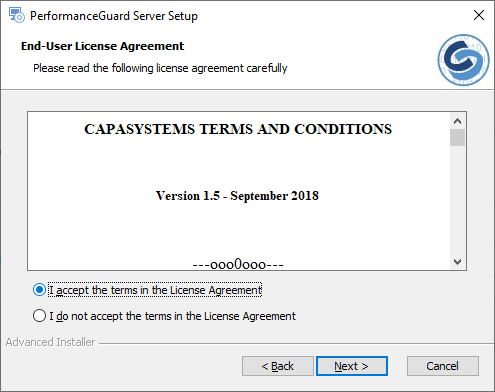
Step 3: Select the components to install
Section titled “Step 3: Select the components to install”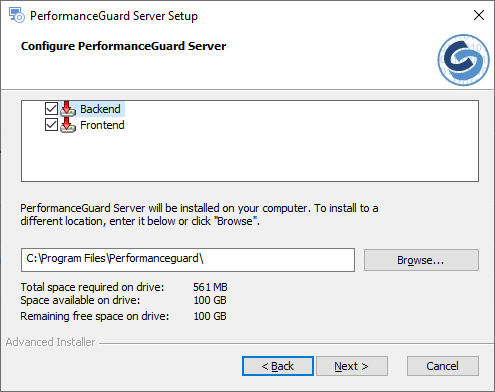
Select the component you want to install:
-
Backend
- Contains the backend data aggregation service and the Display services (The GUI)
-
Frontend
- Contain the frontend service that agents connect to
Then select the location at which you want to install PerformanceGuard. The default is C:\Program Files\Performanceguard.
Step 4: Create a backend database
Section titled “Step 4: Create a backend database”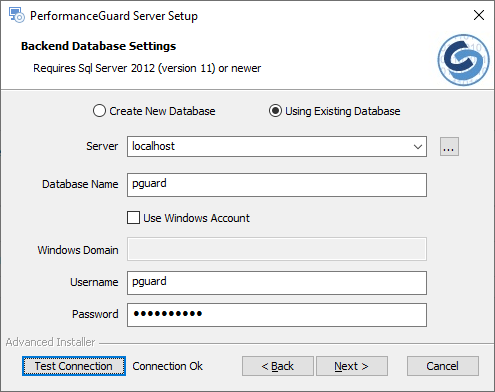
- Create New Database or Using Existing Database: For a new installation, select Create New Database. Using Existing Database is for an existing PerformanceGuard database, for example when you upgrade.
- Server: Which server should run the Backend server database? If the SQL Server that you want to use exists on the computer that you are installing the Backend server on, simply use the localhost default setting. If you have another SQL Server on your network; and want to install the Backend server’s database on that server, click the browse button next to the field and select the required SQL Server.
-
Database Name: The name of the Backend server database. The name is typically pguard, but you can change that if required.
-
Use Windows Account enable if you want to use a Windows Active Directory User
-
Windows domain (only relevant if you selected Windows Account): Specify the domain that the Active Directory user belongs to.
-
Username: To communicate with the Backend database, PerformanceGuard needs access to the database with a user account.
- If using SQL Server authentication the name of that user account is typically pguard, but you can change the name if required.
- If you use Windows authentication, you must specify the user name of an existing Active Directory user.
-
Password: Specify the password that PerformanceGuard should use when it accesses the Backend server database with the user account that you specified previously.
- If you use SQL Server authentication, the password must follow the password policy for the SQL Server that you use.
- If using Windows authentication specifies the password of the Active Directory user.
Step 5: Backend SQL Server instance
Section titled “Step 5: Backend SQL Server instance”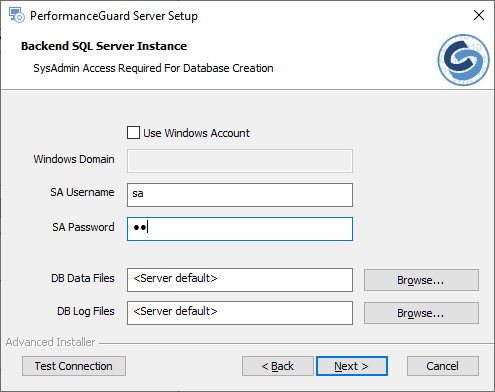
Determines whether you want to let the PerformanceGuard installer create the Backend server database for you automatically (recommended). If you select this option, you must provide system administrator credentials for the selected SQL Server in the following fields.
This must be a different user than the backend database user that you specified previously.
-
If using SQL Server authentication, the name of that account is normally sa, but you can change the name if required.
-
If using Windows authentication, you must specify the user name of an existing Active Directory user that has system administrator rights on the SQL Server.
-
Use Windows Account enable if you want to use a Windows Active Directory User
-
Windows domain (only relevant if you selected Windows Account): Specify the domain that the Active Directory user belongs to.
-
SA Username: Specify the user name of the SQL Server’s system administrator account..
-
SA Password: Specify the password of the SQL Server’s system administrator account.
Use the Test Connection button to verify that the connection to the database works.
- DB Data Files Directory Path to store the new Data Files
- DB Log Files Directory Path to store the new Log Files
By default, Backend server database files will be placed at the SQL Server’s default location for new databases (<Server default>). That’s usually fine, but occasionally it may not be the best choice; for example, if you expect to collect a lot of data, but there isn’t much available disk space at the default location. That’s why you are able to specify your own paths for data files as well as log files.
Step 6: Backend properties
Section titled “Step 6: Backend properties”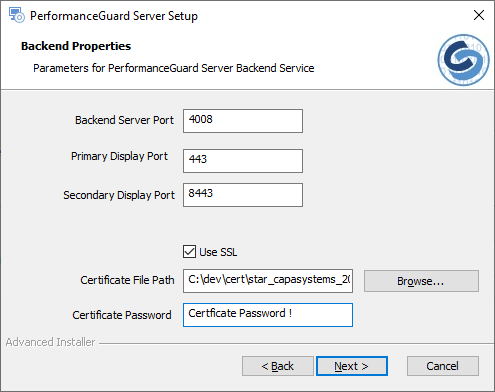
- Backend Server Port: On which TCP port should the Backend server deliver data? We recommend that you use port 4008 unless your organization’s firewall administrator has told you to use another port.
- Primary Display Port and Secondary Display Port: PerformanceGuard has a web server service that runs the PerformanceGuard web interface. The web server needs to use two TCP ports. Make sure that no other applications use those ports.
- Use SSL: Enable HTTPS. When you select it, the installer changes the display ports to 443 and 8443. Then specify the Certificate File Path (the path to the certificate file on the local computer) and the Certificate Password.
- Backend Server Hostname: The hostname of the backend server. Don’t use localhost.
Step 7: Create a frontend database
Section titled “Step 7: Create a frontend database”Same as step 4, but for the frontend database. The default database name and user name are pguardfe.
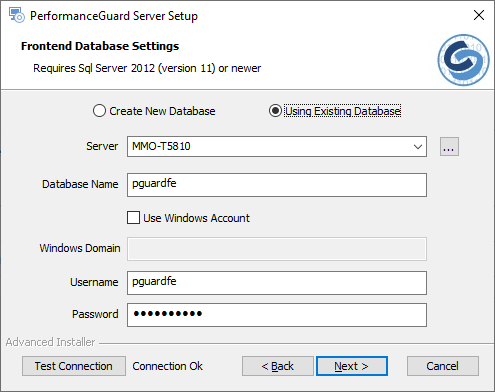
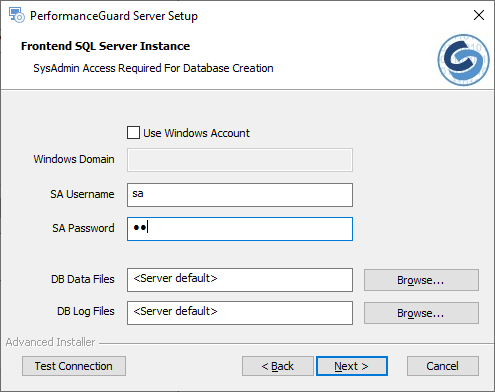
Step 8: Frontend SQL Server instance
Section titled “Step 8: Frontend SQL Server instance”Same as step 5, but for the frontend database.
Step 9: Frontend properties
Section titled “Step 9: Frontend properties”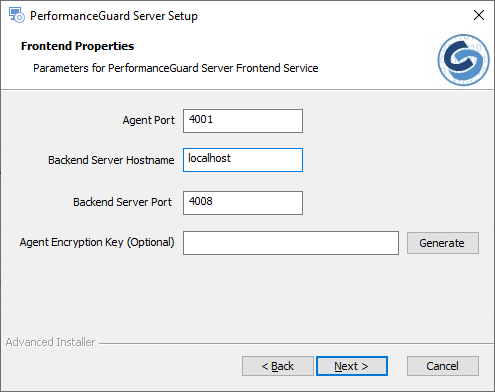
- Agent Port: On which TCP port should the Frontend server listen for data from agents? We recommend that you use port 4001 unless your organization’s firewall administrator has told you to use another port.
- Backend Server Hostname: Your Frontend server is going to communicate with the PerformanceGuard Backend server regularly. That is why you must specify where the Frontend server will be able to find the Backend server. If you are installing everything on the same computer, simply use the localhost default setting. If the Backend server is going to be installed on another computer, specify the hostname or IP address of that computer.
- Backend Server Port: On which TCP port should the Backend server deliver data? We recommend that you use port 4008 unless your organization’s firewall administrator has told you to use another port. (Same as Step 6 check this value if installing multiple Frontends)
- Agent Encryption Key (Optional): The AES key ensures secure communication between the agents and the frontend server, see Custom encryption. We recommend that you specify a key, otherwise the communication is less secure. Enter the key that you use for your agents, or select Generate to create a key.
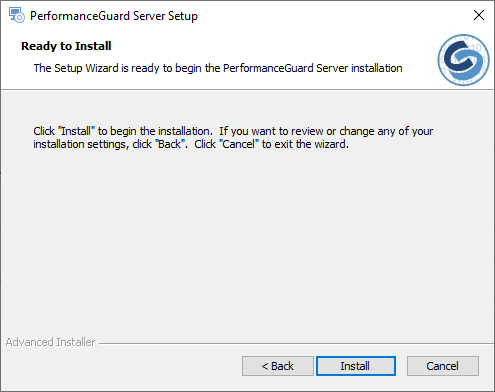
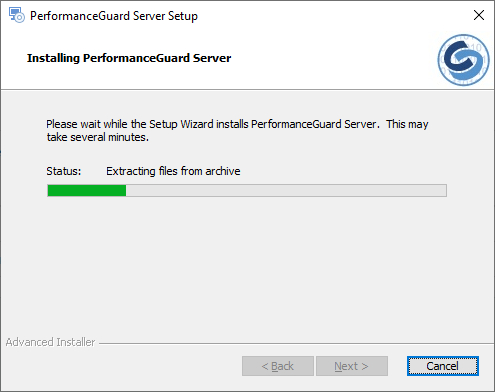
Step 10: Install
Section titled “Step 10: Install”Click Install.
Step 11: Finish
Section titled “Step 11: Finish”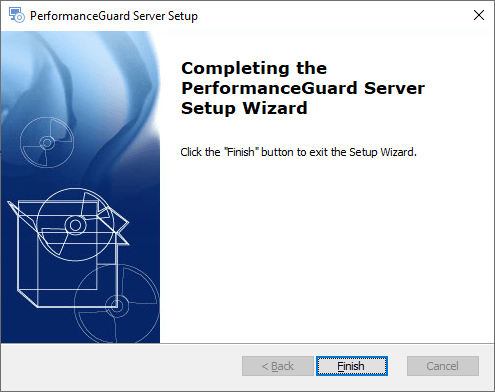
The installation is done, and these services are running: PerformanceGuard Backend Server, PerformanceGuard Web Server and PerformanceGuard Web Server 2 (backend component), and PerformanceGuard Frontend Server (frontend component). The installer saves your settings in Settings.ini in the installation folder, see Server Settings Ini. Next, Install PerformanceGuard License.
Installation troubleshooting
Section titled “Installation troubleshooting”If something goes wrong during your installation, you’ll see an error message. The error message will typically tell you that:
- the setup wizard ended prematurely, and
- that your system has not been modified
The latter is not always true. Your system may, in fact have been modified, even if the error message tells you that it hasn’t. Sometimes the entire PerformanceGuard system, including databases, may in fact have been installed, but if just a single of the PerformanceGuard services doesn’t start after the installation has finished, the error message will appear.
You are therefore often able to solve the problem yourself.
What you should do
Section titled “What you should do”If something goes wrong during your installation, you should first ask yourself if you have met all of the prerequisites (see the beginning of this topic). For example, do you have administrative rights, and does the computer have the required .NET Framework version?
Next, you should check your installation log:
- Open your installation log. To create one, run the installer from the command line with a log parameter, see Server Installer Command Line Parameters.
- Search the log for occurrences of return value 3.
- Read the contents of the log file before occurrences of return value 3 to determine which actions failed during the installation.
In this example, a search for return value 3 revealed that there were problems with the user account specified for the PerformanceGuard Backend server database:
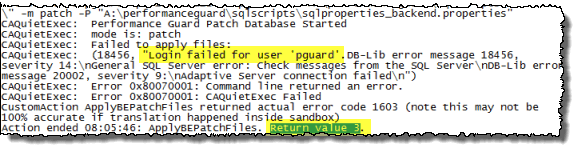
Going through the installation log, as described, will nearly always reveal what went wrong. In many cases, you can solve the problem yourself. For instance, the problem identified in the example was solved simply by specifying the Backend server database’s correct password.
If you need help from PerformanceGuard support, you can find information about your support options on the CapaSystems website, http://www.capasystems.com/.