

Restore Database
PerformanceGuard uses Microsoft SQL Server databases. For the SQL Server versions that your PerformanceGuard version supports, see Software Requirements.
-
Stop all PerformanceGuard services.
-
Open Microsoft SQL Server Management Studio and connect to the required database server.
-
In Microsoft SQL Server Management Studio’s Object Explorer, locate the pguard database.
-
Right-click pguard and select Tasks > Restore > Database.
-
Microsoft SQL Server Management Studio will typically remember your backed-up version of the PerformanceGuard database. When that’s the case, select pguard in the From database menu:
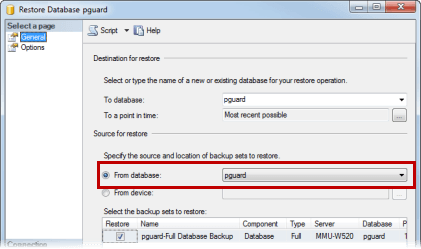
If you can’t select pguard this way, select From device and click the browse button next to the field. Then click the Add button and locate your pguard.bak backup file at the location that you noted down when you backed up the database. When ready, click OK twice to return to the Restore Database dialog.
-
Microsoft SQL Server Management Studio is now ready to restore your database and leave it ready to use by rolling back any uncommitted transactions. If you want to adjust the restore and recovery options, select the Restore Database dialog’s Options page and make the changes that you require.
When ready, click Next.
The database will now be restored, and you’ll be able to view the progress. When the restoration is finished, you’ll see a confirmation message.
-
In Microsoft SQL Server Management Studio, right-click the pguard database and select Properties to verify that the restored database matches your expectations, especially with regards to file size limits.
When satisfied, click OK.
-
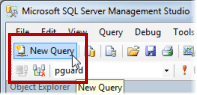
In Microsoft SQL Server Management Studio’s toolbar, click New Query:
-
Enter the following in the new query window (the white area in the middle of the Microsoft SQL Server Management Studio window). Remember to replace ‘password’ with the actual required password for your database.
USE PGUARDIF NOT EXISTS(SELECT * FROM master.dbo.syslogins where loginname = N'pguard')BEGINCREATE LOGIN pguard WITH PASSWORD = 'password', DEFAULT_DATABASE = pguardCREATE USER pguard FOR LOGIN pguard WITH DEFAULT_SCHEMA = pguardALTER ROLE db_owner ADD MEMBER pguardENDELSEBEGINALTER LOGIN pguard WITH DEFAULT_DATABASE = pguardALTER USER pguard WITH DEFAULT_SCHEMA = pguardENDWhen ready, click the Execute button:

-
Start all PerformanceGuard services again.